
Guides/Printing & delivery
How to Plot Many AutoCAD Drawings to PDF at Once — PLOT, PUBLISH and Dwg2Pdf Compared
 Made with Dwg2Pdf
Updated October 3, 2026
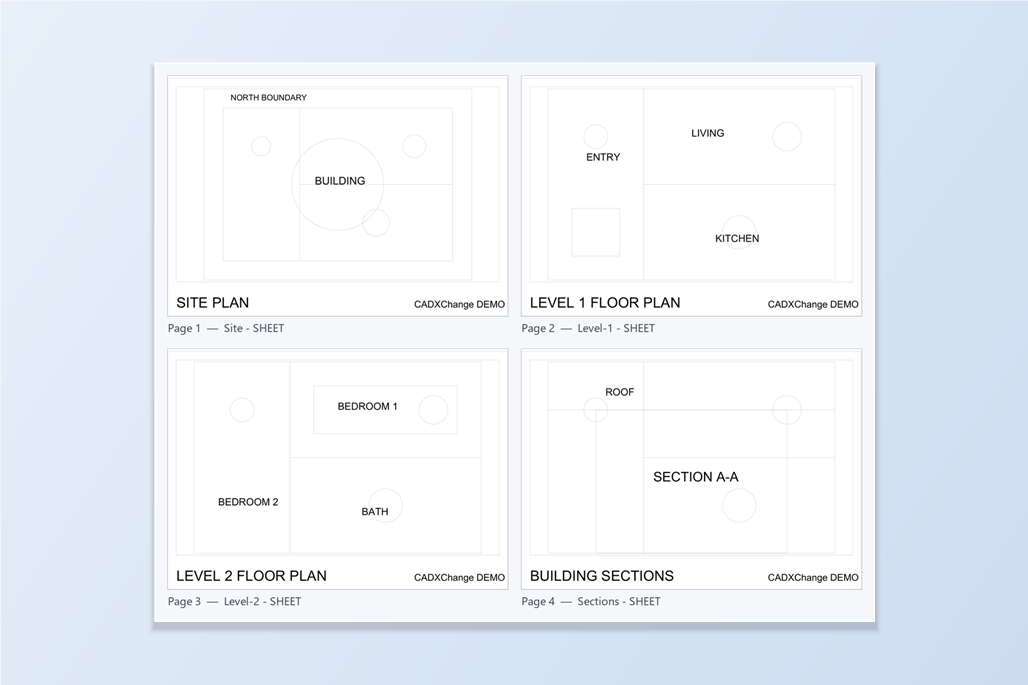
Plotting one layout to PDF is easy: Ctrl+P, pick a PDF plotter, pick a paper size, click OK. Plotting two hundred layouts spread over sixty drawings is a different job, and many people never find the command built for it.
This guide covers the three routes in the order most people meet them: PLOT, PUBLISH and Dwg2Pdf. It says what PUBLISH does well, because it does a lot, and then where a batch tends to get slow: setup, page order, bookmarks and the data inside blocks. If you only need to plot a handful of drawings that are already set up, PUBLISH may be all you need.
1. PLOT (Ctrl+P): one layout at a time
PLOT works on the drawing that is open. You choose the plotter (a PDF plotter such as DWG To PDF), the paper size, the plot area, the scale and the plot style table, then plot that one layout. Done for each layout in each drawing, it is slow and the settings drift from one drawing to the next.
That is the route most people know, and it is fine for a single sheet. It is the reason to look for something else once the number of layouts grows.
2. PUBLISH: AutoCAD's built-in way to plot many
PUBLISH builds a sheet list from the layouts of the drawings you give it, either the open drawings loaded automatically or drawings you add. Autodesk's documentation lists what you can do with that list: reorder sheets with Move Sheet Up and Move Sheet Down, remove the ones you don't want, rename them, save the list as a DSD file and reload it later, and choose a page setup for each sheet.
Under Publish to, you can send the sheets to the plotter named in each page setup, or to PDF. The output can be one multi-sheet PDF or separate single-sheet PDFs. The PDF Options dialog adds checkboxes for vector and raster quality, layer information, hyperlinks, bookmarks and embedding TrueType fonts.
For a small set that is already set up consistently, this is a solid tool.
3. Where a large batch gets slow with PUBLISH
Page setups. Each sheet is plotted with the page setup it has, and you set or override it in the Page Setup column. With a few sheets that is quick. With hundreds, it means going down the list and assigning a page setup row after row, and a sheet whose page setup has a problem is flagged in the Status column and has to be fixed before it will publish cleanly. If the drawings were set up by different people, sheets can also come out with different paper sizes and plot styles. Publish to also has to be set to PDF, because it can default to the plotter named in the page setup.
Model and layout rows. The sheet list contains the Model tab and the layouts of each drawing, so the rows for Model and for the layouts alternate down the list. If you only want the layouts, you have to keep Model out. There is an Include Model When Adding Sheets setting in the shortcut menu that controls whether Model is added; rows that are already in the list are removed by selecting them and clicking Remove Sheets. That setting applies to the sheets you add while it is on, so a set that mixes both kinds, with the cover and index sheets plotted from Model and the body sheets from layouts, means adding the drawings in two rounds with the setting switched in between, and keeping track of which drawings went in which round.
Page order and a changing set. Reordering uses the Move Sheet Up and Move Sheet Down buttons, so an issue order that doesn't match the file names means moving rows by hand. A saved DSD file records a fixed list of drawings and layouts. When the set grows from ten sheets to fifteen the following week, or when each person on a team looks after only part of the project, a saved list has to be updated and passed around again, so in practice the list often gets rebuilt each time instead.
A long list in a dialog. With hundreds of sheets, checking the result means scrolling through the list in the Publish dialog.
Bookmarks. Create bookmarks is a single checkbox in PDF Options. There is no field there for the bookmark text.
Block data. The PDF Options list has no setting to put block attribute values into the PDF. A tag, a manufacturer or a part number typed into a block's attributes is drawn as ordinary text on the sheet and nothing more.
File names and merging. The documented choices are one multi-sheet file or single-sheet files. Naming each PDF from a drawing's own properties, such as its drawing number and revision, is not something the dialog offers.
4. Dwg2Pdf: pick the layouts, set the rules once, plot
Open Dwg2Pdf, click Add Files… or Add Folder…, and it scans every layout of every drawing and lists them all with a thumbnail. You don't open the drawings one by one, and you don't build a sheet list.
Tick the layouts you want. The Paper and Model switches include or exclude whole spaces, and Check All and Uncheck All handle the rest. Sort by file or Sort by layout puts the whole list in natural order in one click (A-2 before A-10); then reorder the exceptions with Top, Up, Down and Bottom or by dragging a row. The order of the list is the page order of the PDF.
A set that mixes both kinds takes two passes. Clear every tick, filter to the cover and index drawings with the space dropdown set to Model, and click Check All; then filter to the body drawings with the dropdown set to Paper, and click Check All again. Check All only touches the rows the filter shows, so the two groups never interfere.
Choose how the output is merged: all layouts of all files into one PDF, one PDF per drawing with its layouts as pages, or one PDF per layout. Name the files with a template, for example {Prop:DWG_NO}_{Prop:REV}, which pulls the drawing number and revision from each drawing's properties.
Set the paper size, rotation and scale-to-fit once for the whole batch, and pick a color policy: as-is, black and white, grayscale, or a CTB. Each layout also gets a bookmark in the PDF, and the bookmark title is shown in its row so you can edit it before plotting. Turn on Add block attributes as PDF annotations if you want attribute values to be selectable and searchable in the PDF. Then click Plot.
5. Which one should you use?
A handful of drawings that are already set up, or a stable set whose sheet list rarely changes: PUBLISH. It is built into AutoCAD and needs nothing extra.
Many drawings that were set up differently, a page order that follows the issue set rather than the file names, PDF names or bookmarks built from drawing data, or searchable block attributes in the PDF: Dwg2Pdf.
One limit to know about: Dwg2Pdf's paper size choices are A4, A3, A2 and A1. If you plot to other sizes, PUBLISH with the right page setups is the better fit. Dwg2Pdf needs a licensed, full version of AutoCAD on Windows; AutoCAD LT is not supported. The Free tier handles up to 10 drawings per run.
The question to ask is not which tool is better in general, but how many drawings you have, how consistent their page setups are, and what the PDF has to contain besides the lines.
For merging layouts from several drawings into one PDF in the order you choose, see the guide on batch plotting multiple drawings to one PDF. For attribute data inside the PDF, see the guide on searchable PDF annotations. The full list of settings is in the Dwg2Pdf docs.
Before you start — common questions
- Can AutoCAD plot multiple drawings to PDF at once?
- Yes. The PUBLISH command builds a sheet list from the layouts of several drawings and publishes it to PDF as one multi-sheet file or as separate files. PLOT, which Ctrl+P runs, handles only the drawing that is open.
- Why do my sheets come out in different paper sizes with PUBLISH?
- Each sheet is plotted with its own page setup unless you override it in the Page Setup column. Drawings that were set up differently produce differently sized sheets until the page setups are checked or replaced, and a sheet with a problem shows an error in the Status column.
- Can I choose the bookmark text in a PDF published from AutoCAD?
- PUBLISH offers a Create bookmarks checkbox in PDF Options but no field for the bookmark text. In Dwg2Pdf each layout row shows an editable bookmark title, which defaults to the file name and layout name.
- Can block attribute values be searchable in the PDF?
- PUBLISH has no option for that. Dwg2Pdf has an Add block attributes as PDF annotations option that stamps each block's attribute values into the PDF as selectable annotations.
- Do I need to set up page setups and a plotter in Dwg2Pdf?
- No. You choose the paper size, rotation, scale-to-fit and color policy once for the batch, so drawings that weren't all set up the same way still come out consistently. The paper choices are A4, A3, A2 and A1.