
Free weather chart symbols for AutoCAD (DWG): present weather, clouds, pressure tendency and wind barbs
Weather chart symbols: 176 ready-made AutoCAD blocks (DWG), free to download and use in your own projects, as a ZIP or one symbol at a time.
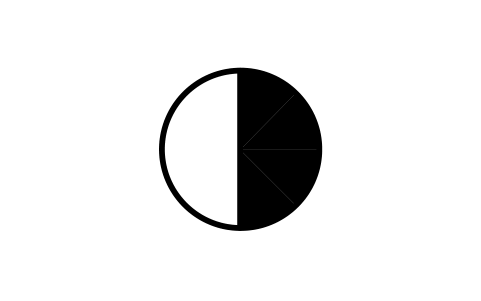
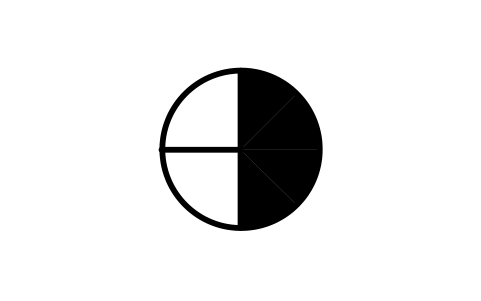
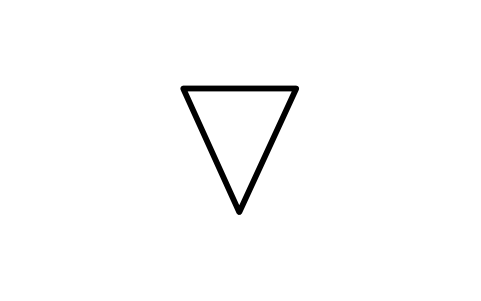
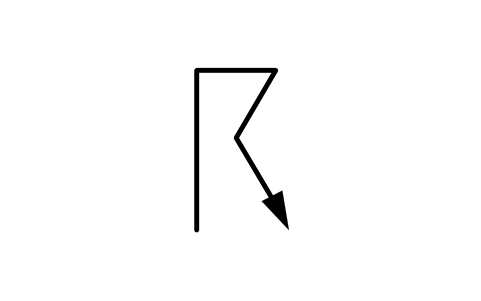
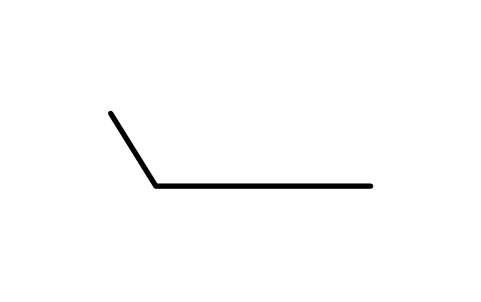
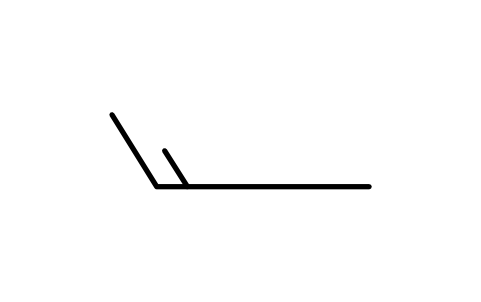
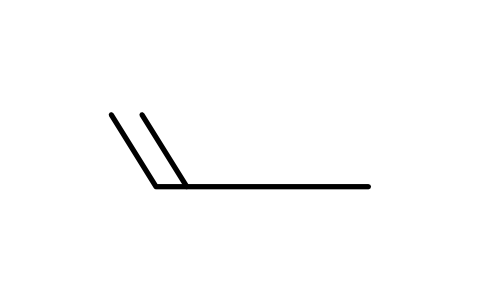
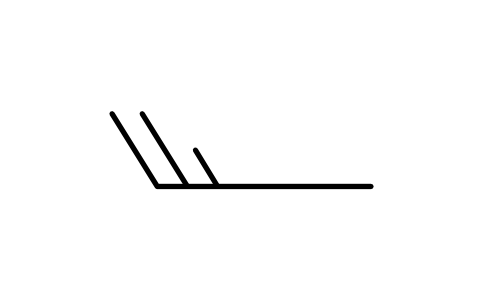
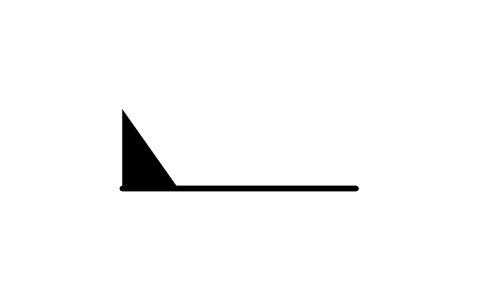
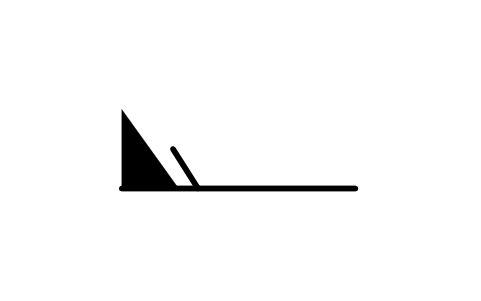
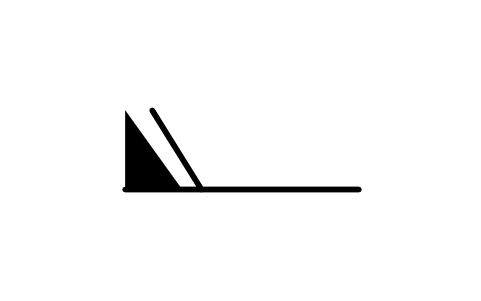
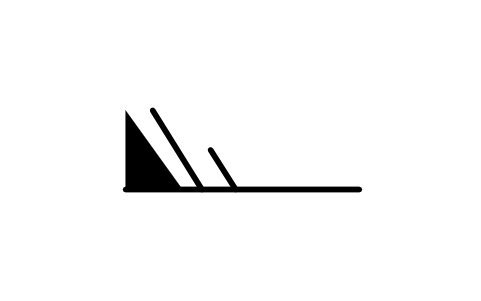
176 weather chart symbols at plotted size, 1 drawing unit = 1 mm, for synoptic charts, station models and teaching material: the 100 present weather symbols of the code table (ww 00 to 99: sky and haze, dust and sand, mist and fog, lightning and thunder, squalls and funnel clouds, events of the past hour, dust storms and drifting snow, fog and its trend, drizzle, rain, freezing precipitation, snow, ice needles, snow grains, ice pellets, showers and thunderstorms); the cloud types CL, CM and CH (nine each); the sky cover circles N 0 to 9; the past weather marks W 3 to 9; the nine pressure tendency traces; and the wind barbs from calm to 107 knots, with half barbs, full barbs and pennants. Each block carries its code and the wording of the code table.
Version 1.0 · updated October 22, 2026 · Check out what's changed
Using AutoCAD 2017 or an earlier version? Download the 2010 format
Free to use and modify in your own projects, including commercial ones. The ZIP holds one plain DWG file in AutoCAD 2018 format and a README; no add-in needed. Provided as is, without warranty.
Related symbol libraries

Works well with these tools
 Putting these symbols into 30 drawings?Replace a changed symbol in every drawing in one run, without opening each file.See BlockCopy
 Need to count these symbols across your drawings?Export every symbol and its attributes from a whole drawing set to Excel, edit the rows and write them back.See BlockSync
 Which drawings use this symbol?Search blocks and text across hundreds of drawings at once, then jump straight to the match.See DwgSearch
All 176 symbols
176 of 176 symbols

00 No cloud development
WXS_WW00_NO_CLOUD_DEVELOPMENTAttributes
CODEMEANINGREMARKSDESC
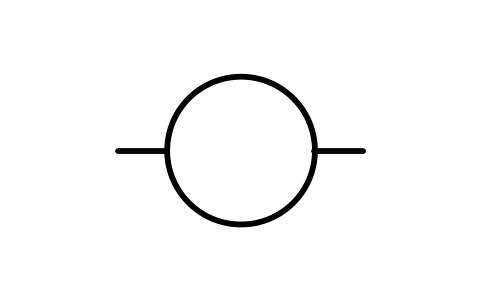
02 Sky state unchanged
WXS_WW02_SKY_STATE_UNCHANGEDAttributes
CODEMEANINGREMARKSDESC
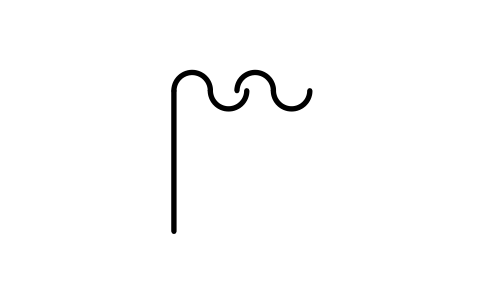
04 Smoke reduces visibility
WXS_WW04_SMOKE_REDUCES_VISIBILITYAttributes
CODEMEANINGREMARKSDESC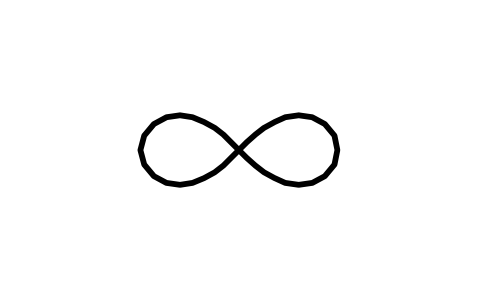
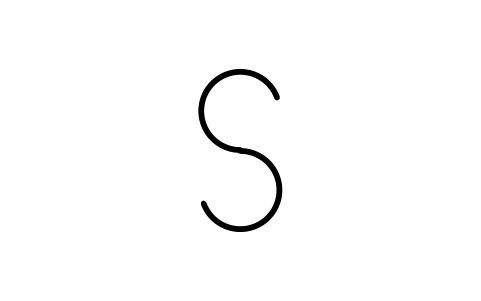
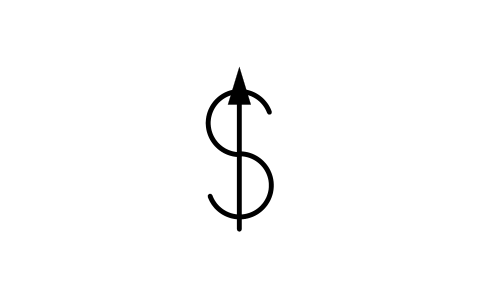
07 Dust or sand raised by wind
WXS_WW07_DUST_OR_SAND_RAISED_BY_WINDAttributes
CODEMEANINGREMARKSDESC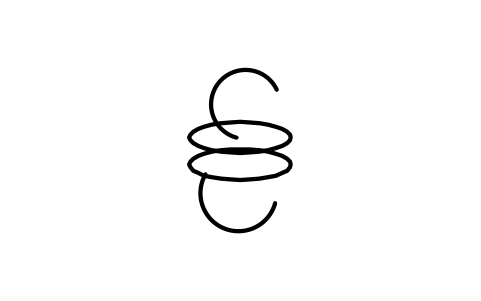
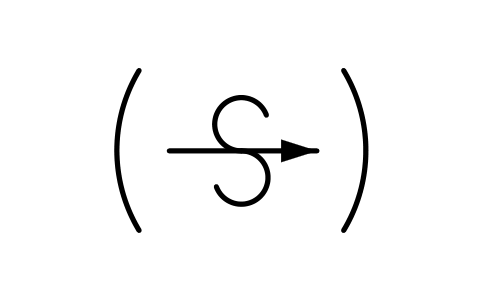
09 Dust or sand storm in sight
WXS_WW09_DUST_OR_SAND_STORM_IN_SIGHTAttributes
CODEMEANINGREMARKSDESC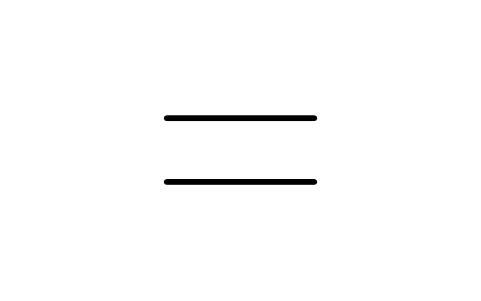
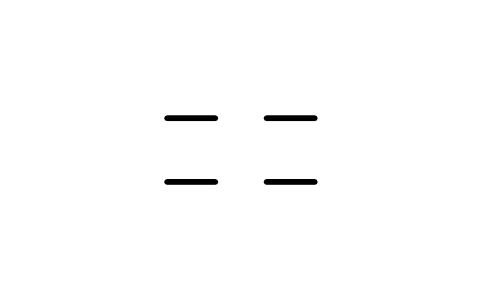
11 Shallow fog patches
WXS_WW11_SHALLOW_FOG_PATCHESAttributes
CODEMEANINGREMARKSDESC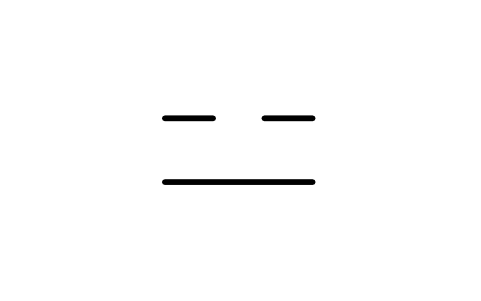
12 Shallow fog, continuous
WXS_WW12_SHALLOW_FOG_CONTINUOUSAttributes
CODEMEANINGREMARKSDESC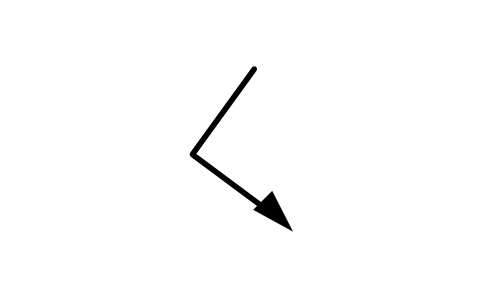
13 Lightning, no thunder
WXS_WW13_LIGHTNING_NO_THUNDERAttributes
CODEMEANINGREMARKSDESC
14 Precip. not reaching ground
WXS_WW14_PRECIP_NOT_REACHING_GROUNDAttributes
CODEMEANINGREMARKSDESC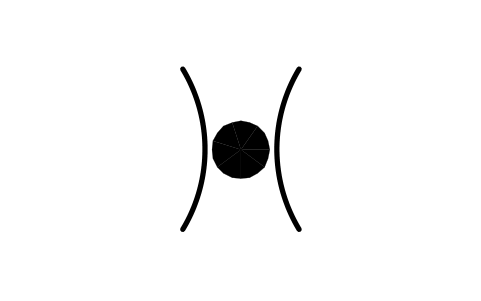
15 Distant precipitation
WXS_WW15_DISTANT_PRECIPITATIONAttributes
CODEMEANINGREMARKSDESC
16 Precipitation near station
WXS_WW16_PRECIPITATION_NEAR_STATIONAttributes
CODEMEANINGREMARKSDESC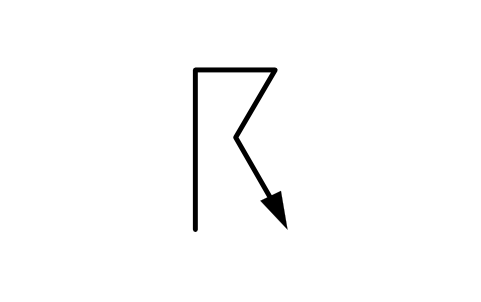
17 Thunder, no precipitation
WXS_WW17_THUNDER_NO_PRECIPITATIONAttributes
CODEMEANINGREMARKSDESC
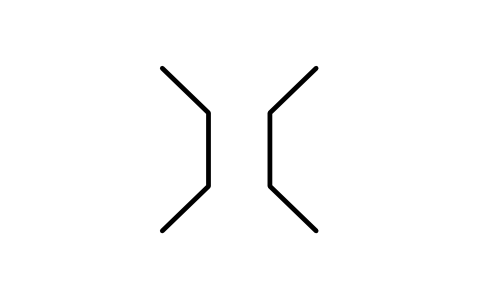
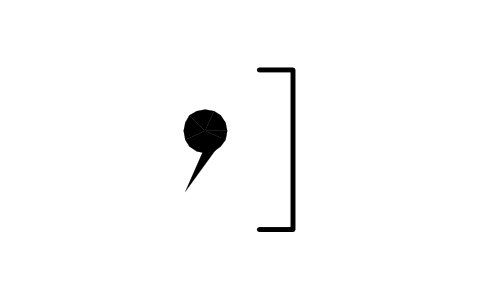
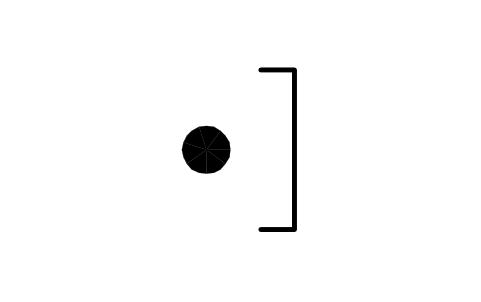
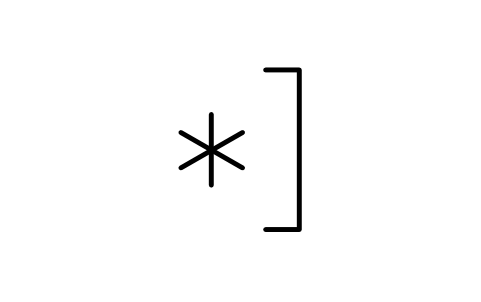

23 Rain and snow, past hour
WXS_WW23_RAIN_AND_SNOW_PAST_HOURAttributes
CODEMEANINGREMARKSDESC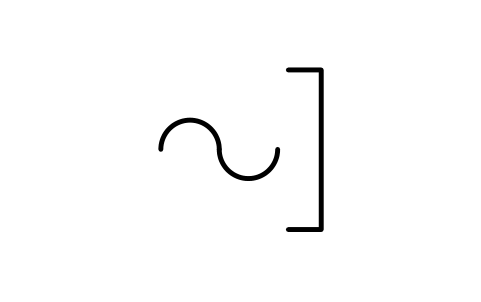
24 Freezing rain, past hour
WXS_WW24_FREEZING_RAIN_PAST_HOURAttributes
CODEMEANINGREMARKSDESC
25 Rain showers, past hour
WXS_WW25_RAIN_SHOWERS_PAST_HOURAttributes
CODEMEANINGREMARKSDESC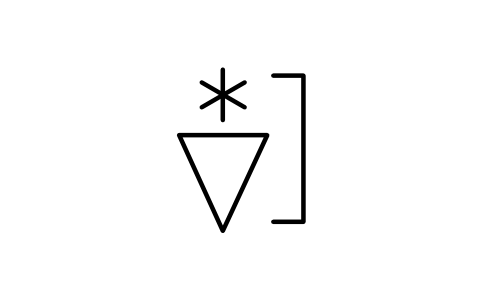
26 Snow showers, past hour
WXS_WW26_SNOW_SHOWERS_PAST_HOURAttributes
CODEMEANINGREMARKSDESC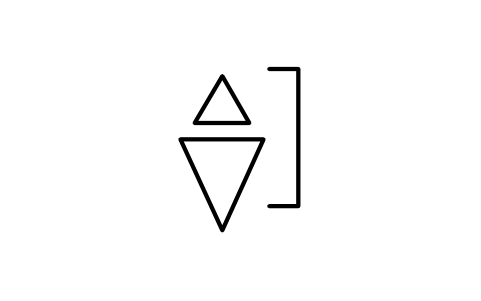
27 Hail showers, past hour
WXS_WW27_HAIL_SHOWERS_PAST_HOURAttributes
CODEMEANINGREMARKSDESC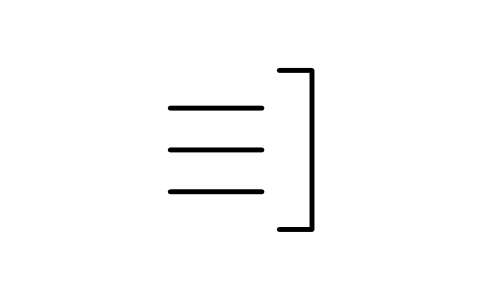
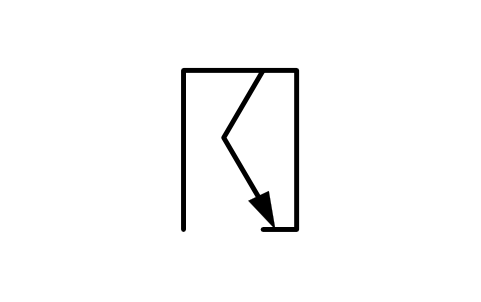
29 Thunderstorm, past hour
WXS_WW29_THUNDERSTORM_PAST_HOURAttributes
CODEMEANINGREMARKSDESC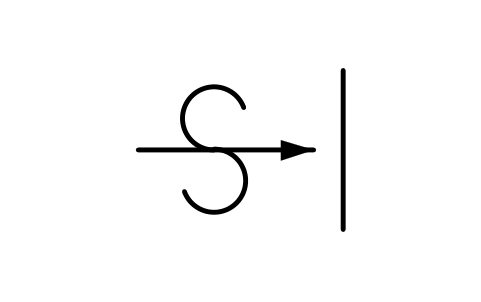
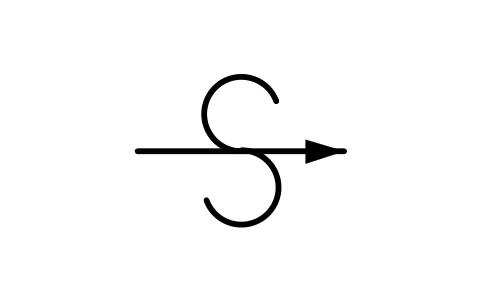
31 Dust storm, no change
WXS_WW31_DUST_STORM_NO_CHANGEAttributes
CODEMEANINGREMARKSDESC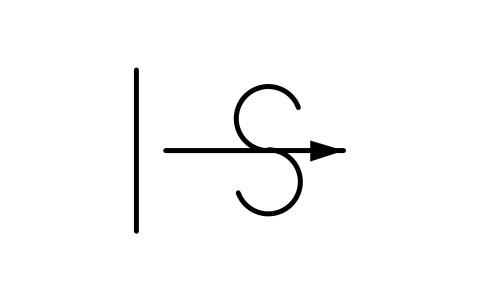
32 Dust storm increasing
WXS_WW32_DUST_STORM_INCREASINGAttributes
CODEMEANINGREMARKSDESC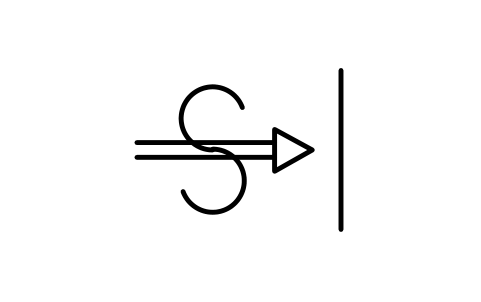
33 Severe dust storm, easing
WXS_WW33_SEVERE_DUST_STORM_EASINGAttributes
CODEMEANINGREMARKSDESC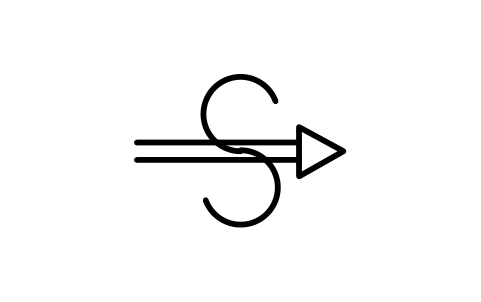
34 Severe dust storm, steady
WXS_WW34_SEVERE_DUST_STORM_STEADYAttributes
CODEMEANINGREMARKSDESC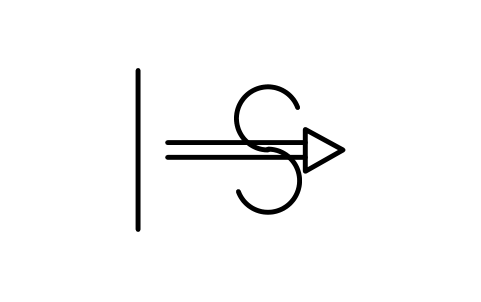
35 Severe dust storm, rising
WXS_WW35_SEVERE_DUST_STORM_RISINGAttributes
CODEMEANINGREMARKSDESC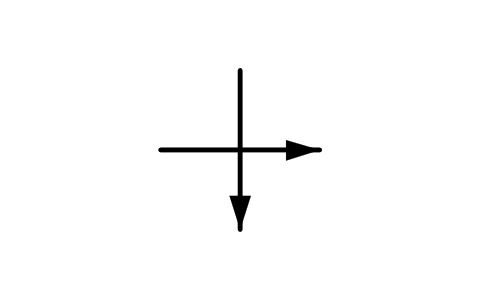
36 Low drifting snow, slight
WXS_WW36_LOW_DRIFTING_SNOW_SLIGHTAttributes
CODEMEANINGREMARKSDESC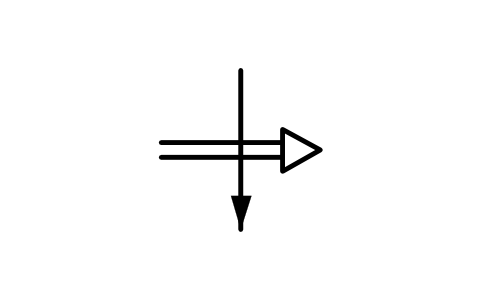
37 Low drifting snow, heavy
WXS_WW37_LOW_DRIFTING_SNOW_HEAVYAttributes
CODEMEANINGREMARKSDESC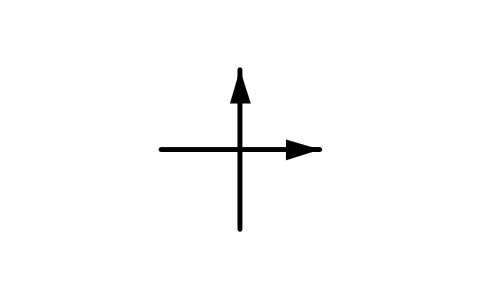
38 High drifting snow, slight
WXS_WW38_HIGH_DRIFTING_SNOW_SLIGHTAttributes
CODEMEANINGREMARKSDESC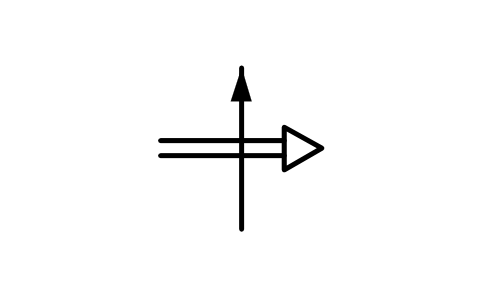
39 High drifting snow, heavy
WXS_WW39_HIGH_DRIFTING_SNOW_HEAVYAttributes
CODEMEANINGREMARKSDESC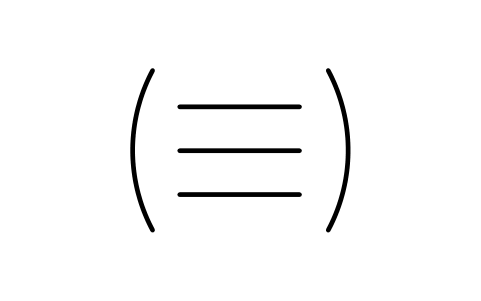
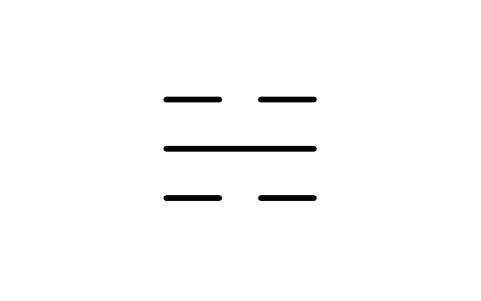
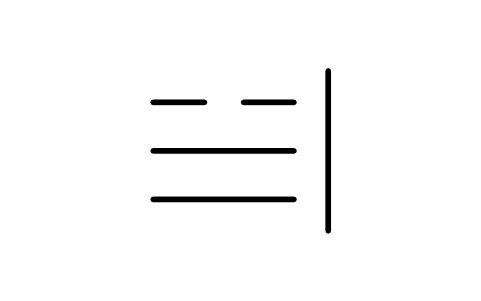
42 Fog thinning, sky seen
WXS_WW42_FOG_THINNING_SKY_SEENAttributes
CODEMEANINGREMARKSDESC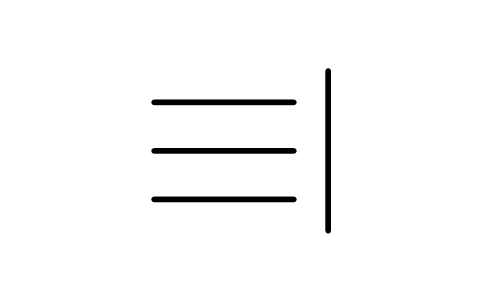
43 Fog thinning, sky hidden
WXS_WW43_FOG_THINNING_SKY_HIDDENAttributes
CODEMEANINGREMARKSDESC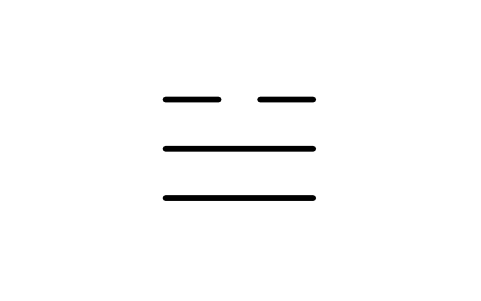
44 Fog steady, sky seen
WXS_WW44_FOG_STEADY_SKY_SEENAttributes
CODEMEANINGREMARKSDESC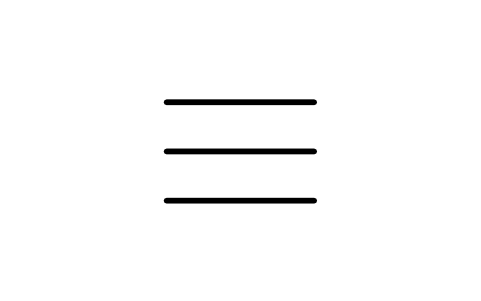
45 Fog steady, sky hidden
WXS_WW45_FOG_STEADY_SKY_HIDDENAttributes
CODEMEANINGREMARKSDESC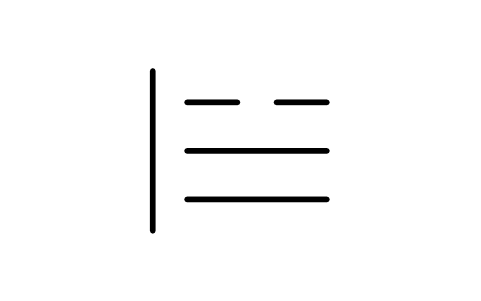
46 Fog thicker, sky seen
WXS_WW46_FOG_THICKER_SKY_SEENAttributes
CODEMEANINGREMARKSDESC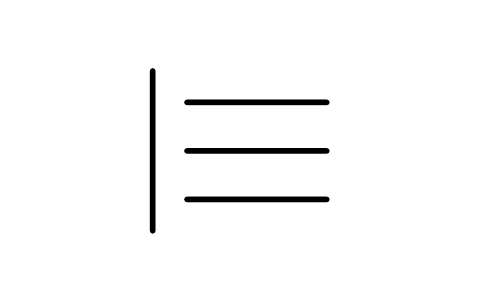
47 Fog thicker, sky hidden
WXS_WW47_FOG_THICKER_SKY_HIDDENAttributes
CODEMEANINGREMARKSDESC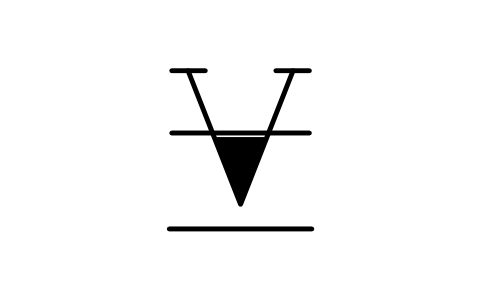
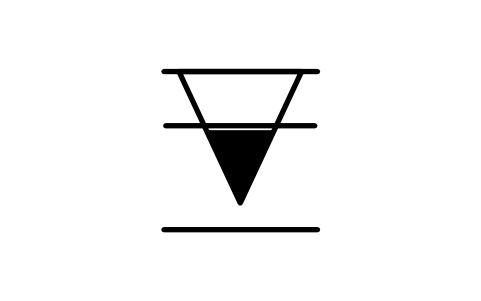
49 Rime fog, sky hidden
WXS_WW49_RIME_FOG_SKY_HIDDENAttributes
CODEMEANINGREMARKSDESC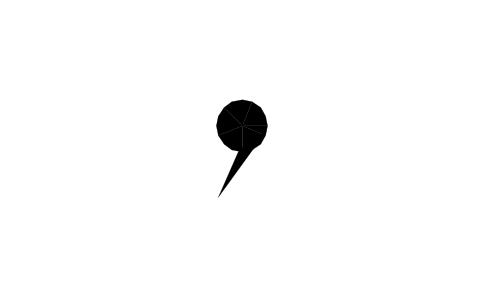
50 Drizzle, interm., slight
WXS_WW50_DRIZZLE_INTERM_SLIGHTAttributes
CODEMEANINGREMARKSDESC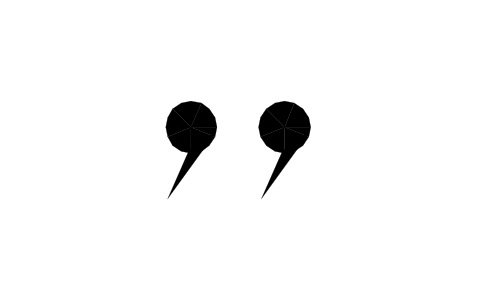
51 Drizzle, cont., slight
WXS_WW51_DRIZZLE_CONT_SLIGHTAttributes
CODEMEANINGREMARKSDESC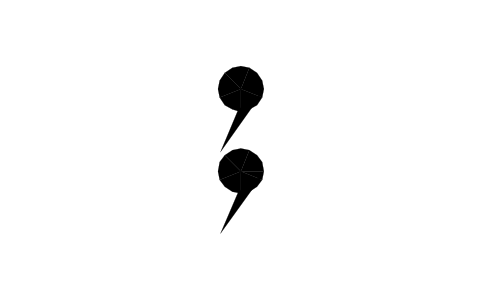
52 Drizzle, interm., moderate
WXS_WW52_DRIZZLE_INTERM_MODERATEAttributes
CODEMEANINGREMARKSDESC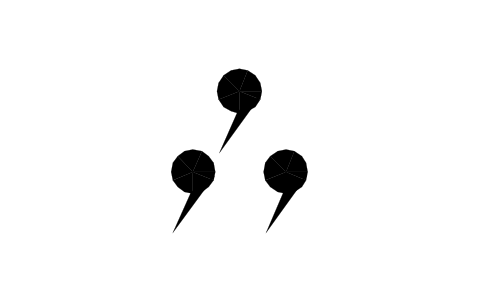
53 Drizzle, cont., moderate
WXS_WW53_DRIZZLE_CONT_MODERATEAttributes
CODEMEANINGREMARKSDESC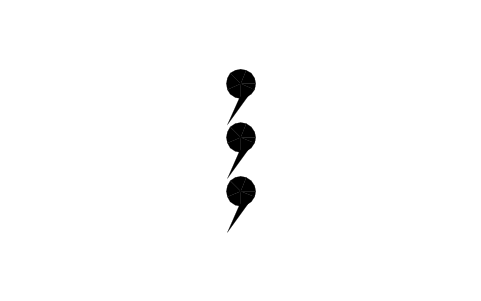
54 Drizzle, interm., heavy
WXS_WW54_DRIZZLE_INTERM_HEAVYAttributes
CODEMEANINGREMARKSDESC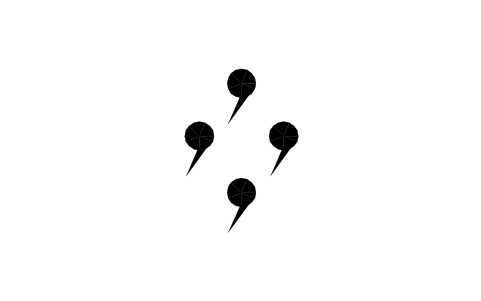
55 Drizzle, cont., heavy
WXS_WW55_DRIZZLE_CONT_HEAVYAttributes
CODEMEANINGREMARKSDESC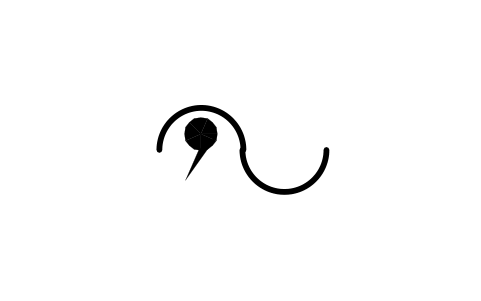
56 Freezing drizzle, slight
WXS_WW56_FREEZING_DRIZZLE_SLIGHTAttributes
CODEMEANINGREMARKSDESC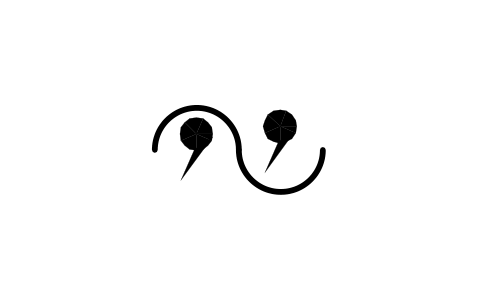
57 Freezing drizzle, mod/heavy
WXS_WW57_FREEZING_DRIZZLE_MOD_HEAVYAttributes
CODEMEANINGREMARKSDESC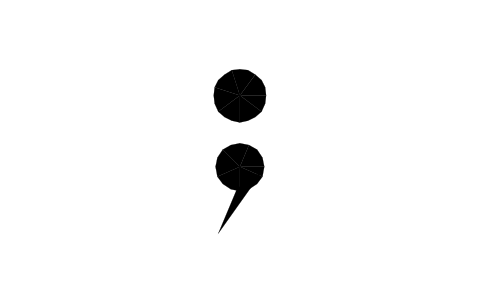
58 Drizzle and rain, slight
WXS_WW58_DRIZZLE_AND_RAIN_SLIGHTAttributes
CODEMEANINGREMARKSDESC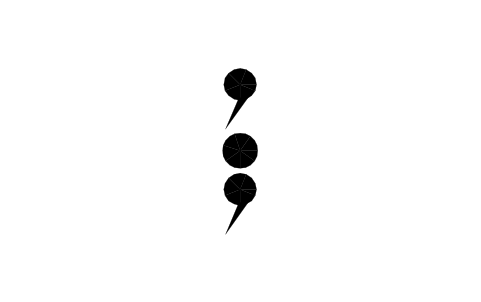
59 Drizzle+rain, mod./heavy
WXS_WW59_DRIZZLE_RAIN_MOD_HEAVYAttributes
CODEMEANINGREMARKSDESC
60 Rain, interm., slight
WXS_WW60_RAIN_INTERM_SLIGHTAttributes
CODEMEANINGREMARKSDESC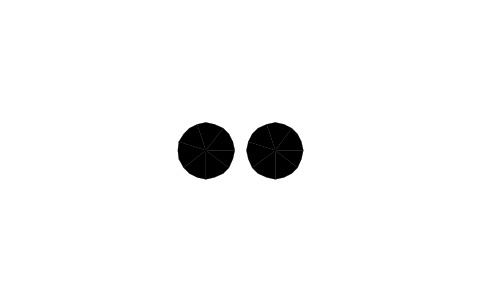
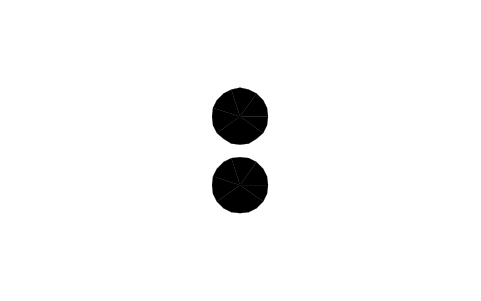
62 Rain, interm., moderate
WXS_WW62_RAIN_INTERM_MODERATEAttributes
CODEMEANINGREMARKSDESC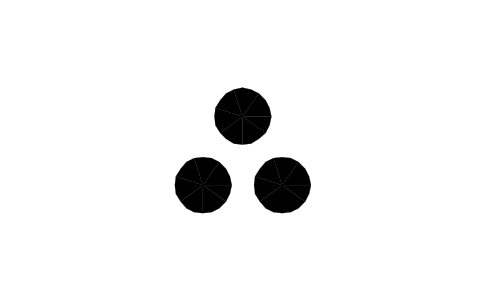
63 Rain, cont., moderate
WXS_WW63_RAIN_CONT_MODERATEAttributes
CODEMEANINGREMARKSDESC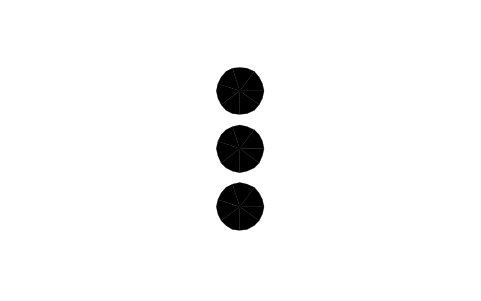
64 Rain, interm., heavy
WXS_WW64_RAIN_INTERM_HEAVYAttributes
CODEMEANINGREMARKSDESC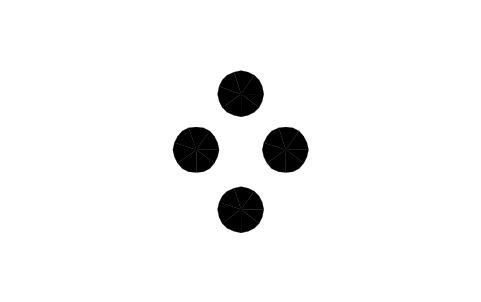
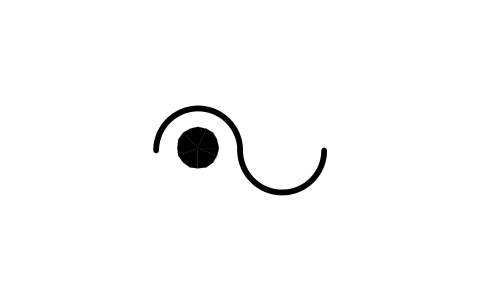
66 Freezing rain, slight
WXS_WW66_FREEZING_RAIN_SLIGHTAttributes
CODEMEANINGREMARKSDESC
67 Freezing rain, mod./heavy
WXS_WW67_FREEZING_RAIN_MOD_HEAVYAttributes
CODEMEANINGREMARKSDESC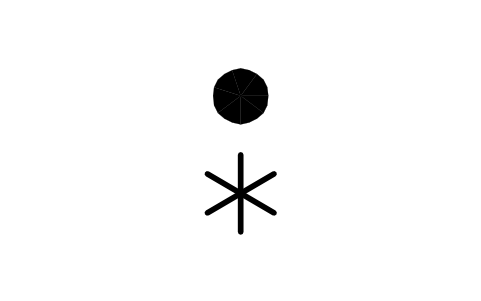
68 Rain and snow, slight
WXS_WW68_RAIN_AND_SNOW_SLIGHTAttributes
CODEMEANINGREMARKSDESC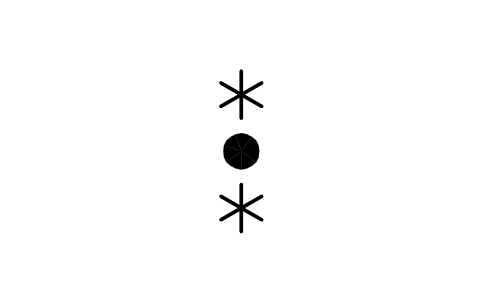
69 Rain+snow, mod./heavy
WXS_WW69_RAIN_SNOW_MOD_HEAVYAttributes
CODEMEANINGREMARKSDESC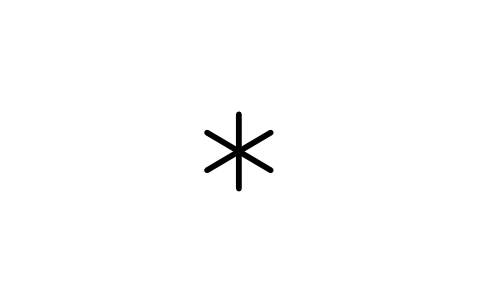
70 Snow, interm., slight
WXS_WW70_SNOW_INTERM_SLIGHTAttributes
CODEMEANINGREMARKSDESC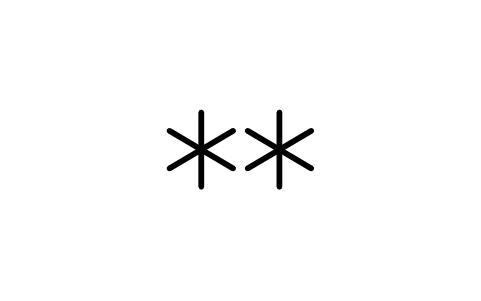
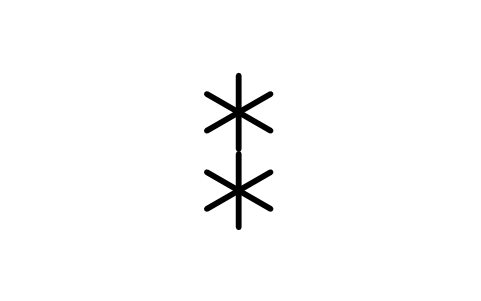
72 Snow, interm., moderate
WXS_WW72_SNOW_INTERM_MODERATEAttributes
CODEMEANINGREMARKSDESC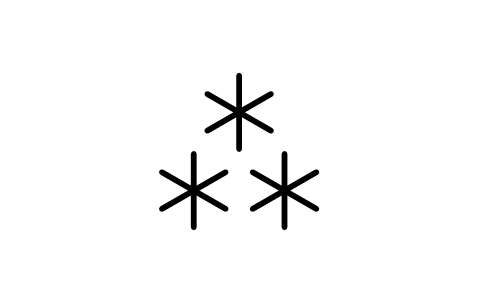
73 Snow, cont., moderate
WXS_WW73_SNOW_CONT_MODERATEAttributes
CODEMEANINGREMARKSDESC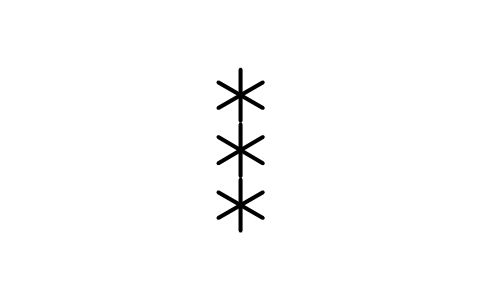
74 Snow, interm., heavy
WXS_WW74_SNOW_INTERM_HEAVYAttributes
CODEMEANINGREMARKSDESC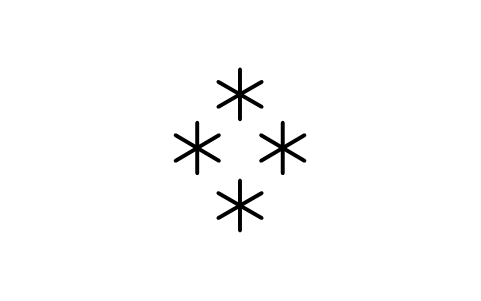
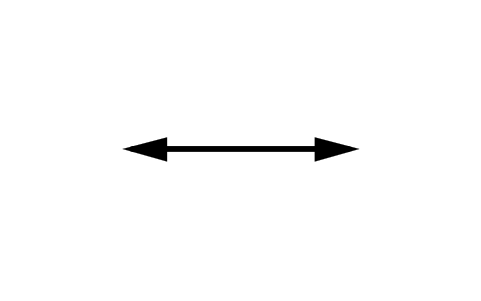
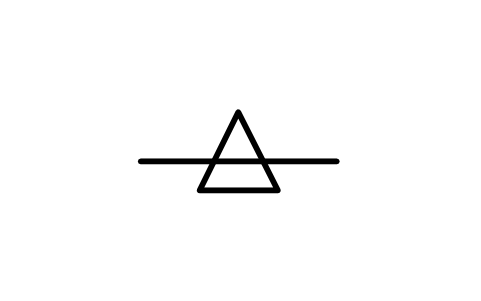
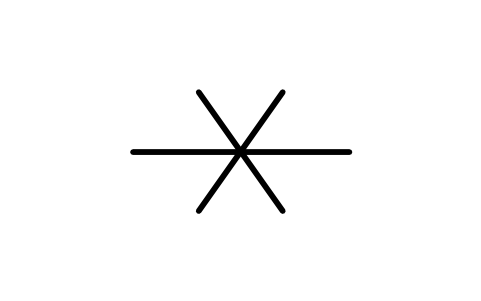
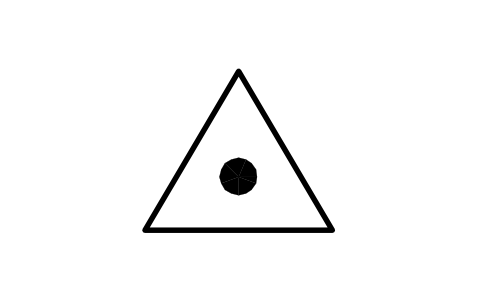

80 Rain shower, slight
WXS_WW80_RAIN_SHOWER_SLIGHTAttributes
CODEMEANINGREMARKSDESC
81 Rain shower, mod./heavy
WXS_WW81_RAIN_SHOWER_MOD_HEAVYAttributes
CODEMEANINGREMARKSDESC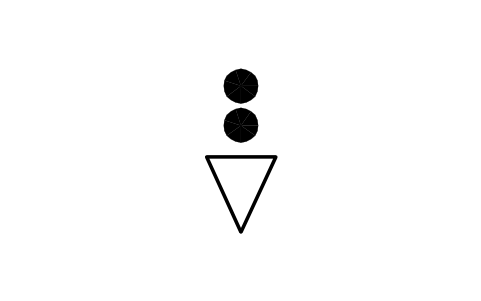
82 Rain shower, violent
WXS_WW82_RAIN_SHOWER_VIOLENTAttributes
CODEMEANINGREMARKSDESC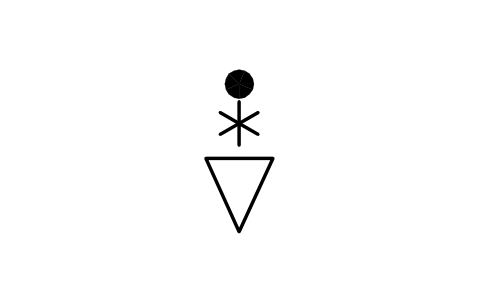
83 Rain+snow shower, slight
WXS_WW83_RAIN_SNOW_SHOWER_SLIGHTAttributes
CODEMEANINGREMARKSDESC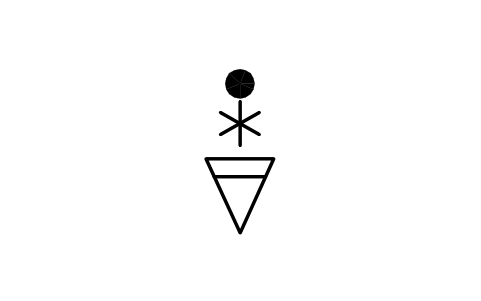
84 Rain+snow shower, heavy
WXS_WW84_RAIN_SNOW_SHOWER_HEAVYAttributes
CODEMEANINGREMARKSDESC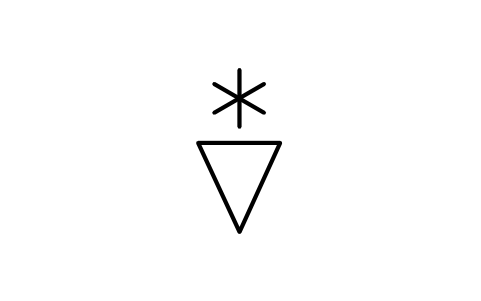
85 Snow shower, slight
WXS_WW85_SNOW_SHOWER_SLIGHTAttributes
CODEMEANINGREMARKSDESC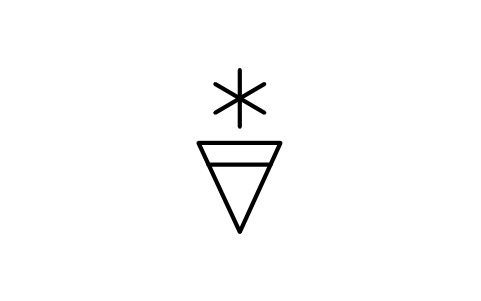
86 Snow shower, mod./heavy
WXS_WW86_SNOW_SHOWER_MOD_HEAVYAttributes
CODEMEANINGREMARKSDESC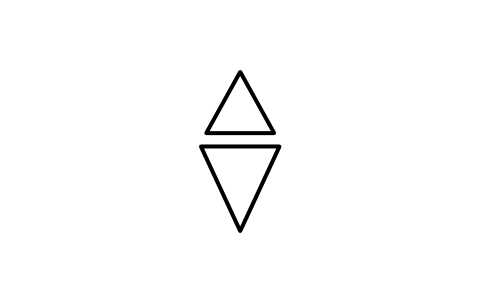
87 Soft hail shower, slight
WXS_WW87_SOFT_HAIL_SHOWER_SLIGHTAttributes
CODEMEANINGREMARKSDESC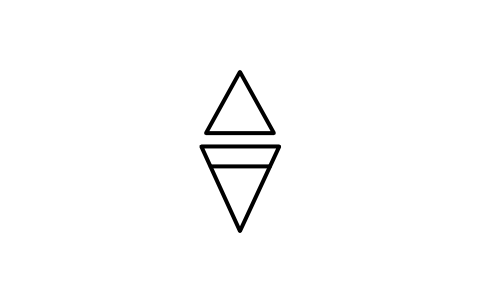
88 Soft hail shower, heavy
WXS_WW88_SOFT_HAIL_SHOWER_HEAVYAttributes
CODEMEANINGREMARKSDESC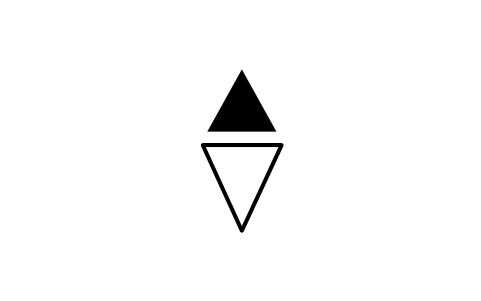
89 Hail shower, slight
WXS_WW89_HAIL_SHOWER_SLIGHTAttributes
CODEMEANINGREMARKSDESC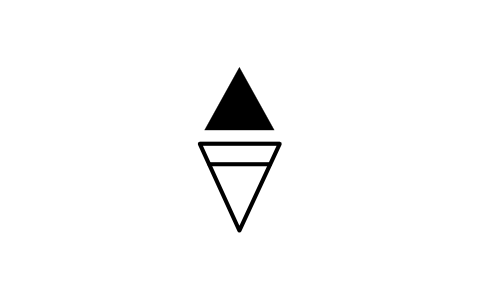
90 Hail shower, mod./heavy
WXS_WW90_HAIL_SHOWER_MOD_HEAVYAttributes
CODEMEANINGREMARKSDESC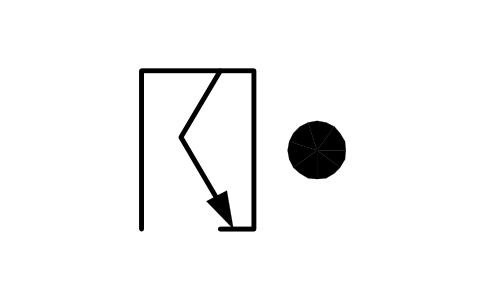
91 Past thunder, light rain
WXS_WW91_PAST_THUNDER_LIGHT_RAINAttributes
CODEMEANINGREMARKSDESC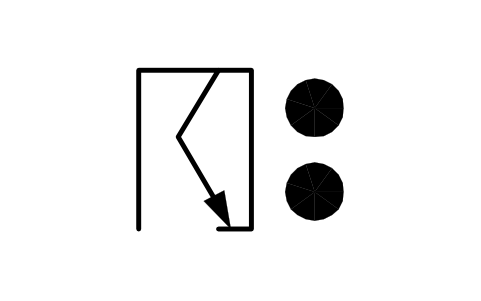
92 Past thunder, heavy rain
WXS_WW92_PAST_THUNDER_HEAVY_RAINAttributes
CODEMEANINGREMARKSDESC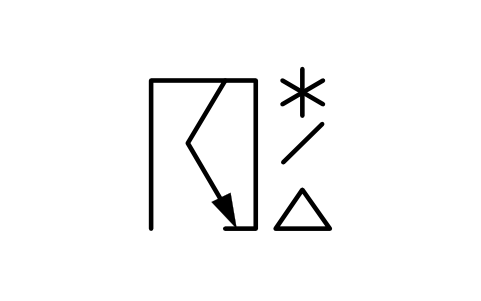
93 Past thunder, light snow
WXS_WW93_PAST_THUNDER_LIGHT_SNOWAttributes
CODEMEANINGREMARKSDESC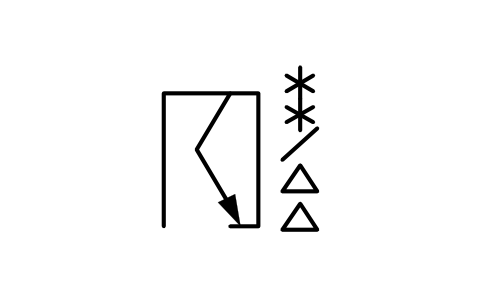
94 Past thunder, heavy snow
WXS_WW94_PAST_THUNDER_HEAVY_SNOWAttributes
CODEMEANINGREMARKSDESC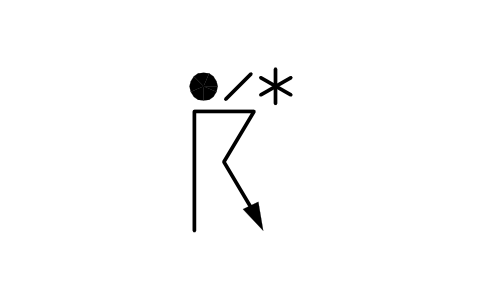
95 Thunderstorm, slight/mod.
WXS_WW95_THUNDERSTORM_SLIGHT_MODAttributes
CODEMEANINGREMARKSDESC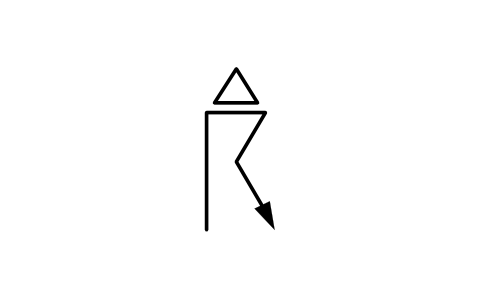
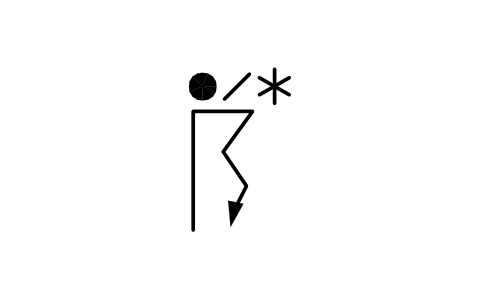
97 Thunderstorm, heavy
WXS_WW97_THUNDERSTORM_HEAVYAttributes
CODEMEANINGREMARKSDESC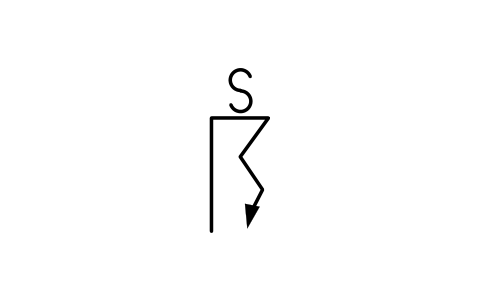
98 Thunderstorm, dust storm
WXS_WW98_THUNDERSTORM_DUST_STORMAttributes
CODEMEANINGREMARKSDESC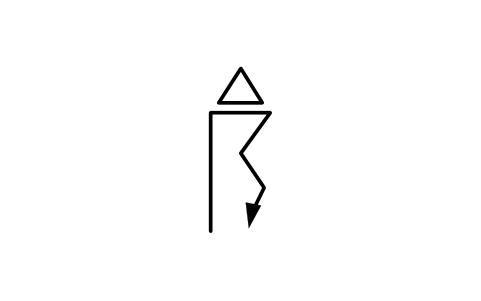
99 Heavy thunderstorm, hail
WXS_WW99_HEAVY_THUNDERSTORM_HAILAttributes
CODEMEANINGREMARKSDESC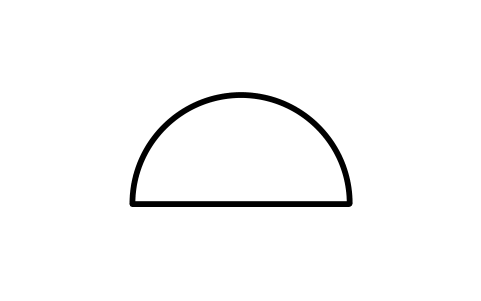
CL 1 Cumulus, fair weather
WXS_CL1_CUMULUS_FAIR_WEATHERAttributes
CODEMEANINGREMARKSDESC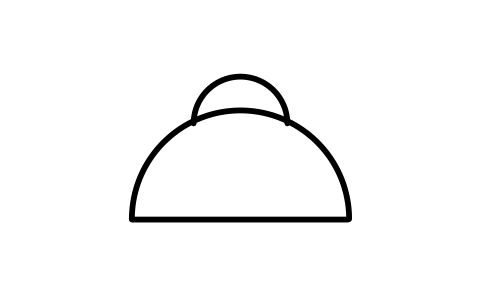
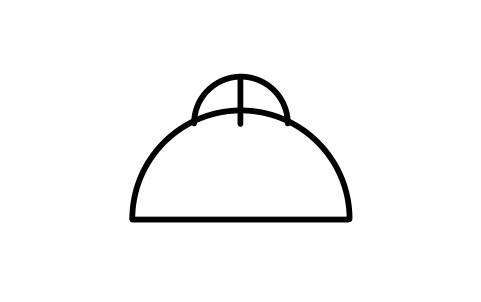
CL 3 Cumulonimbus, no anvil
WXS_CL3_CUMULONIMBUS_NO_ANVILAttributes
CODEMEANINGREMARKSDESC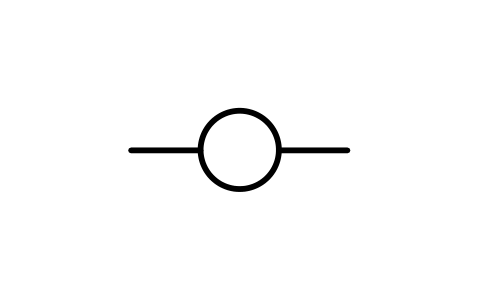
CL 4 Stratocumulus from Cu
WXS_CL4_STRATOCUMULUS_FROM_CUAttributes
CODEMEANINGREMARKSDESC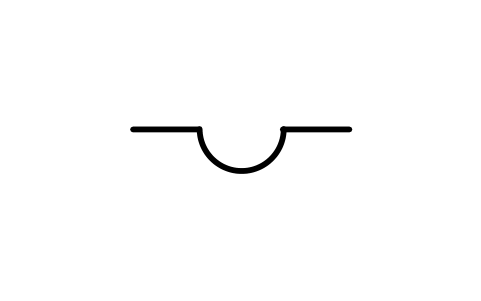
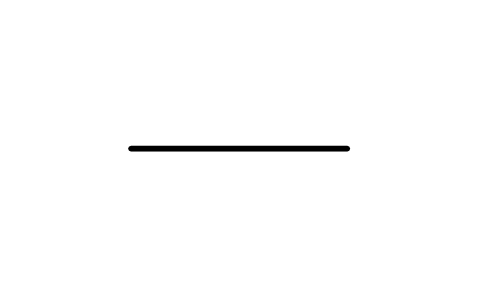
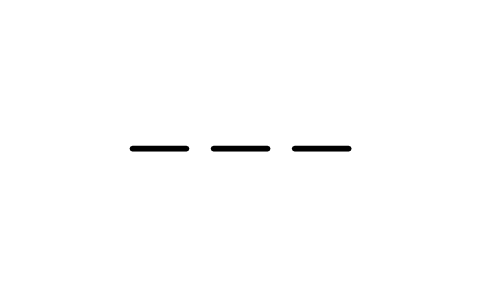
CL 7 Stratus, bad weather
WXS_CL7_STRATUS_BAD_WEATHERAttributes
CODEMEANINGREMARKSDESC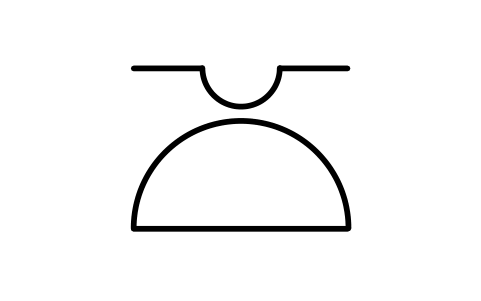
CL 8 Cu and Sc, two levels
WXS_CL8_CU_AND_SC_TWO_LEVELSAttributes
CODEMEANINGREMARKSDESC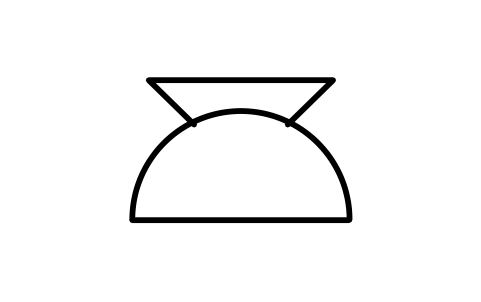
CL 9 Cumulonimbus, anvil
WXS_CL9_CUMULONIMBUS_ANVILAttributes
CODEMEANINGREMARKSDESC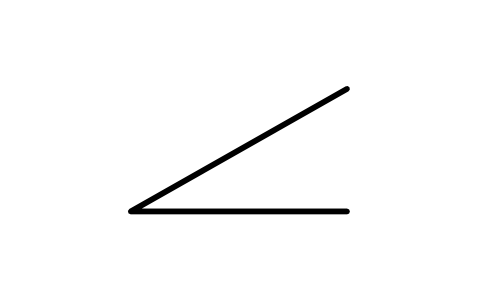
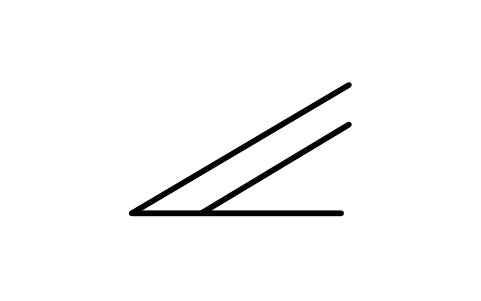
CM 2 Altostratus, thick
WXS_CM2_ALTOSTRATUS_THICKAttributes
CODEMEANINGREMARKSDESC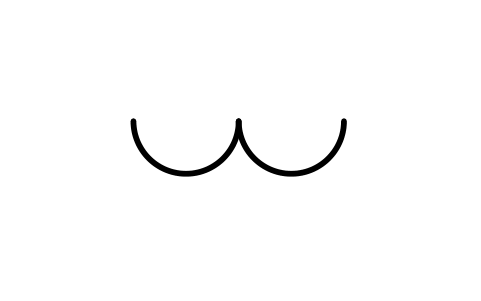
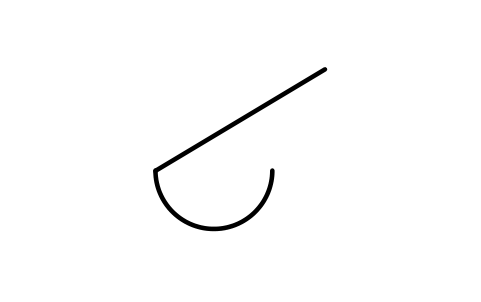
CM 4 Altocumulus, patches
WXS_CM4_ALTOCUMULUS_PATCHESAttributes
CODEMEANINGREMARKSDESC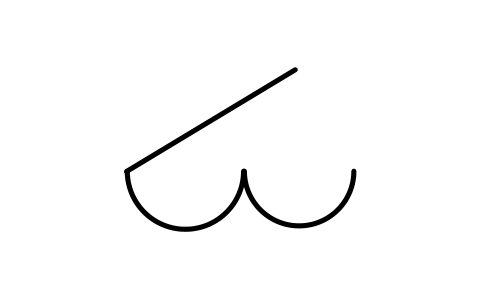
CM 5 Altocumulus, spreading
WXS_CM5_ALTOCUMULUS_SPREADINGAttributes
CODEMEANINGREMARKSDESC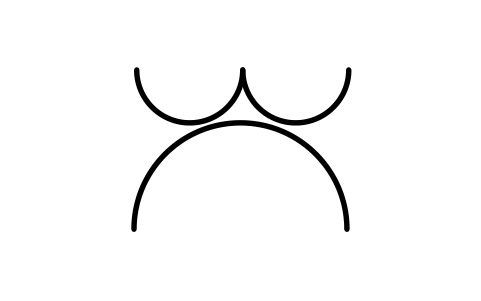
CM 6 Altocumulus from Cu
WXS_CM6_ALTOCUMULUS_FROM_CUAttributes
CODEMEANINGREMARKSDESC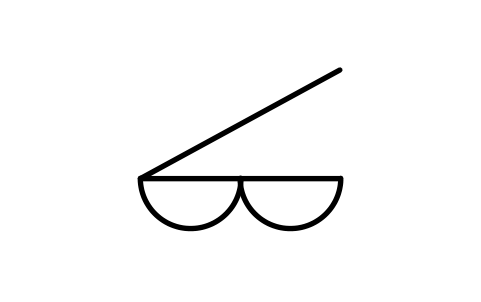
CM 7 Altocumulus, double
WXS_CM7_ALTOCUMULUS_DOUBLEAttributes
CODEMEANINGREMARKSDESC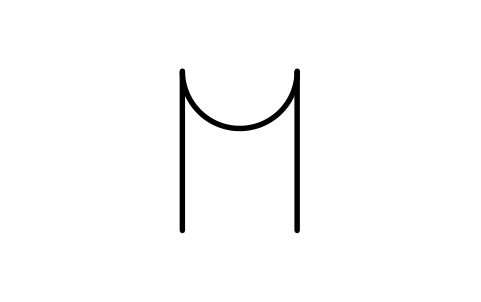
CM 8 Altocumulus, turrets
WXS_CM8_ALTOCUMULUS_TURRETSAttributes
CODEMEANINGREMARKSDESC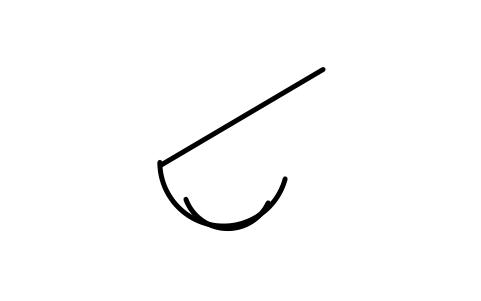
CM 9 Altocumulus, chaotic sky
WXS_CM9_ALTOCUMULUS_CHAOTIC_SKYAttributes
CODEMEANINGREMARKSDESC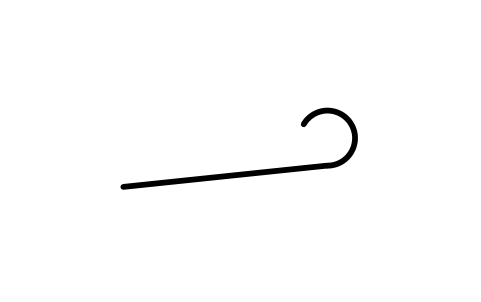
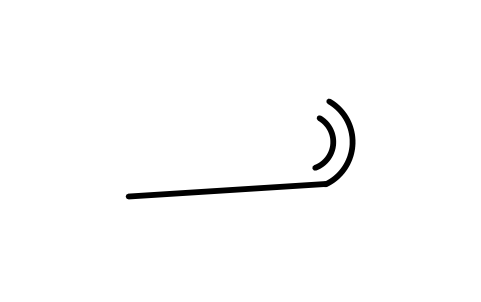
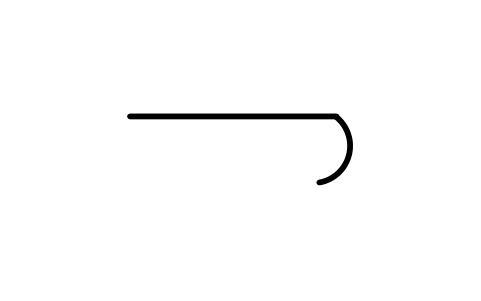
CH 3 Cirrus, anvil-shaped
WXS_CH3_CIRRUS_ANVIL_SHAPEDAttributes
CODEMEANINGREMARKSDESC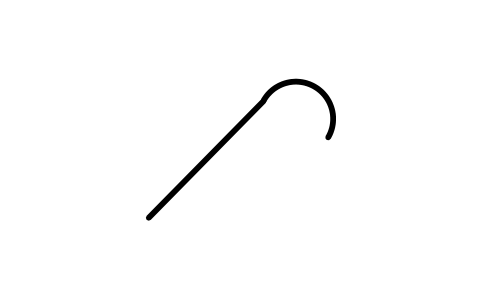
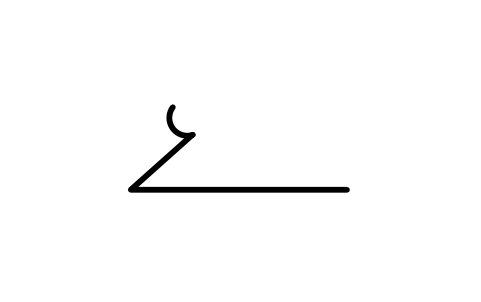
CH 5 Cirrus/Cs, low altitude
WXS_CH5_CIRRUS_CS_LOW_ALTITUDEAttributes
CODEMEANINGREMARKSDESC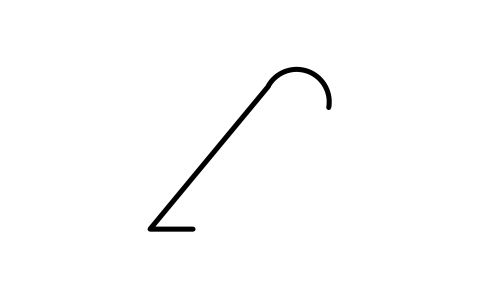
CH 6 Cirrus/Cs, high altitude
WXS_CH6_CIRRUS_CS_HIGH_ALTITUDEAttributes
CODEMEANINGREMARKSDESC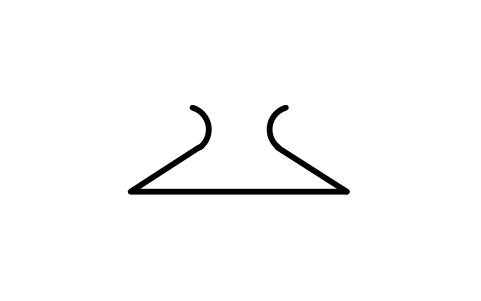
CH 7 Cirrostratus, veil
WXS_CH7_CIRROSTRATUS_VEILAttributes
CODEMEANINGREMARKSDESC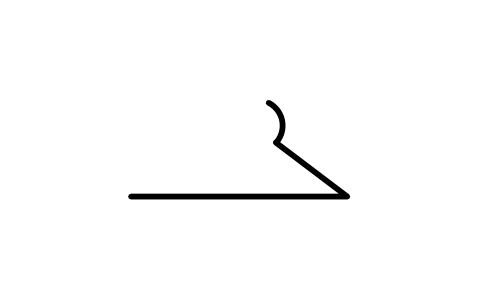
CH 8 Cirrostratus, partial
WXS_CH8_CIRROSTRATUS_PARTIALAttributes
CODEMEANINGREMARKSDESC

N 2 Two or three tenths
WXS_N2_TWO_OR_THREE_TENTHSAttributes
CODEMEANINGREMARKSDESC
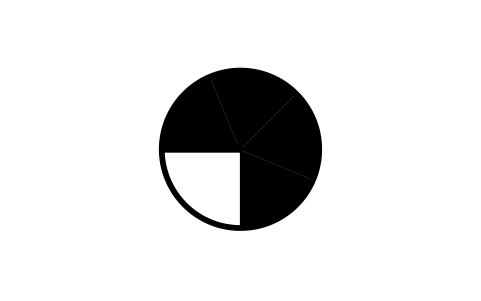
N 6 Seven or eight tenths
WXS_N6_SEVEN_OR_EIGHT_TENTHSAttributes
CODEMEANINGREMARKSDESC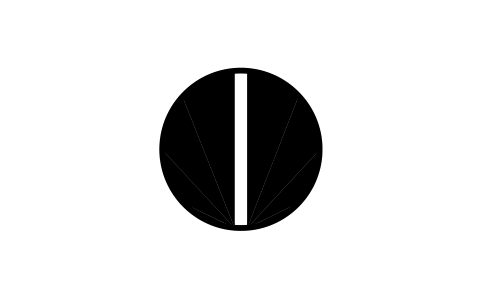


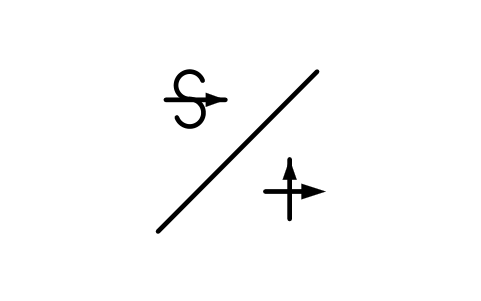
W 3 Dust storm, drifting snow
WXS_W3_DUST_STORM_DRIFTING_SNOWAttributes
CODEMEANINGREMARKSDESC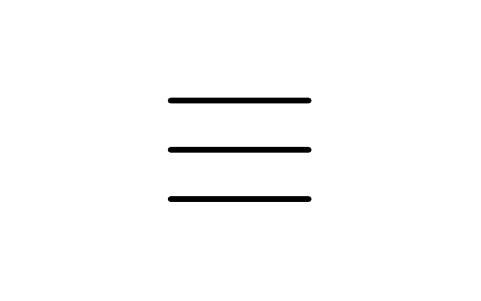
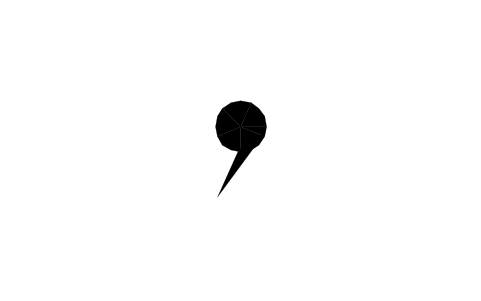

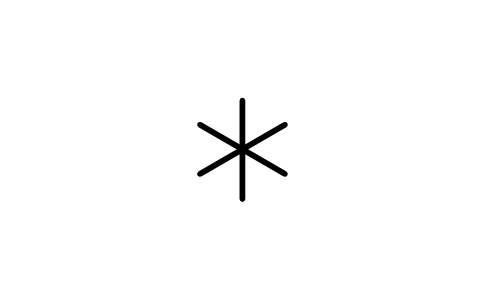
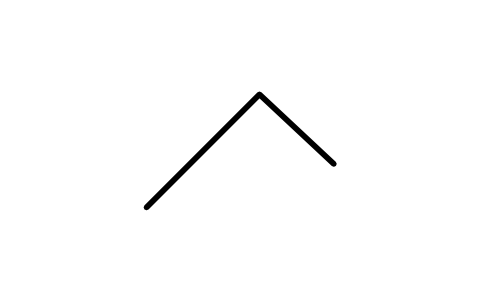
a 0 Rising then falling
WXS_A0_RISING_THEN_FALLINGAttributes
CODEMEANINGREMARKSDESC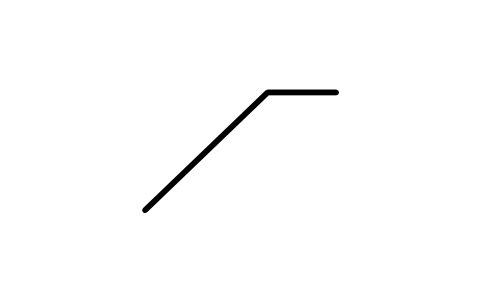
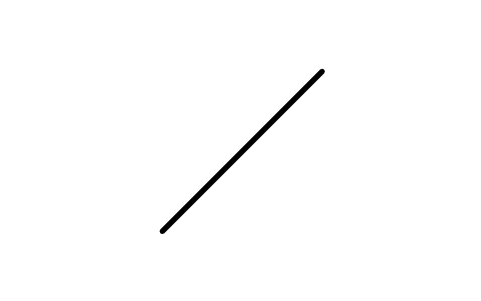

a 3 Steady, then rising
WXS_A3_STEADY_THEN_RISINGAttributes
CODEMEANINGREMARKSDESC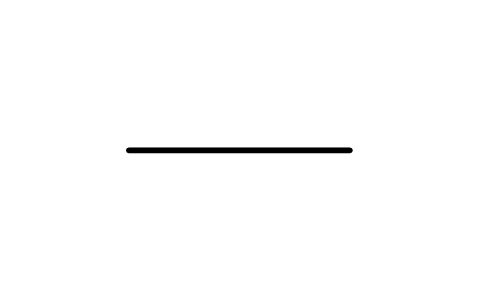
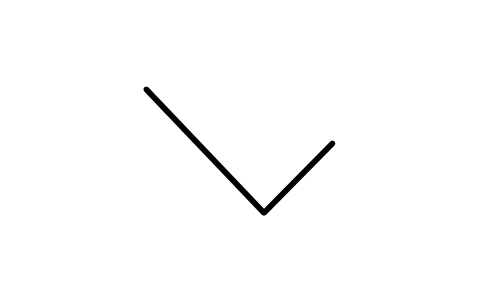
a 5 Falling, then rising
WXS_A5_FALLING_THEN_RISINGAttributes
CODEMEANINGREMARKSDESC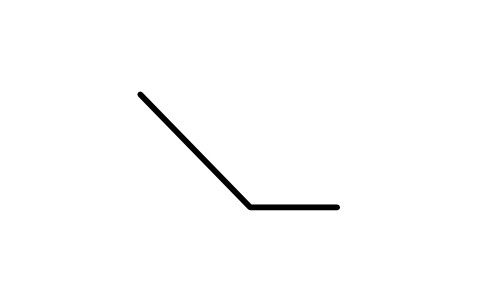
a 6 Falling then steady
WXS_A6_FALLING_THEN_STEADYAttributes
CODEMEANINGREMARKSDESC
a 8 Steady, then falling
WXS_A8_STEADY_THEN_FALLINGAttributes
CODEMEANINGREMARKSDESC
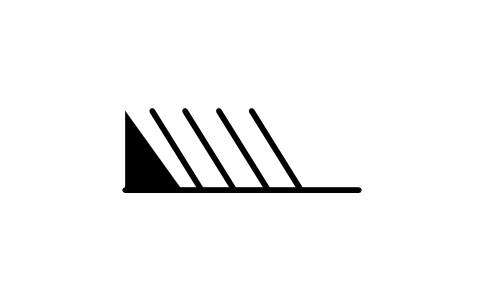
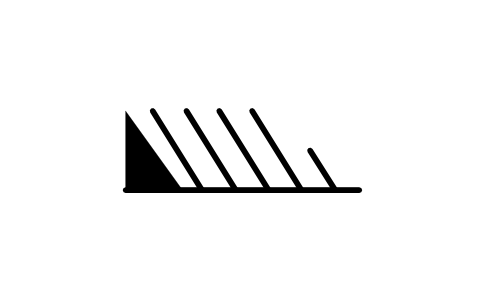
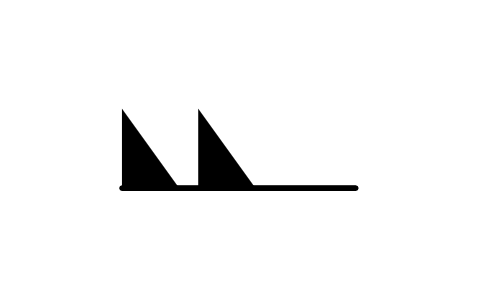
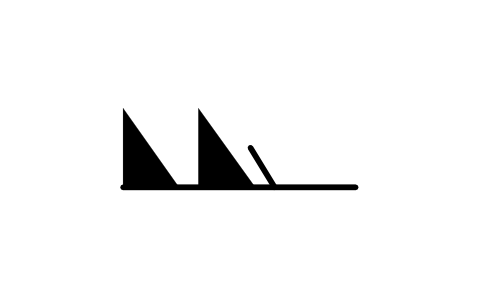
Missing a symbol? Tell us which one.
Attributes for parts lists
Every block has the invisible attributes CODE (the code table and figure, for example ww 61), MEANING (the wording of the code table) and REMARKS. There is no visible tag, because a weather symbol is the mark itself. The name of the block is the code and a short description, for example 61 Rain, cont., slight.
Export the blocks of a chart with BlockSync to Excel to get a list of every code used on a sheet, with its meaning, for example to check a plotted station model against the observation or to prepare a legend. Check the list against the drawing and write corrections back in one run.
How to use the library
- Unzip the file and open the DWG. Copy the symbols you need into your plan, or drag the blocks in from DesignCenter (ADCENTER).
- The symbols are drawn at plotted size, 1 drawing unit = 1 mm, 8 to 12 mm high. Insert them at scale 1 on a chart drawn in millimetres; scale them with the chart if your chart uses another unit. Large marks such as the thunderstorm with a bracket are wider than the single marks, so leave room on the station model.
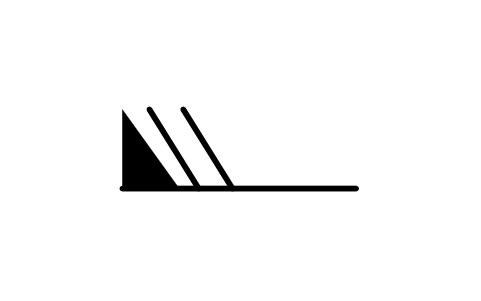
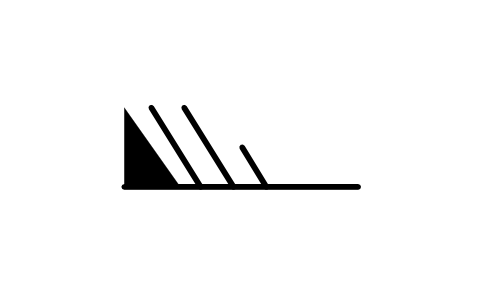
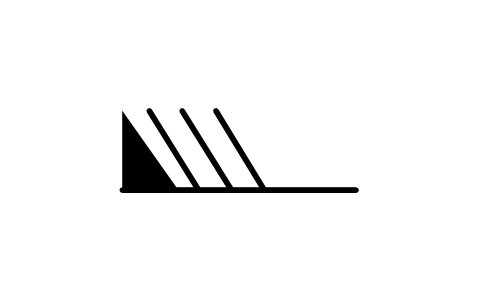
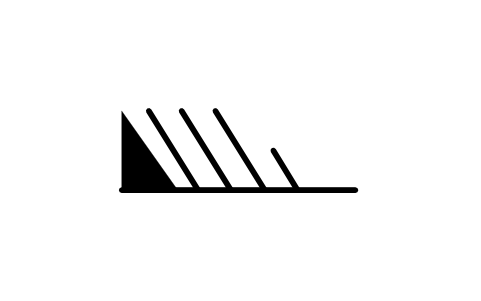
- Present weather, cloud, sky cover, past weather and pressure tendency marks are centred on the block origin, so you can snap them to the points of a station model. A wind barb starts at the station on the origin and its staff runs along -X: insert it and rotate it to the direction the wind comes from. The barbs stay on the same side of the staff as in the chart.
- In the wind barb group every block is one speed class in knots: calm (double circle), 1-2 kt (staff only), 3-7 kt (half barb), then one more full barb for every 5 knots, and a pennant for 50 knots. The blocks are sorted by speed, so you can pick the class from the name. The sky cover circles show the cover in tenths as in the chart (N 7 and N 8 are drawn filled, so they print filled).
About the symbols
The shapes follow the weather chart used with the international code tables (adapted from the U.S. National Weather Service and the World Meteorological Organization): code table 4677 for present weather, the cloud type tables CL, CM and CH, the sky cover and pressure tendency figures, and the wind barb scale in knots. The meaning in each block is the wording of that table.
The blocks are our own drawings, not copies of the chart or of an official publication, and the library is not certified. Use them for teaching, plotting and documents. If your weather service or your aviation authority prescribes its own forms or sizes, compare the shapes with its publication before you use them for operational charts.
What changed in each version
Version 1.0 · October 22, 2026
New symbols (176)
00 No cloud development · 01 Clouds dissolving · 02 Sky state unchanged · 03 Clouds forming · 04 Smoke reduces visibility · 05 Haze · 06 Widespread dust · 07 Dust or sand raised by wind · 08 Dust devils · 09 Dust or sand storm in sight · 10 Mist · 11 Shallow fog patches · 12 Shallow fog, continuous · 13 Lightning, no thunder · 14 Precip. not reaching ground · 15 Distant precipitation · 16 Precipitation near station · 17 Thunder, no precipitation · 18 Squalls · 19 Funnel clouds · 20 Drizzle, past hour · 21 Rain, past hour · 22 Snow, past hour · 23 Rain and snow, past hour · 24 Freezing rain, past hour · 25 Rain showers, past hour · 26 Snow showers, past hour · 27 Hail showers, past hour · 28 Fog, past hour · 29 Thunderstorm, past hour · 30 Dust storm easing · 31 Dust storm, no change · 32 Dust storm increasing · 33 Severe dust storm, easing · 34 Severe dust storm, steady · 35 Severe dust storm, rising · 36 Low drifting snow, slight · 37 Low drifting snow, heavy · 38 High drifting snow, slight · 39 High drifting snow, heavy · 136 more
Frequently asked questions
- Which weather symbols are in the library?
- The 100 present weather symbols (ww 00 to 99), the 27 cloud types of CL, CM and CH, the sky cover circles N 0 to 9, the past weather marks W 3 to 9 (W 0 to 2 have no symbol), the pressure tendency traces a 0 to 8 and 23 wind barbs from calm to 107 knots. Fronts, pressure centres and the station model layout itself are not in this library.
- How do I put a wind barb on a station?
- Insert the block at the station point and rotate it so that the staff points to the direction the wind comes from. The speed classes are sorted by knots: choose the block whose name has your speed, for example Wind 13-17 kt for a wind of 15 knots. In AutoCAD use the ROTATE command, or give the rotation angle when you insert the block.
- Can I use the symbols in commercial projects?
- Yes. They are free to use and modify in your own projects, including commercial ones. They are provided as is, without warranty.
- Are these the official WMO symbols?
- They follow the shapes of the chart that goes with the WMO code tables, but they are our own drawings and are not certified. The meaning stored in each block is the wording of the code table. Check the shapes against your own weather service publication if a chart has to follow it exactly.
- Can I change a symbol or add attributes?
- Yes. Open the DWG, edit a block with BEDIT to change it or add attributes, and save. To update drawings that already contain the block, run ATTSYNC or replace the block. Make a backup first: attribute values can be lost if ATTSYNC is used carelessly.
- Where do I find a ready-made set of these symbols for AutoCAD?
- AutoCAD itself ships only a small set of sample blocks, so a full symbol set has to come from a library. Download the ZIP on this page and open the DWG: every symbol is a block. Insert one with INSERT (Blocks palette, Libraries tab, then pick the DWG) or drag it from DesignCenter (ADCENTER). You can also download a single symbol on its own.
Count the symbols and build a parts list
Because ratings and part numbers are attributes, the symbols of a whole project can be counted and listed without opening the drawings. Export the blocks to Excel, total them with a pivot table and write corrections back in one run, with preview and backup.
See how to count blocks with BlockSync