
Rehberler/Symbols & blocks
P&ID Symbols for AutoCAD — Free DWG Blocks for Tanks, Pumps, Valves and Instrument Loops
Güncelleme: October 28, 2026
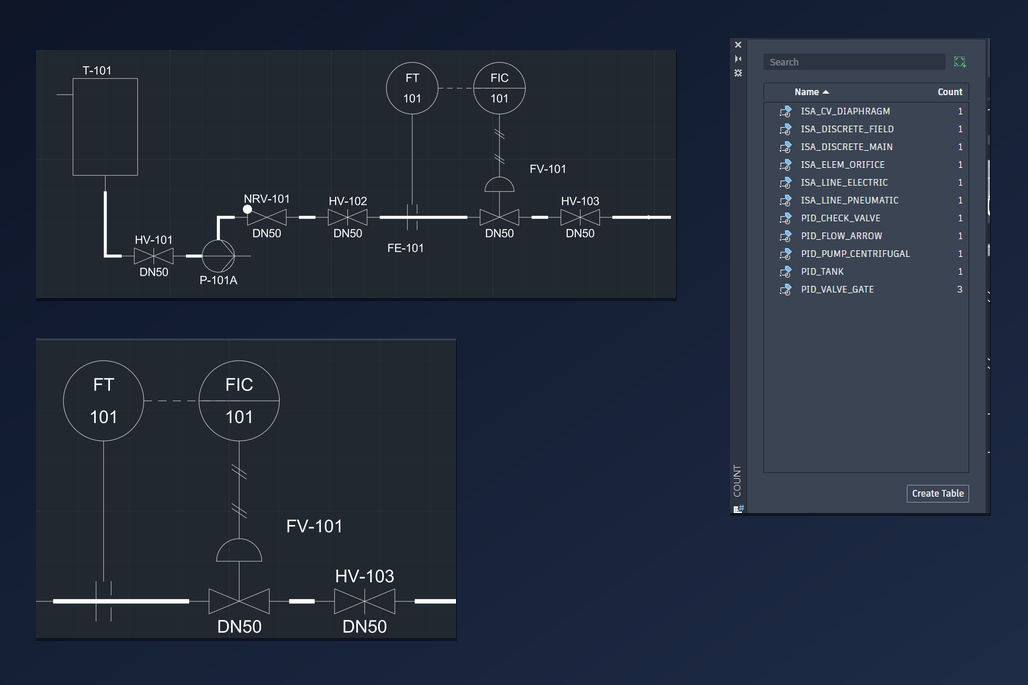
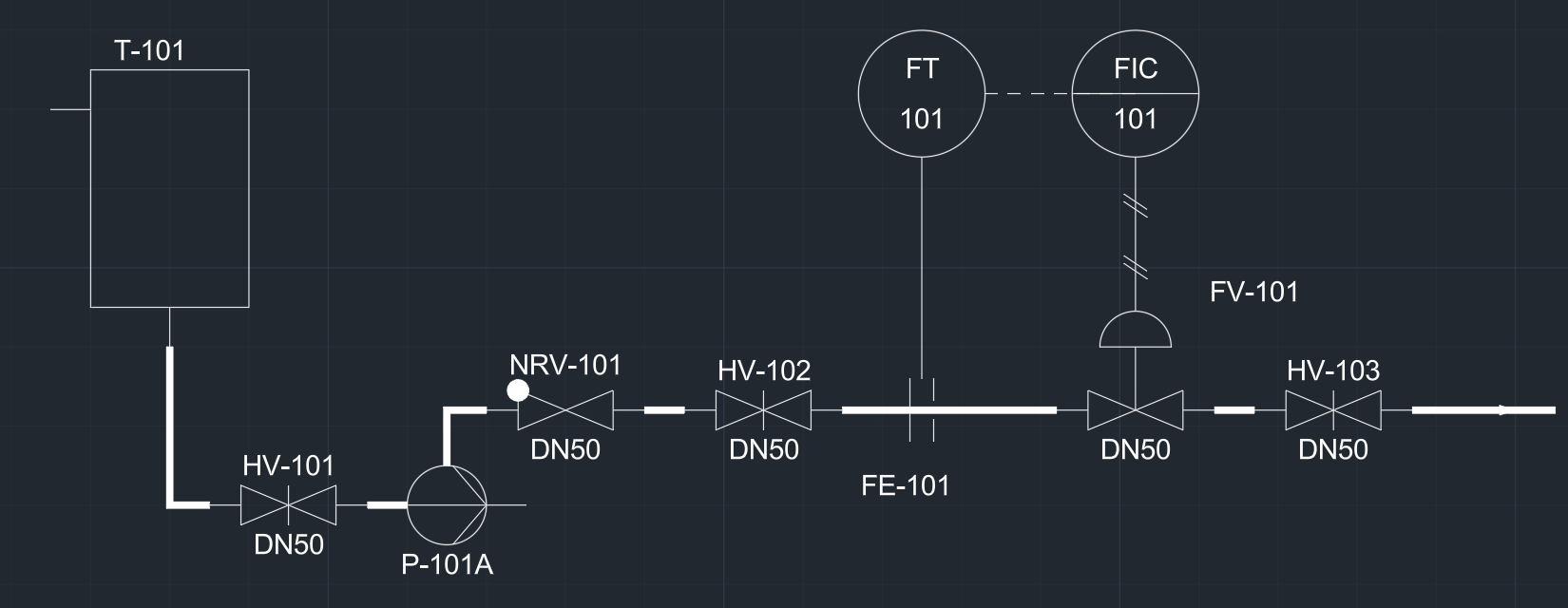
A P&ID is a diagram, not a scale drawing: what matters is that the equipment, the valves and the instruments are the right symbols, that every line is connected to the thing it should be, and that each item has a tag you can find again. Drawing it in AutoCAD goes much faster when the symbols are ready-made blocks that carry their tag data. This guide builds a small but complete example with the free P&ID symbols from CADXChange: a feed tank, a pump, isolation and check valves, a flow control loop with transmitter, controller and control valve, and at the end a count of the valves.
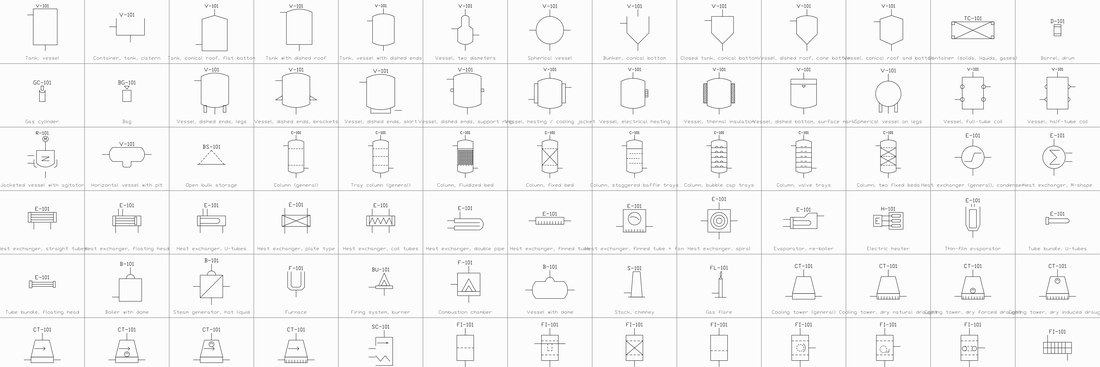
Two libraries cover it. The equipment and piping library has 311 symbols: tanks and vessels, columns, heat exchangers, pumps, compressors, fans, filters, dryers, conveyors, valves of all types, strainers, reducers, flanges and flow arrows. The instrumentation library has 285: instrument and controller bubbles, primary elements, control valves with their actuators, signal lines and the connection symbols. Each symbol is a plain DWG block that works in AutoCAD and AutoCAD LT.
1. Pick the symbols you need
Open the two library pages and download what the drawing needs. Each symbol is its own small ZIP with one DWG and a README, so you do not carry the whole library around. Equipment and piping blocks start with PID_ (PID_TANK, PID_PUMP_CENTRIFUGAL, PID_VALVE_GATE, PID_CHECK_VALVE, PID_FLOW_ARROW), instrumentation blocks with ISA_ (ISA_DISCRETE_FIELD, ISA_DISCRETE_MAIN, ISA_ELEM_ORIFICE, ISA_CV_DIAPHRAGM, ISA_LINE_ELECTRIC, ISA_LINE_PNEUMATIC). For the example in this guide that is eleven blocks.
The sheet on each library page shows every symbol with its name, so you can find the right one before you download anything. Put the blocks you use in one folder and browse to it when you insert.
2. Place the equipment and run the process lines
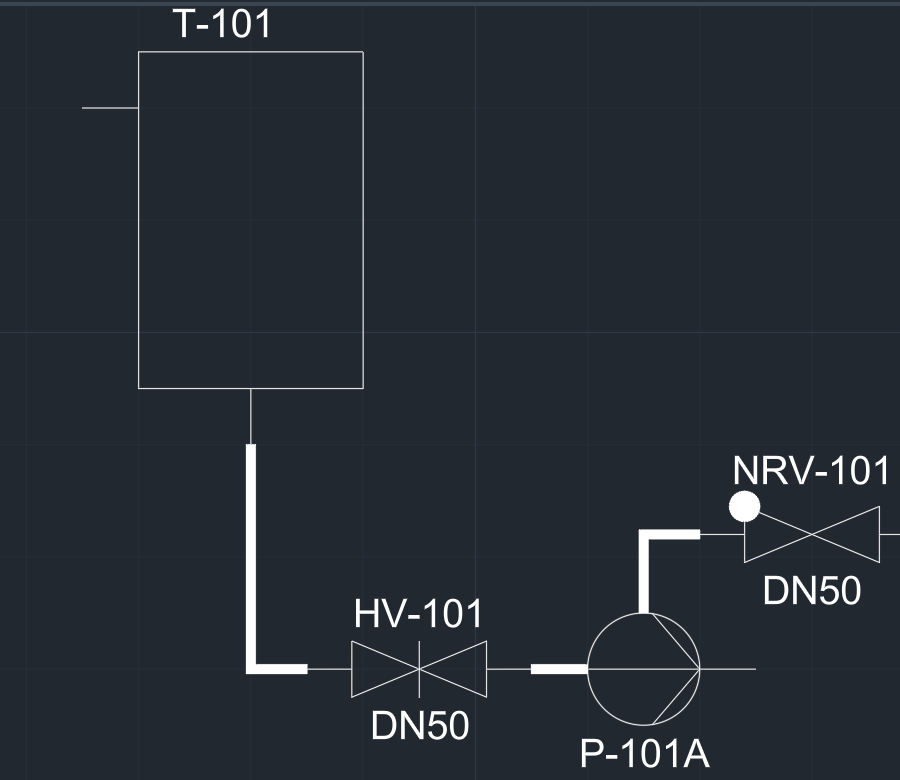
Use INSERT (or the Blocks palette) and click the position of each item. Equipment such as the tank and the pump is inserted at its centre; the pump is a 10 mm circle with its inlet on the left, so the suction line ends at the circle. Valves are 20 mm long and their insertion point is the inlet end of the valve on the centre line. Put a valve with its insertion point on the end of a pipe and start the next pipe 20 mm further on; the valve then sits exactly in the line.
Draw the process lines as polylines and give them a width, for example 0.8 mm with PEDIT (Width), on their own layer. A thick process line next to the thin symbol outlines is the usual look of a P&ID and lets you freeze or plot the piping on its own. The symbols are drawn in millimetres at 1:1, so a valve is 20 mm long on the sheet: insert at scale 1 on a sheet drawn in millimetres. Add a PID_FLOW_ARROW to show the flow direction.
3. Tag the equipment and valves
The blocks carry attributes, so the tag stays with the symbol. A valve has VALVE_TAG, SIZE, RATING, BODY_MATERIAL and LINE_NO; a control valve adds FAIL_POSITION, CV and ACTUATOR. A pump has TAG, SERVICE, FLUID, FLOW_M3H, DIFF_HEAD_M, POWER_KW and DRIVER, and a tank has TAG, SERVICE, CONTENT, VOLUME_M3, DESIGN_PRESSURE and DESIGN_TEMP. Double-click a symbol to open the Enhanced Attribute Editor, click a row, type the value and finish with OK.
Only the tag and the size show next to the symbol; the rest stays in the block for the lists. If a tag lands on a process line, select the block and drag the grip of the text to a clear place. The attribute moves, the symbol does not. Use the same tag pattern throughout, for example HV-101 for hand valves and NRV-101 for non-return valves, so the lists sort the way people read them.
4. Draw the instrument loop
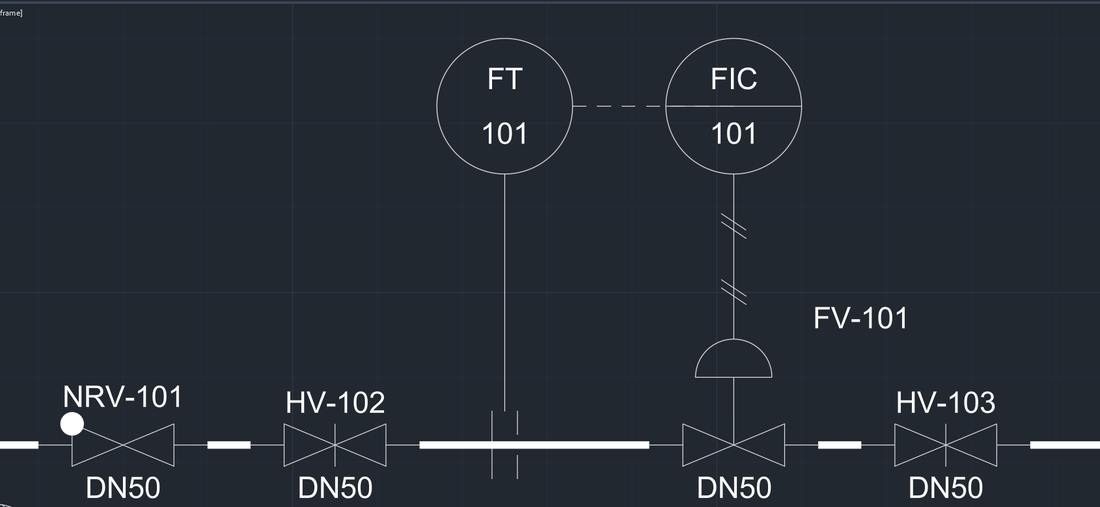
A flow control loop has four parts. The orifice plate FE-101 goes into the line: insert ISA_ELEM_ORIFICE on the centre line of the pipe. The transmitter FT-101 is a field instrument, so it uses the plain bubble ISA_DISCRETE_FIELD with no line through it, and the controller FIC-101 sits in the control room, so it uses ISA_DISCRETE_MAIN, the bubble with a line across it. In the bubble the letters come from TAG_FUNC (F for flow, I for indicating, C for controlling, T for transmitting) and the number from LOOP_NO.
Connect the parts with the signal lines: a thin line from the orifice up to the transmitter, a dashed ISA_LINE_ELECTRIC from the transmitter to the controller, and an ISA_LINE_PNEUMATIC from the controller down to the actuator of the control valve. The control valve is a single block, ISA_CV_DIAPHRAGM, with the diaphragm actuator drawn on top; its FAIL_POSITION attribute holds FC, FO or FL. Rotate the signal line blocks to any direction you need.
5. Check the finished diagram
Look at the diagram the way a reviewer will. The flow reads from left to right and each line has an arrow. Every process line ends at a symbol and not just near it; zoom in on a few joints, or turn on the Endpoint object snap while you draw so that the line ends are exactly on the connection points. Every item has a tag, no tag sits on a line, and the instrument loop has one number everywhere: FE-101, FT-101, FIC-101 and FV-101 belong together.
Put the process lines, the signal lines and the symbols on separate layers. Then you can plot the instrument layer in a different colour or switch the signals off for a mechanical issue of the same sheet.
6. Count the valves and make a list
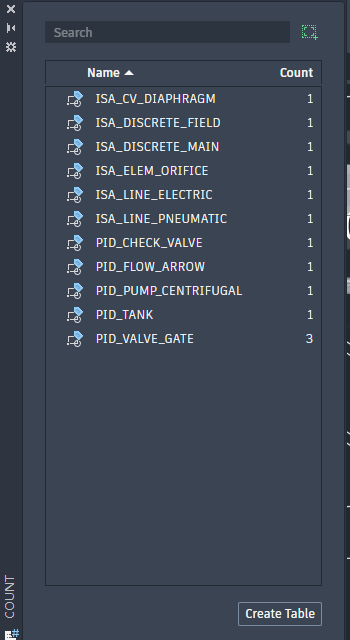
Run the COUNT command, accept the area and press Enter at the object prompt to list all blocks. The palette shows every block name with the number of copies, here three PID_VALVE_GATE, and Create Table puts the list into the drawing. COUNT only counts by block name, so for a valve list with tag, size and rating use DATAEXTRACTION: choose the blocks and the attributes VALVE_TAG, SIZE, RATING and LINE_NO and send the table to a drawing table or an Excel file.
The same works for the instrument index: extract TAG_FUNC, LOOP_NO, SERVICE and RANGE from the bubbles. Because the data lives in the blocks, the lists are right whenever the diagram is right.
That is the whole path: pick the symbols, place the equipment and valves, run the thick process lines, build the loop with bubbles and signal lines, tag through attributes and count. Larger diagrams only repeat the same steps, and the libraries have the heat exchangers, columns, compressors, actuators and signal symbols you need for them.
The symbols are CADXChange's own drawings in the style of ISO 10628-2 and ISA 5.1. They are not copies of the standards and are not certified, so check them against the legend of your project or your client's standard before you issue the drawing. You may use and modify them in your own projects, commercial ones included, and deliver the finished drawings to clients.