
KaynaklarDWG sembol kütüphaneleri
Free AutoCAD railing, balustrade and handrail blocks (DWG): balusters, glass, cable, handrail sections, posts, fixings, stairs
Railings, balustrades and handrails: 89 ready-made AutoCAD blocks (DWG), free to download and use in your own projects, as a ZIP or one symbol at a time.
89 railing symbols for AutoCAD at real size in millimetres, in seven groups: balustrade bays in elevation (square, flat, round and turned balusters, pickets, horizontal rods and flat bars, cables, diagonal lattice, wire mesh, perforated panel, timber boards and slats, wrought iron S and C scrolls, frameless glass with point fixings, in a base channel, clamped or on spigots); handrail and guard sections (steel and stainless tubes, square and rectangular tubes, flat bar, timber round, oval, rounded and D profiles, wall-mounted and recessed rails, glass cap rail); posts and newels (timber newels with ball, pyramid and flat caps, a turned newel, steel, stainless, flat bar and timber posts); fixings and connections (top-fixed plate, side fixing to a slab edge, cast-in upstand, core-drilled, timber joist, kerb sleeve, glass base channel, spigot and clamp, baluster joints, cable terminal and tensioner, rail splice, wall bracket); balustrades in plan (runs, corners, tees, end posts, glass, curved, gate, balcony, wall handrail); stair balustrades in side view; industrial guardrails (side and end view, tube rails, toe board, self-closing gates, chain, platform edge, stair rail, floor socket).
Version 1.0 · updated 28 Ekim 2026 · Check out what's changed
Using AutoCAD 2017 or an earlier version? Download the 2010 format
Copyright CADXChange. Use and modify the symbols freely in your own drawings and projects, including commercial ones; credit and a link are needed only when you publish them. Please do not redistribute or resell the library. Each ZIP holds one plain DWG file in AutoCAD 2018 format and a README; no add-in needed. Provided as is, without warranty. Library terms (CXL-1.0)
Related symbol libraries
Bu araçlarla iyi çalışır
 Bu sembolleri 30 çizime mi koyacaksınız?Değişen bir sembolü, her dosyayı açmadan, tüm çizimlerde tek seferde değiştirin.BlockCopy aracını gör
 Bu sembolleri çizimlerinizde saymanız mı gerekiyor?Bir çizim setindeki tüm sembolleri ve özniteliklerini Excel'e aktarın, satırları düzenleyin ve geri yazın.BlockSync aracını gör
 Bu sembolü hangi çizimler kullanıyor?Yüzlerce çizimde blokları ve metinleri aynı anda arayın, sonra doğrudan eşleşmeye gidin.DwgSearch aracını gör
All 89 symbols
89 sembolün 89 tanesi
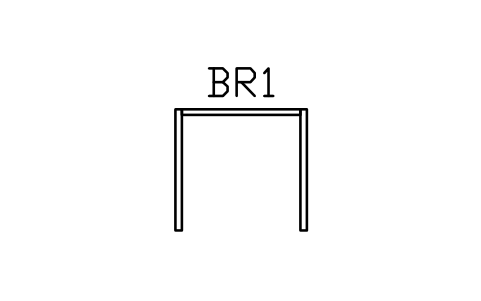
Bay frame, posts and top rail
RLG_BAY_FRAMEÖznitelikler
TAGHEIGHT_MMPOST_SPACING_MMINFILLMATERIALFINISHLOAD_KN_MMANUFACTURERMODELREMARKSDESC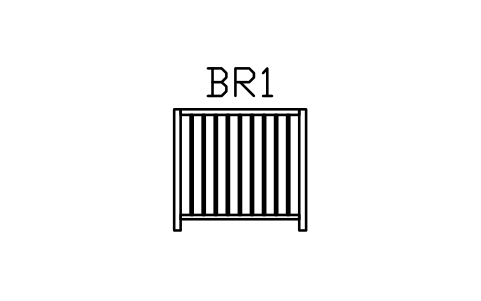
Balusters, square, 20
RLG_BAY_SQUAREÖznitelikler
TAGHEIGHT_MMPOST_SPACING_MMINFILLMATERIALFINISHLOAD_KN_MMANUFACTURERMODELREMARKSDESC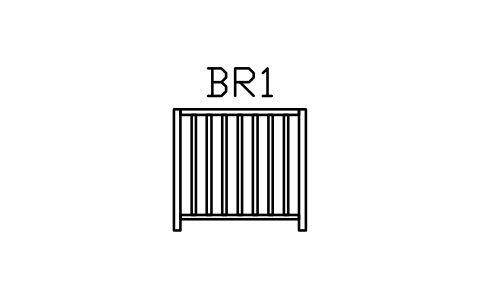
Balusters, flat bar, 40
RLG_BAY_FLATÖznitelikler
TAGHEIGHT_MMPOST_SPACING_MMINFILLMATERIALFINISHLOAD_KN_MMANUFACTURERMODELREMARKSDESC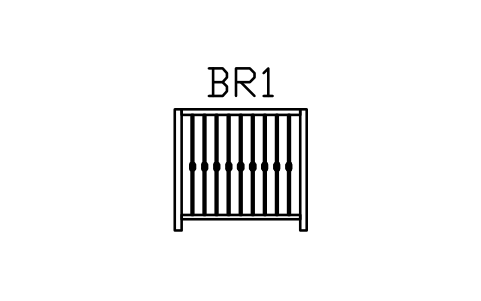
Balusters, round with collar
RLG_BAY_COLLARÖznitelikler
TAGHEIGHT_MMPOST_SPACING_MMINFILLMATERIALFINISHLOAD_KN_MMANUFACTURERMODELREMARKSDESC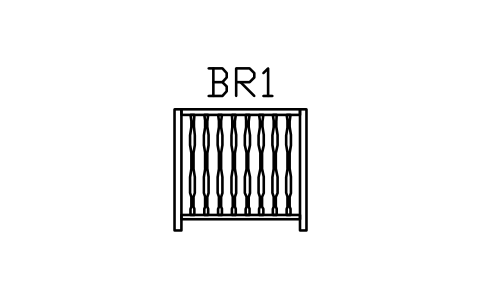
Balusters, turned timber
RLG_BAY_TURNEDÖznitelikler
TAGHEIGHT_MMPOST_SPACING_MMINFILLMATERIALFINISHLOAD_KN_MMANUFACTURERMODELREMARKSDESC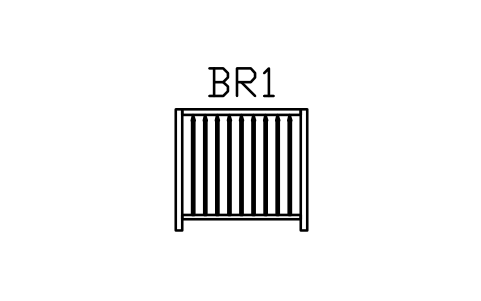
Pickets, pointed
RLG_BAY_PICKETÖznitelikler
TAGHEIGHT_MMPOST_SPACING_MMINFILLMATERIALFINISHLOAD_KN_MMANUFACTURERMODELREMARKSDESC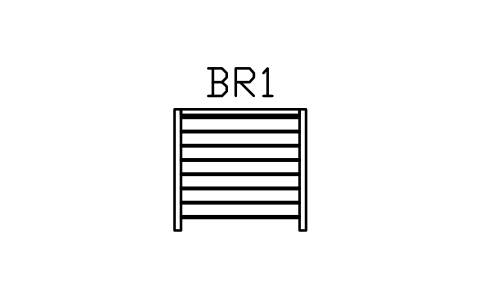
Horizontal rods, 8
RLG_BAY_ROD8Öznitelikler
TAGHEIGHT_MMPOST_SPACING_MMINFILLMATERIALFINISHLOAD_KN_MMANUFACTURERMODELREMARKSDESC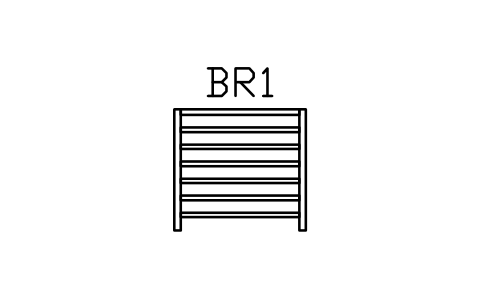
Horizontal flat bars, 6
RLG_BAY_FLATHÖznitelikler
TAGHEIGHT_MMPOST_SPACING_MMINFILLMATERIALFINISHLOAD_KN_MMANUFACTURERMODELREMARKSDESC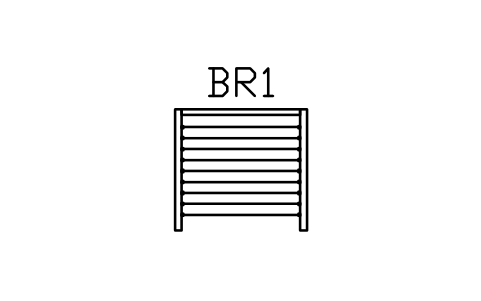
Cables, 9 rows
RLG_BAY_CABLEÖznitelikler
TAGHEIGHT_MMPOST_SPACING_MMINFILLMATERIALFINISHLOAD_KN_MMANUFACTURERMODELREMARKSDESC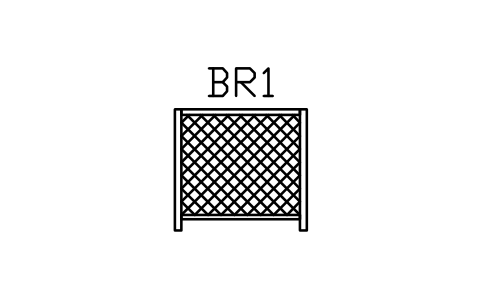
Diagonal lattice
RLG_BAY_DIAGÖznitelikler
TAGHEIGHT_MMPOST_SPACING_MMINFILLMATERIALFINISHLOAD_KN_MMANUFACTURERMODELREMARKSDESC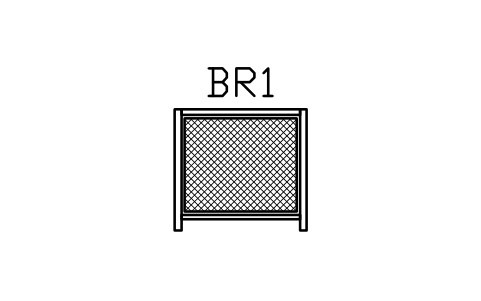
Wire mesh panel
RLG_BAY_MESHÖznitelikler
TAGHEIGHT_MMPOST_SPACING_MMINFILLMATERIALFINISHLOAD_KN_MMANUFACTURERMODELREMARKSDESC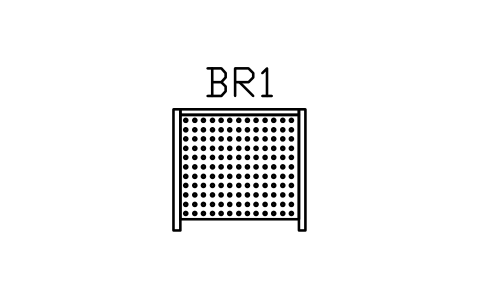
Perforated panel
RLG_BAY_PERFÖznitelikler
TAGHEIGHT_MMPOST_SPACING_MMINFILLMATERIALFINISHLOAD_KN_MMANUFACTURERMODELREMARKSDESC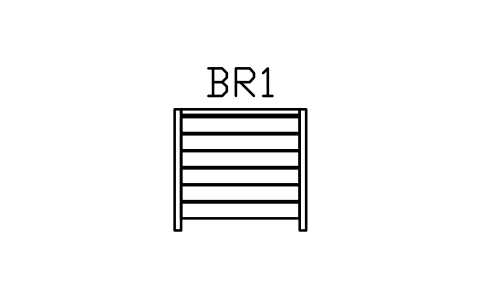
Horizontal boards, timber
RLG_BAY_BOARDSÖznitelikler
TAGHEIGHT_MMPOST_SPACING_MMINFILLMATERIALFINISHLOAD_KN_MMANUFACTURERMODELREMARKSDESC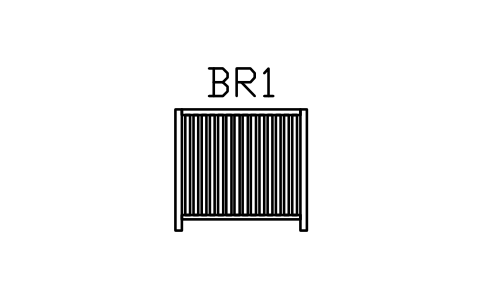
Vertical slats, timber
RLG_BAY_SLATVÖznitelikler
TAGHEIGHT_MMPOST_SPACING_MMINFILLMATERIALFINISHLOAD_KN_MMANUFACTURERMODELREMARKSDESC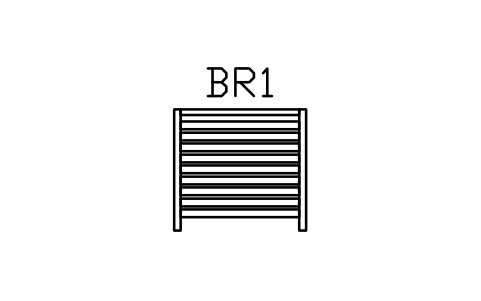
Horizontal slats, timber
RLG_BAY_SLATHÖznitelikler
TAGHEIGHT_MMPOST_SPACING_MMINFILLMATERIALFINISHLOAD_KN_MMANUFACTURERMODELREMARKSDESC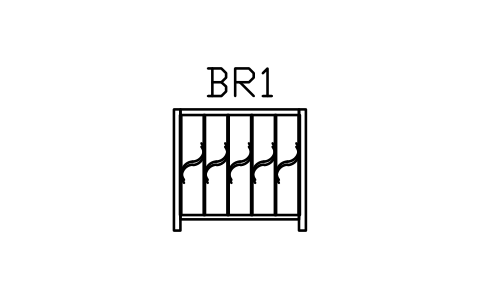
Wrought iron, S-scrolls
RLG_BAY_SCROLLSÖznitelikler
TAGHEIGHT_MMPOST_SPACING_MMINFILLMATERIALFINISHLOAD_KN_MMANUFACTURERMODELREMARKSDESC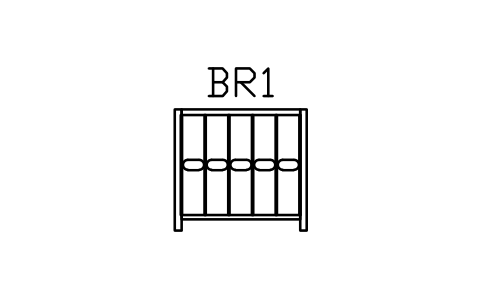
Wrought iron, C-scrolls
RLG_BAY_SCROLLCÖznitelikler
TAGHEIGHT_MMPOST_SPACING_MMINFILLMATERIALFINISHLOAD_KN_MMANUFACTURERMODELREMARKSDESC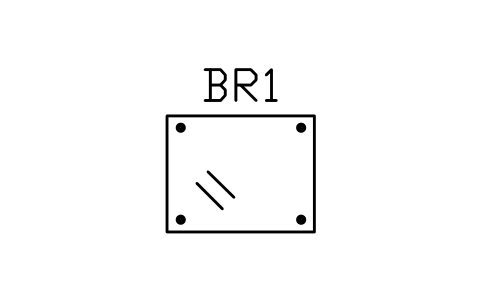
Glass, point fixed
RLG_BAY_GL_POINTÖznitelikler
TAGHEIGHT_MMPOST_SPACING_MMINFILLMATERIALFINISHLOAD_KN_MMANUFACTURERMODELREMARKSDESC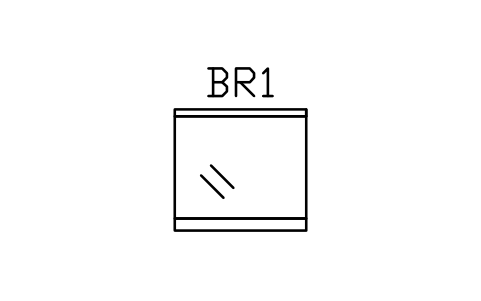
Glass, base channel and rail
RLG_BAY_GL_CHANNELÖznitelikler
TAGHEIGHT_MMPOST_SPACING_MMINFILLMATERIALFINISHLOAD_KN_MMANUFACTURERMODELREMARKSDESC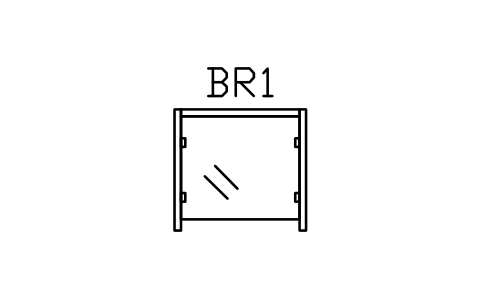
Glass, clamped to posts
RLG_BAY_GL_CLAMPÖznitelikler
TAGHEIGHT_MMPOST_SPACING_MMINFILLMATERIALFINISHLOAD_KN_MMANUFACTURERMODELREMARKSDESC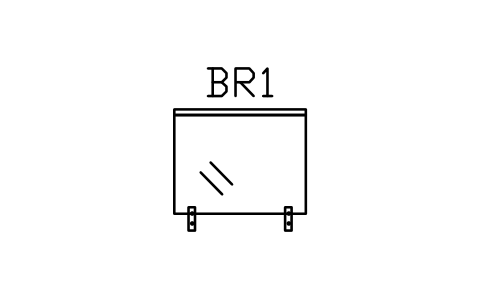
Glass, spigots and rail
RLG_BAY_GL_SPIGOTÖznitelikler
TAGHEIGHT_MMPOST_SPACING_MMINFILLMATERIALFINISHLOAD_KN_MMANUFACTURERMODELREMARKSDESC
Handrail tube, 33.7 x 2.6
RLG_SEC_TUBE_337Öznitelikler
TAGSECTIONMATERIALFINISHHEIGHT_MMFIXINGLENGTH_MMANUFACTURERMODELQTYREMARKSDESC
Handrail tube, 38.1 x 2.0
RLG_SEC_TUBE_381Öznitelikler
TAGSECTIONMATERIALFINISHHEIGHT_MMFIXINGLENGTH_MMANUFACTURERMODELQTYREMARKSDESC
Handrail tube, 42.4 x 2.6
RLG_SEC_TUBE_424Öznitelikler
TAGSECTIONMATERIALFINISHHEIGHT_MMFIXINGLENGTH_MMANUFACTURERMODELQTYREMARKSDESC
Handrail tube, 48.3 x 2.9
RLG_SEC_TUBE_483Öznitelikler
TAGSECTIONMATERIALFINISHHEIGHT_MMFIXINGLENGTH_MMANUFACTURERMODELQTYREMARKSDESC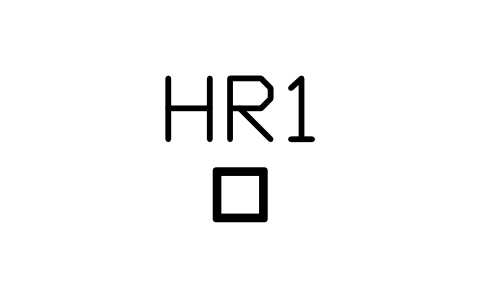
Handrail, square tube 40 x 2.5
RLG_SEC_SQ40Öznitelikler
TAGSECTIONMATERIALFINISHHEIGHT_MMFIXINGLENGTH_MMANUFACTURERMODELQTYREMARKSDESC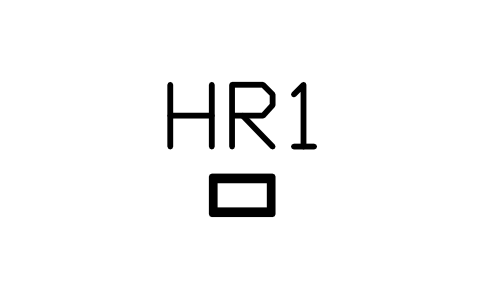
Handrail, rect tube 50 x 30
RLG_SEC_RECT50Öznitelikler
TAGSECTIONMATERIALFINISHHEIGHT_MMFIXINGLENGTH_MMANUFACTURERMODELQTYREMARKSDESC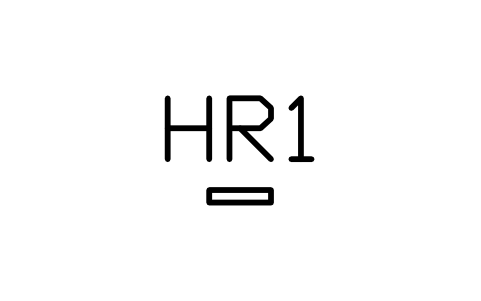
Top rail, flat bar 50 x 10
RLG_SEC_FLATÖznitelikler
TAGSECTIONMATERIALFINISHHEIGHT_MMFIXINGLENGTH_MMANUFACTURERMODELQTYREMARKSDESC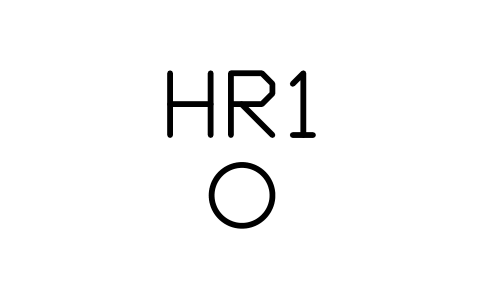
Handrail, timber round 50
RLG_SEC_TIMBER_R50Öznitelikler
TAGSECTIONMATERIALFINISHHEIGHT_MMFIXINGLENGTH_MMANUFACTURERMODELQTYREMARKSDESC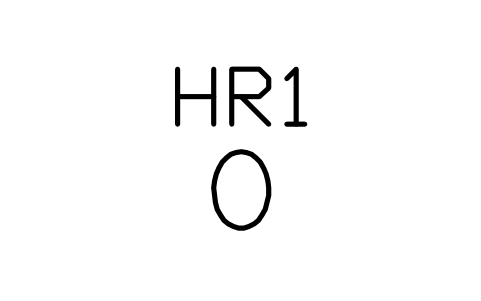
Handrail, timber oval 50 x 70
RLG_SEC_TIMBER_OVALÖznitelikler
TAGSECTIONMATERIALFINISHHEIGHT_MMFIXINGLENGTH_MMANUFACTURERMODELQTYREMARKSDESC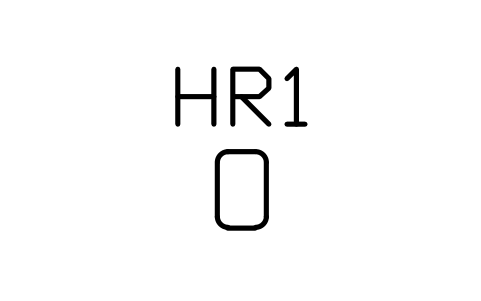
Handrail, timber 45 x 70 rounded
RLG_SEC_TIMBER_RRÖznitelikler
TAGSECTIONMATERIALFINISHHEIGHT_MMFIXINGLENGTH_MMANUFACTURERMODELQTYREMARKSDESC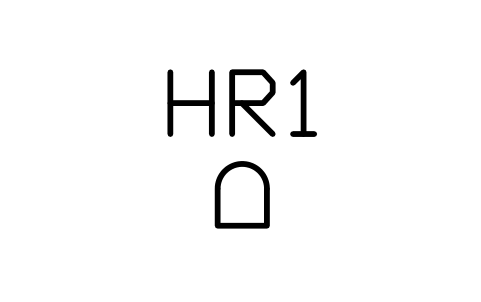
Handrail, timber D-profile 40
RLG_SEC_TIMBER_DÖznitelikler
TAGSECTIONMATERIALFINISHHEIGHT_MMFIXINGLENGTH_MMANUFACTURERMODELQTYREMARKSDESC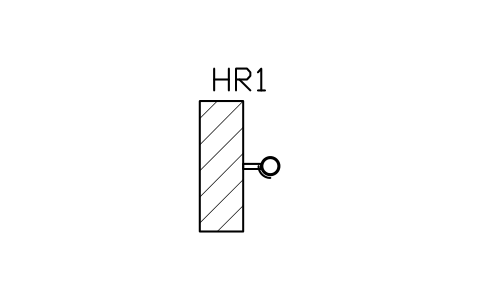
Wall handrail, tube 42.4
RLG_SEC_WALL_ROUNDÖznitelikler
TAGSECTIONMATERIALFINISHHEIGHT_MMFIXINGLENGTH_MMANUFACTURERMODELQTYREMARKSDESC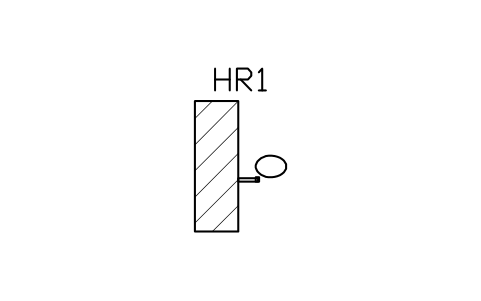
Wall handrail, timber oval
RLG_SEC_WALL_OVALÖznitelikler
TAGSECTIONMATERIALFINISHHEIGHT_MMFIXINGLENGTH_MMANUFACTURERMODELQTYREMARKSDESC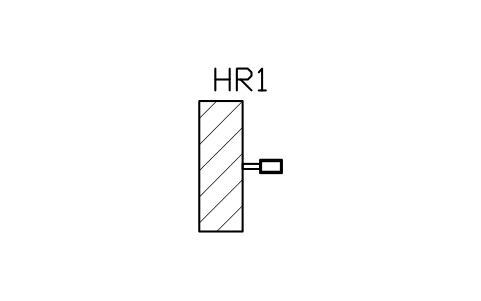
Wall handrail, rect tube 50 x 30
RLG_SEC_WALL_RECTÖznitelikler
TAGSECTIONMATERIALFINISHHEIGHT_MMFIXINGLENGTH_MMANUFACTURERMODELQTYREMARKSDESC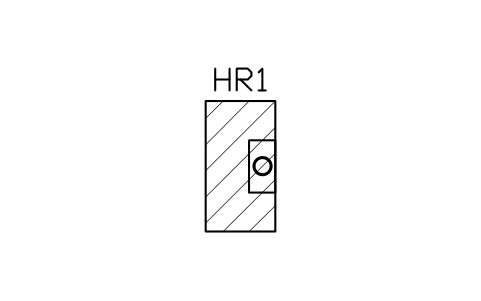
Handrail recessed in wall
RLG_SEC_WALL_RECESSÖznitelikler
TAGSECTIONMATERIALFINISHHEIGHT_MMFIXINGLENGTH_MMANUFACTURERMODELQTYREMARKSDESC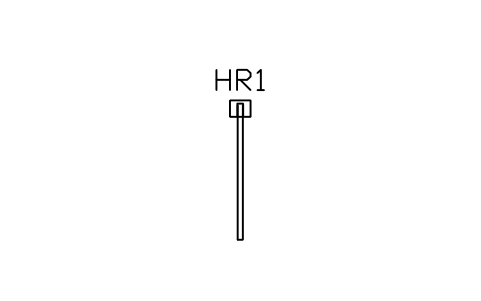
Glass cap rail, 50 x 40
RLG_SEC_GLASS_CAPÖznitelikler
TAGSECTIONMATERIALFINISHHEIGHT_MMFIXINGLENGTH_MMANUFACTURERMODELQTYREMARKSDESC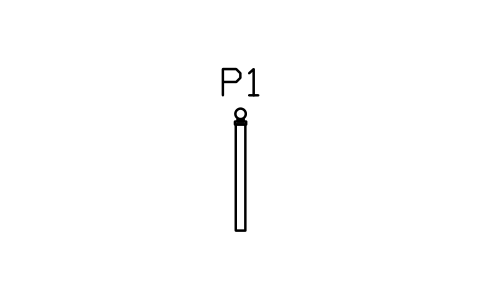
Newel post, timber, ball cap
RLG_POST_NEWEL_BALLÖznitelikler
TAGHEIGHT_MMSECTIONMATERIALFINISHCAPFIXINGMANUFACTURERMODELQTYREMARKSDESC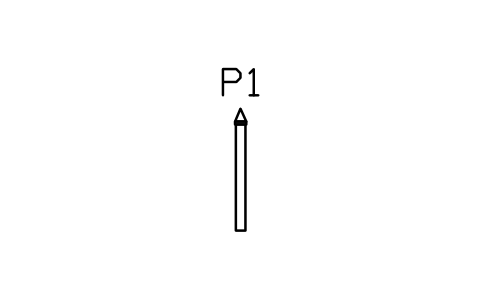
Newel post, timber, pyramid cap
RLG_POST_NEWEL_PYRÖznitelikler
TAGHEIGHT_MMSECTIONMATERIALFINISHCAPFIXINGMANUFACTURERMODELQTYREMARKSDESC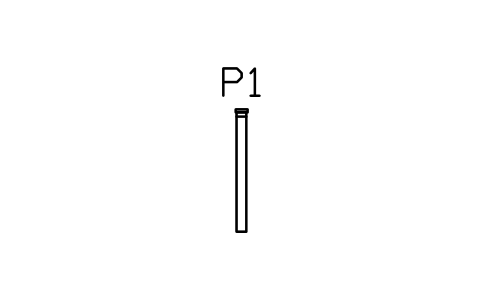
Newel post, timber, flat cap
RLG_POST_NEWEL_FLATÖznitelikler
TAGHEIGHT_MMSECTIONMATERIALFINISHCAPFIXINGMANUFACTURERMODELQTYREMARKSDESC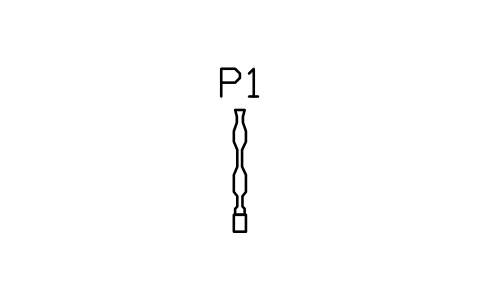
Newel post, turned timber
RLG_POST_NEWEL_TURNEDÖznitelikler
TAGHEIGHT_MMSECTIONMATERIALFINISHCAPFIXINGMANUFACTURERMODELQTYREMARKSDESC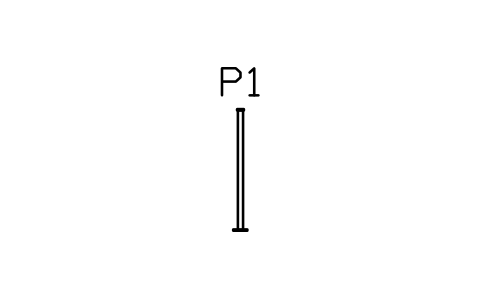
Post, steel square 50
RLG_POST_SQ50Öznitelikler
TAGHEIGHT_MMSECTIONMATERIALFINISHCAPFIXINGMANUFACTURERMODELQTYREMARKSDESC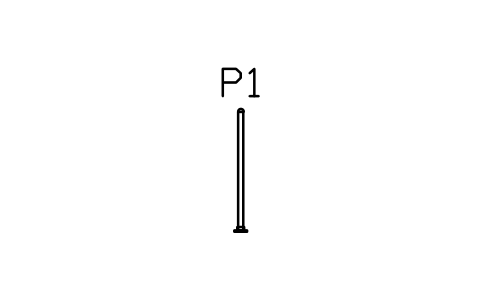
Post, steel round 48.3
RLG_POST_RD48Öznitelikler
TAGHEIGHT_MMSECTIONMATERIALFINISHCAPFIXINGMANUFACTURERMODELQTYREMARKSDESC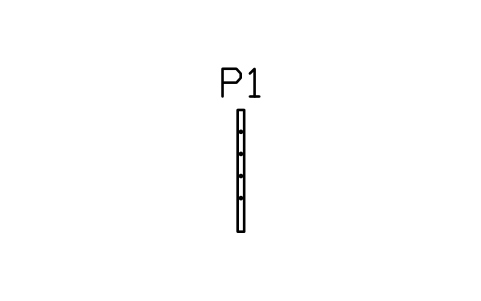
Post, flat bar 60 x 12
RLG_POST_FLATÖznitelikler
TAGHEIGHT_MMSECTIONMATERIALFINISHCAPFIXINGMANUFACTURERMODELQTYREMARKSDESC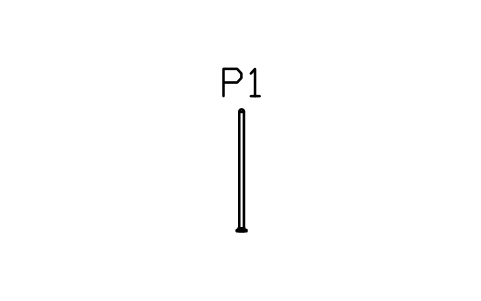
Post, stainless round 42.4
RLG_POST_SS42Öznitelikler
TAGHEIGHT_MMSECTIONMATERIALFINISHCAPFIXINGMANUFACTURERMODELQTYREMARKSDESC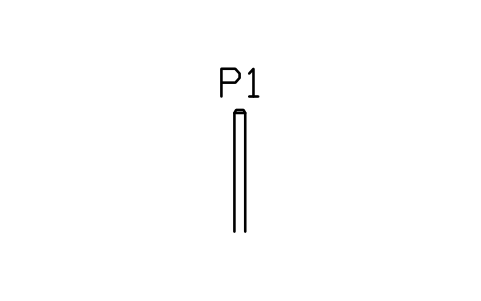
Post, timber 100 x 100
RLG_POST_TIMBER100Öznitelikler
TAGHEIGHT_MMSECTIONMATERIALFINISHCAPFIXINGMANUFACTURERMODELQTYREMARKSDESC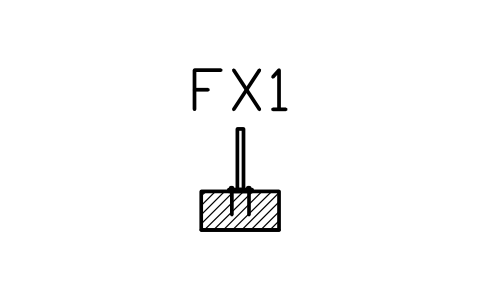
Post, top-fixed base plate
RLG_FIX_TOPPLATEÖznitelikler
TAGFIXINGFIXINGSPLATE_MMMATERIALFINISHSUBSTRATEMANUFACTURERMODELQTYREMARKSDESC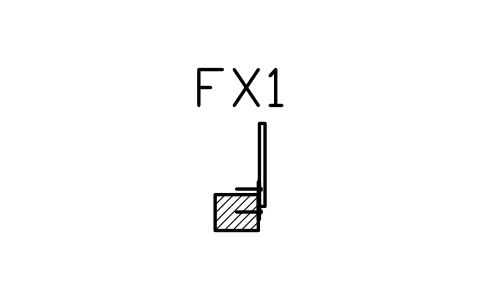
Post, side-fixed to fascia
RLG_FIX_SIDEFASCIAÖznitelikler
TAGFIXINGFIXINGSPLATE_MMMATERIALFINISHSUBSTRATEMANUFACTURERMODELQTYREMARKSDESC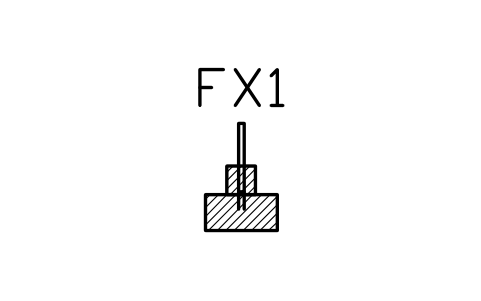
Post, cast into upstand
RLG_FIX_UPSTANDÖznitelikler
TAGFIXINGFIXINGSPLATE_MMMATERIALFINISHSUBSTRATEMANUFACTURERMODELQTYREMARKSDESC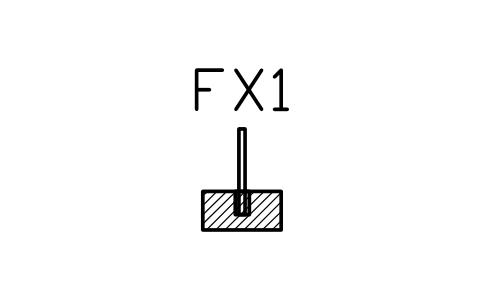
Post, core-drilled and grouted
RLG_FIX_COREÖznitelikler
TAGFIXINGFIXINGSPLATE_MMMATERIALFINISHSUBSTRATEMANUFACTURERMODELQTYREMARKSDESC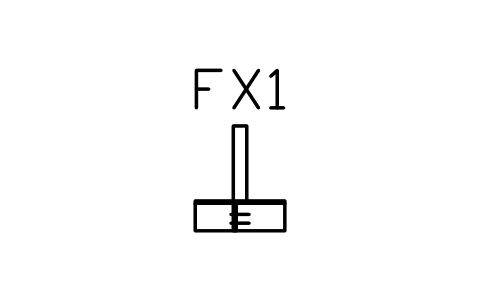
Timber post, bolted to joist
RLG_FIX_TIMBERJOISTÖznitelikler
TAGFIXINGFIXINGSPLATE_MMMATERIALFINISHSUBSTRATEMANUFACTURERMODELQTYREMARKSDESC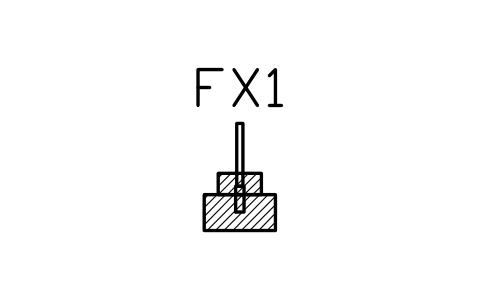
Post, in kerb sleeve
RLG_FIX_KERBÖznitelikler
TAGFIXINGFIXINGSPLATE_MMMATERIALFINISHSUBSTRATEMANUFACTURERMODELQTYREMARKSDESC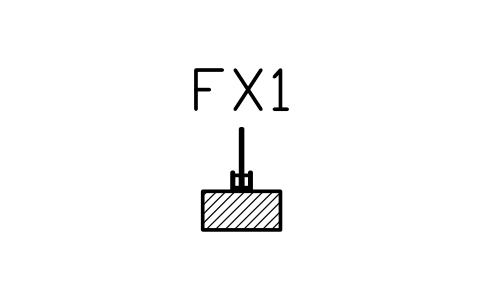
Glass, base channel on slab
RLG_FIX_GL_CHANNELÖznitelikler
TAGFIXINGFIXINGSPLATE_MMMATERIALFINISHSUBSTRATEMANUFACTURERMODELQTYREMARKSDESC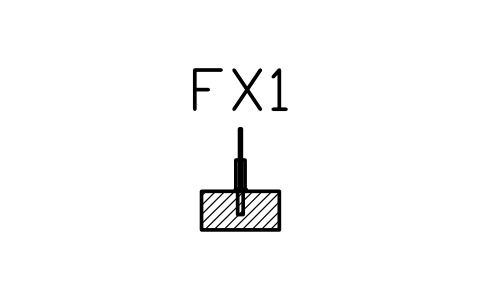
Glass, spigot on slab
RLG_FIX_GL_SPIGOTÖznitelikler
TAGFIXINGFIXINGSPLATE_MMMATERIALFINISHSUBSTRATEMANUFACTURERMODELQTYREMARKSDESC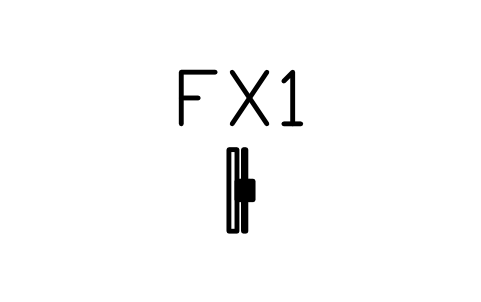
Glass, clamp on post
RLG_FIX_GL_CLAMPÖznitelikler
TAGFIXINGFIXINGSPLATE_MMMATERIALFINISHSUBSTRATEMANUFACTURERMODELQTYREMARKSDESC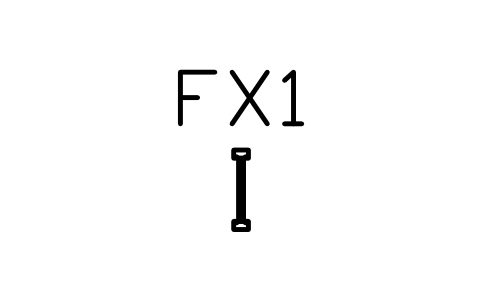
Baluster, welded to rails
RLG_FIX_BALUSTERÖznitelikler
TAGFIXINGFIXINGSPLATE_MMMATERIALFINISHSUBSTRATEMANUFACTURERMODELQTYREMARKSDESC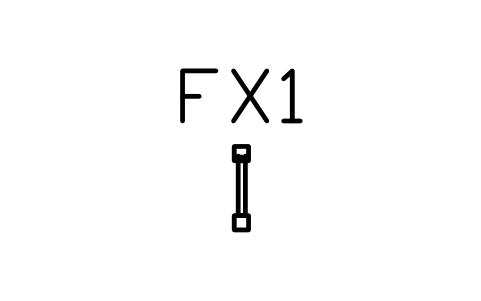
Baluster, housed in timber rails
RLG_FIX_TIMBERBALÖznitelikler
TAGFIXINGFIXINGSPLATE_MMMATERIALFINISHSUBSTRATEMANUFACTURERMODELQTYREMARKSDESC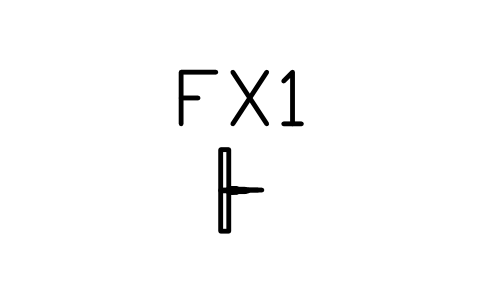
Cable end terminal, swaged
RLG_FIX_CABLE_ENDÖznitelikler
TAGFIXINGFIXINGSPLATE_MMMATERIALFINISHSUBSTRATEMANUFACTURERMODELQTYREMARKSDESC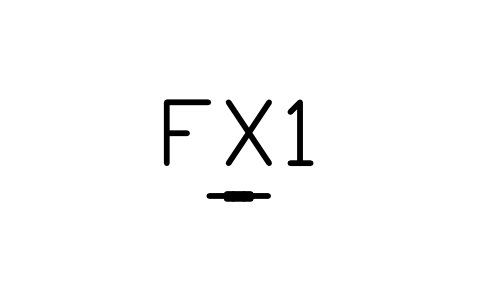
Cable tensioner, turnbuckle
RLG_FIX_TENSIONERÖznitelikler
TAGFIXINGFIXINGSPLATE_MMMATERIALFINISHSUBSTRATEMANUFACTURERMODELQTYREMARKSDESC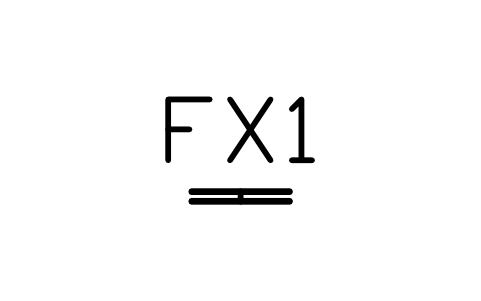
Handrail splice, internal sleeve
RLG_FIX_SPLICEÖznitelikler
TAGFIXINGFIXINGSPLATE_MMMATERIALFINISHSUBSTRATEMANUFACTURERMODELQTYREMARKSDESC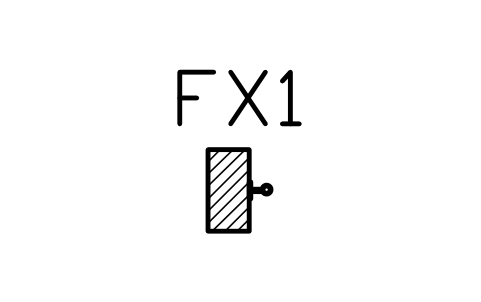
Handrail bracket, wall fixed
RLG_FIX_RAILBRACKETÖznitelikler
TAGFIXINGFIXINGSPLATE_MMMATERIALFINISHSUBSTRATEMANUFACTURERMODELQTYREMARKSDESC
Balustrade run, plan
RLG_PLAN_RUNÖznitelikler
TAGHEIGHT_MMPOST_SPACING_MMINFILLMATERIALFINISHLOAD_KN_MMANUFACTURERMODELREMARKSDESC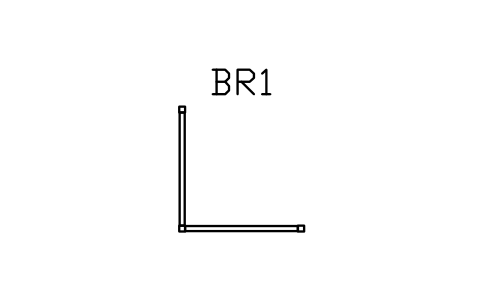
Balustrade corner, plan
RLG_PLAN_CORNERÖznitelikler
TAGHEIGHT_MMPOST_SPACING_MMINFILLMATERIALFINISHLOAD_KN_MMANUFACTURERMODELREMARKSDESC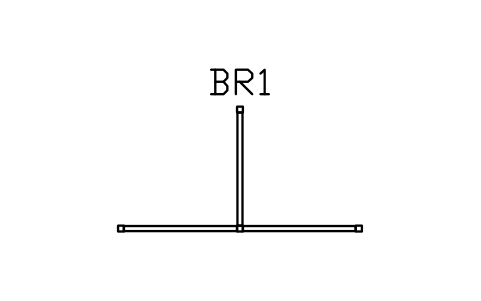
Balustrade tee, plan
RLG_PLAN_TEEÖznitelikler
TAGHEIGHT_MMPOST_SPACING_MMINFILLMATERIALFINISHLOAD_KN_MMANUFACTURERMODELREMARKSDESC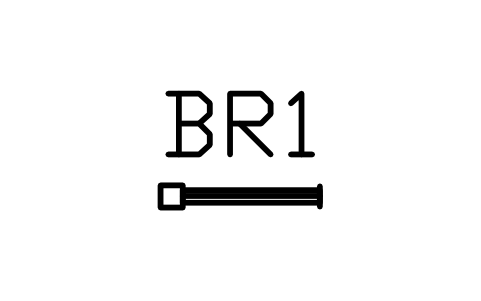
Balustrade end post, plan
RLG_PLAN_ENDÖznitelikler
TAGHEIGHT_MMPOST_SPACING_MMINFILLMATERIALFINISHLOAD_KN_MMANUFACTURERMODELREMARKSDESC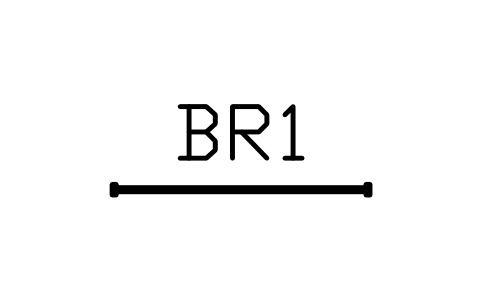
Glass balustrade, plan
RLG_PLAN_GLASSÖznitelikler
TAGHEIGHT_MMPOST_SPACING_MMINFILLMATERIALFINISHLOAD_KN_MMANUFACTURERMODELREMARKSDESC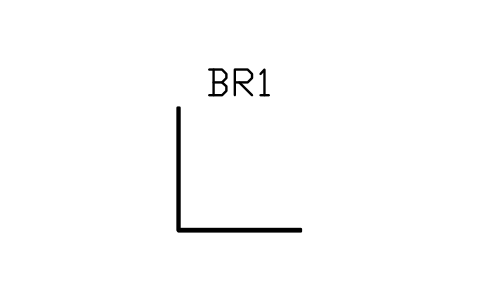
Glass balustrade corner, plan
RLG_PLAN_GLASSCORNERÖznitelikler
TAGHEIGHT_MMPOST_SPACING_MMINFILLMATERIALFINISHLOAD_KN_MMANUFACTURERMODELREMARKSDESC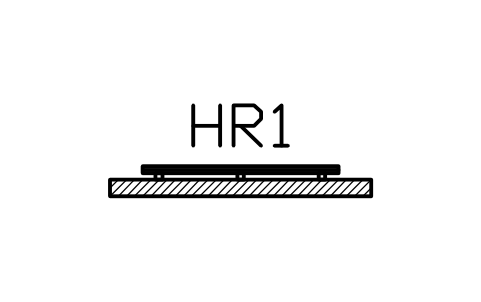
Wall handrail, plan
RLG_PLAN_HANDRAILÖznitelikler
TAGSECTIONMATERIALFINISHHEIGHT_MMFIXINGLENGTH_MMANUFACTURERMODELQTYREMARKSDESC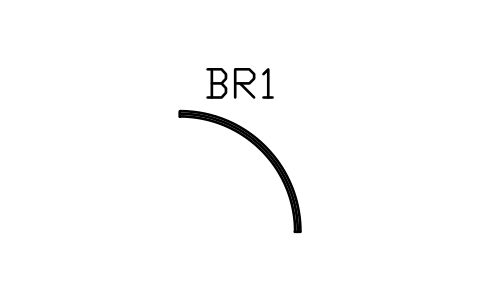
Curved balustrade, plan
RLG_PLAN_CURVEDÖznitelikler
TAGHEIGHT_MMPOST_SPACING_MMINFILLMATERIALFINISHLOAD_KN_MMANUFACTURERMODELREMARKSDESC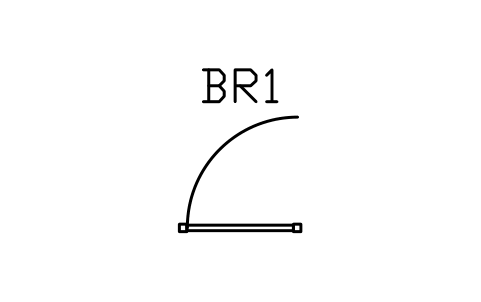
Balustrade gate, plan
RLG_PLAN_GATEÖznitelikler
TAGHEIGHT_MMPOST_SPACING_MMINFILLMATERIALFINISHLOAD_KN_MMANUFACTURERMODELREMARKSDESC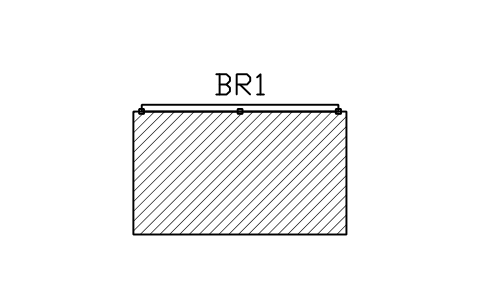
Balcony balustrade, plan
RLG_PLAN_BALCONYÖznitelikler
TAGHEIGHT_MMPOST_SPACING_MMINFILLMATERIALFINISHLOAD_KN_MMANUFACTURERMODELREMARKSDESC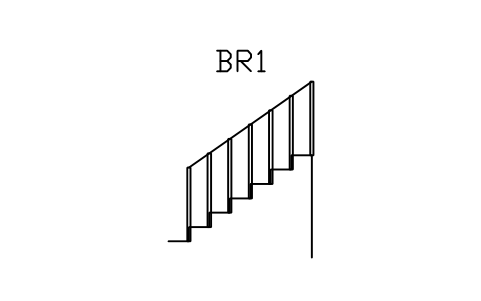
Stair balustrade, balusters
RLG_STAIR_BALUSTERSÖznitelikler
TAGHEIGHT_MMPOST_SPACING_MMINFILLMATERIALFINISHLOAD_KN_MMANUFACTURERMODELREMARKSDESC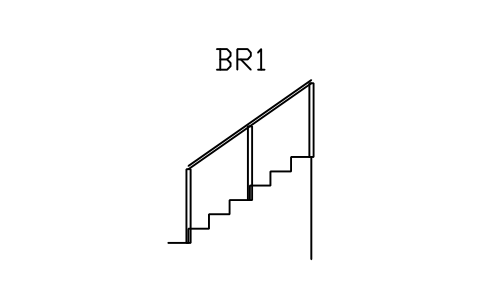
Stair handrail and posts
RLG_STAIR_RAILÖznitelikler
TAGHEIGHT_MMPOST_SPACING_MMINFILLMATERIALFINISHLOAD_KN_MMANUFACTURERMODELREMARKSDESC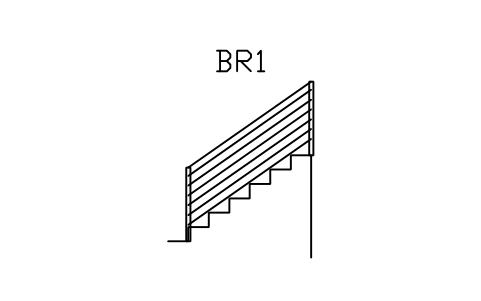
Stair balustrade, cables
RLG_STAIR_CABLEÖznitelikler
TAGHEIGHT_MMPOST_SPACING_MMINFILLMATERIALFINISHLOAD_KN_MMANUFACTURERMODELREMARKSDESC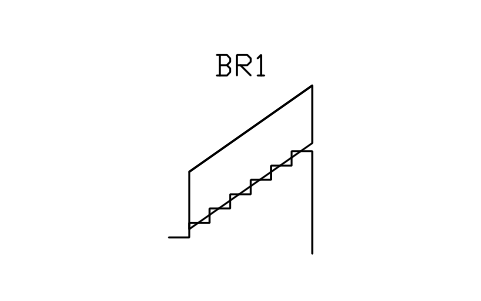
Stair balustrade, glass
RLG_STAIR_GLASSÖznitelikler
TAGHEIGHT_MMPOST_SPACING_MMINFILLMATERIALFINISHLOAD_KN_MMANUFACTURERMODELREMARKSDESC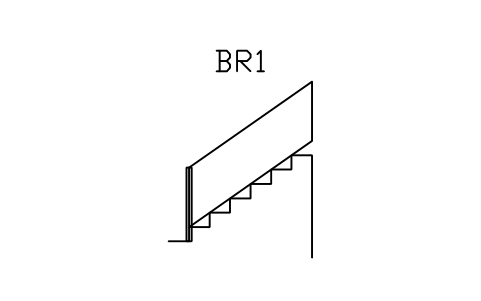
Stair stringer guard, solid
RLG_STAIR_STRINGERÖznitelikler
TAGHEIGHT_MMPOST_SPACING_MMINFILLMATERIALFINISHLOAD_KN_MMANUFACTURERMODELREMARKSDESC
Stair newel post, landing
RLG_STAIR_NEWELÖznitelikler
TAGHEIGHT_MMSECTIONMATERIALFINISHCAPFIXINGMANUFACTURERMODELQTYREMARKSDESC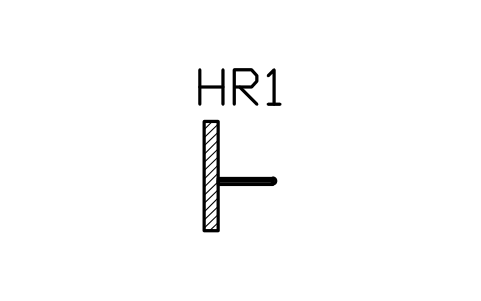
Handrail, wall return end
RLG_STAIR_RAIL_RETURNÖznitelikler
TAGSECTIONMATERIALFINISHHEIGHT_MMFIXINGLENGTH_MMANUFACTURERMODELQTYREMARKSDESC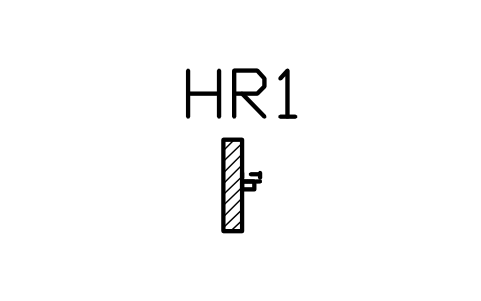
Handrail projection check
RLG_STAIR_CLEARANCEÖznitelikler
TAGSECTIONMATERIALFINISHHEIGHT_MMFIXINGLENGTH_MMANUFACTURERMODELQTYREMARKSDESC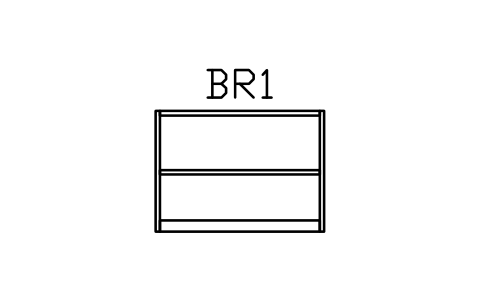
Guardrail, side elevation
RLG_IND_SIDEÖznitelikler
TAGHEIGHT_MMPOST_SPACING_MMINFILLMATERIALFINISHLOAD_KN_MMANUFACTURERMODELREMARKSDESC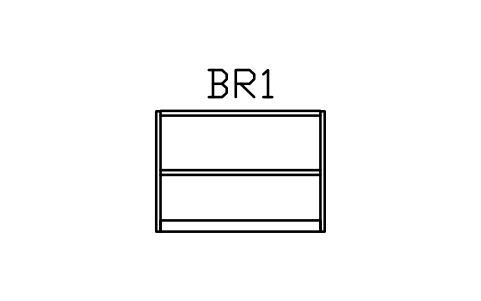
Guardrail, tube rails
RLG_IND_TUBEÖznitelikler
TAGHEIGHT_MMPOST_SPACING_MMINFILLMATERIALFINISHLOAD_KN_MMANUFACTURERMODELREMARKSDESC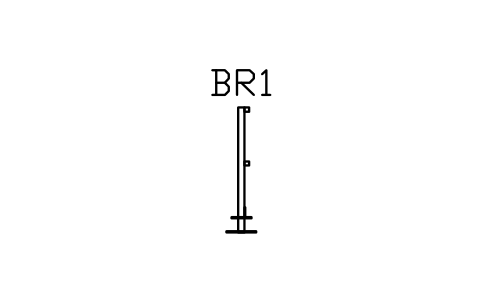
Guardrail, end view
RLG_IND_SECTIONÖznitelikler
TAGHEIGHT_MMPOST_SPACING_MMINFILLMATERIALFINISHLOAD_KN_MMANUFACTURERMODELREMARKSDESC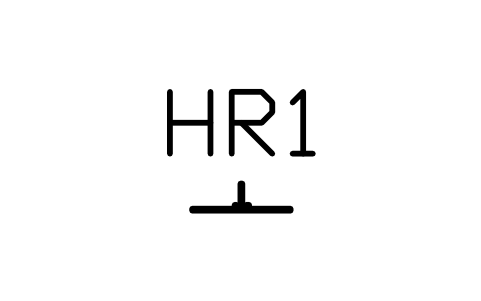
Toe board detail, 100 x 5
RLG_IND_TOEBOARDÖznitelikler
TAGSECTIONMATERIALFINISHHEIGHT_MMFIXINGLENGTH_MMANUFACTURERMODELQTYREMARKSDESC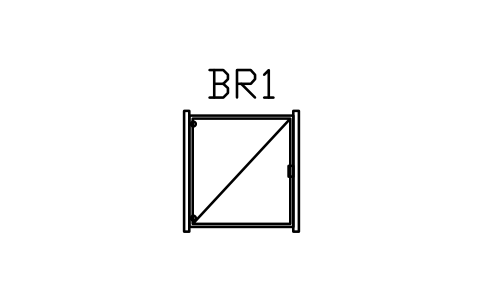
Self-closing gate, front
RLG_IND_GATE_FRONTÖznitelikler
TAGHEIGHT_MMPOST_SPACING_MMINFILLMATERIALFINISHLOAD_KN_MMANUFACTURERMODELREMARKSDESC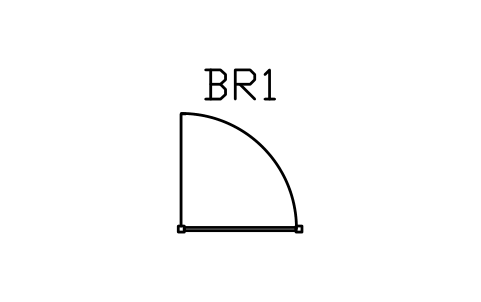
Self-closing gate, plan
RLG_IND_GATE_PLANÖznitelikler
TAGHEIGHT_MMPOST_SPACING_MMINFILLMATERIALFINISHLOAD_KN_MMANUFACTURERMODELREMARKSDESC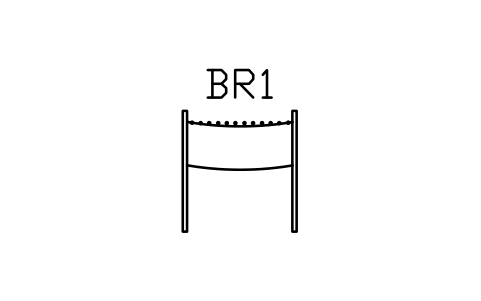
Safety chain, two posts
RLG_IND_CHAINÖznitelikler
TAGHEIGHT_MMPOST_SPACING_MMINFILLMATERIALFINISHLOAD_KN_MMANUFACTURERMODELREMARKSDESC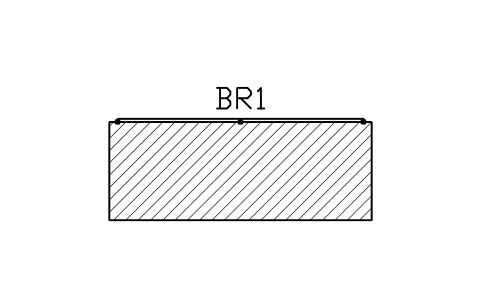
Platform edge guardrail, plan
RLG_IND_EDGE_PLANÖznitelikler
TAGHEIGHT_MMPOST_SPACING_MMINFILLMATERIALFINISHLOAD_KN_MMANUFACTURERMODELREMARKSDESC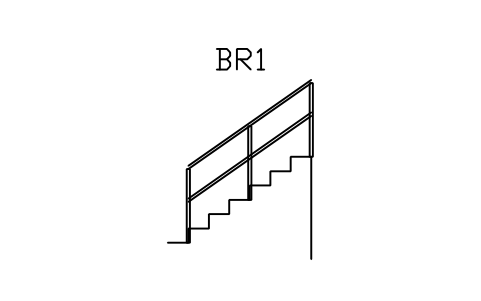
Industrial stair, handrail
RLG_IND_STAIRÖznitelikler
TAGHEIGHT_MMPOST_SPACING_MMINFILLMATERIALFINISHLOAD_KN_MMANUFACTURERMODELREMARKSDESC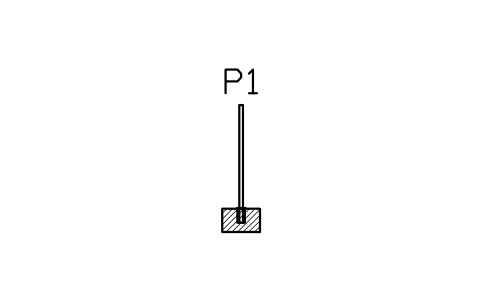
Floor socket, removable post
RLG_IND_SOCKETÖznitelikler
TAGHEIGHT_MMSECTIONMATERIALFINISHCAPFIXINGMANUFACTURERMODELQTYREMARKSDESC
Bir sembol mü eksik? Hangisi olduğunu bize yazın.
Attributes for parts lists
Every block has a visible tag (BR1 for a balustrade, HR1 for a handrail section, P1 for a post, FX1 for a fixing). The data for a schedule are invisible attributes: HEIGHT_MM, POST_SPACING_MM, INFILL, MATERIAL, FINISH and LOAD_KN_M for balustrades; SECTION, MATERIAL, FINISH, FIXING and LENGTH_M for handrail sections; SECTION, CAP and FIXING for posts; SUBSTRATE and PLATE_MM for fixings; MANUFACTURER, MODEL and REMARKS everywhere.
Heights, spacing and infill are prefilled with the figures named in the block. Export the blocks of all drawings to Excel with BlockSync to build a railing schedule, check it and write the changes back to the drawings.
How to use the library
- Unzip the file and open the DWG. Copy the symbols you need into your plan, or drag the blocks in from DesignCenter (ADCENTER).
- Insert the blocks at scale 1 in model space; they are drawn at real size in millimetres, and the catalog shows them at 1:100. The handrail and guard sections are the exception: they are drawn five times full size so that they can be read, so insert them at scale 0.2 for the real size. A bay is 1200 wide over the post faces and 1100 high; the sizes are common trade sizes, and the product of your maker may differ.
- Bays in elevation are inserted at the bottom left of the first post, with the floor at Y = 0; repeat a bay every 1140 along X so that neighbouring posts share a centre line. Plan symbols start at the centre of the first post and run along +X, 1200 between post centres. Stair symbols start at the first nosing, with a riser of 175 and a tread of 250. Posts and sections are inserted at their own axis.
- Fixing details are drawn as sections through the post axis, with the floor at Y = 0 and the slab, joist or kerb below it in a thin hatch. They show how a post, glass panel or cable is held, not a structural calculation. Use them as a base and change the plate, bolts and depth to your product.
About heights, openings and loads
Railings are governed by building codes and product standards that differ between countries and by use: guard height, the largest opening, climbability, handrail grip and the design load. The library has no standard behind it and follows common trade sizes, with a guard height of 1100 and a stair rail height of 900. Check every height, opening and load against the code that applies to your project.
These symbols are our own drawings after common practice, and the library is not certified against any standard. They show the look and the construction of a railing, not its structural capacity; change the blocks if your design or product differs.
What changed in each version
Version 1.0 · 28 Ekim 2026
New symbols (89)
Bay frame, posts and top rail · Balusters, square, 20 · Balusters, flat bar, 40 · Balusters, round with collar · Balusters, turned timber · Pickets, pointed · Horizontal rods, 8 · Horizontal flat bars, 6 · Cables, 9 rows · Diagonal lattice · Wire mesh panel · Perforated panel · Horizontal boards, timber · Vertical slats, timber · Horizontal slats, timber · Wrought iron, S-scrolls · Wrought iron, C-scrolls · Glass, point fixed · Glass, base channel and rail · Glass, clamped to posts · Glass, spigots and rail · Handrail tube, 33.7 x 2.6 · Handrail tube, 38.1 x 2.0 · Handrail tube, 42.4 x 2.6 · Handrail tube, 48.3 x 2.9 · Handrail, square tube 40 x 2.5 · Handrail, rect tube 50 x 30 · Top rail, flat bar 50 x 10 · Handrail, timber round 50 · Handrail, timber oval 50 x 70 · Handrail, timber 45 x 70 rounded · Handrail, timber D-profile 40 · Wall handrail, tube 42.4 · Wall handrail, timber oval · Wall handrail, rect tube 50 x 30 · Handrail recessed in wall · Glass cap rail, 50 x 40 · Newel post, timber, ball cap · Newel post, timber, pyramid cap · Newel post, timber, flat cap · 49 more
Frequently asked questions
- Do these symbols meet a building code?
- The symbols are drawings of common railing types at common sizes, not a design. Heights, openings, loads and glass thickness are set by the code of the place and by the product, so check them for your project. The attribute fields for height and load are there so that the values of your design are recorded on the block.
- Why are the handrail sections five times larger?
- A 42 mm tube is only a dot at catalog scale, so the sections are drawn at 5:1 to be readable. Insert them at scale 0.2 for the real size, or leave them at 5:1 on a detail sheet. The posts, fixings and bays are at real size.
- Can I use the symbols in commercial projects?
- Yes. They are free to use and modify in your own projects, including commercial ones. They are provided as is, without warranty. Please do not redistribute or resell the library; see the library terms.
- Can I use these together with the architectural library?
- Yes. They use the same units, attributes and insertion rule, and the bay is the same 1200 module as the balustrades of the architectural plan library. This library adds the fixings, sections, plan and stair views and industrial guardrails, and many more infill types.
- Can I change a symbol or add attributes?
- Yes. Open the DWG, edit a block with BEDIT to change it or add attributes, and save. To update drawings that already contain the block, run ATTSYNC or replace the block. Make a backup first: attribute values can be lost if ATTSYNC is used carelessly.
- Are the floor, wallpaper and material patterns hatches?
- No, they are blocks made of thin lines. Insert one, scale it to the area you want to show and copy it to cover more (ARRAY), or use it as a legend sample next to your finish schedule. For large areas the hatch patterns of your CAD program are the better choice.
- Should I download this library or one of the smaller topic libraries (furniture, doors and windows, bathroom and kitchen, stairs, walls and roofs)?
- This one has everything in a single file. If you need only one topic, the topic library holds the same blocks in a smaller file, and the furniture library adds front elevations of the furniture.
- Where do I find a ready-made set of these symbols for AutoCAD?
- AutoCAD itself ships only a small set of sample blocks, so a full symbol set has to come from a library. Download the ZIP on this page and open the DWG: every symbol is a block. Insert one with INSERT (Blocks palette, Libraries tab, then pick the DWG) or drag it from DesignCenter (ADCENTER). You can also download a single symbol on its own.
Count the symbols and build a parts list
Because ratings and part numbers are attributes, the symbols of a whole project can be counted and listed without opening the drawings. Export the blocks to Excel, total them with a pivot table and write corrections back in one run, with preview and backup.
See how to count blocks with BlockSync