
KaynaklarDWG sembol kütüphaneleri
Free AutoCAD radiation protection layout blocks (DWG): shielding walls, hot cells, glove boxes, monitors, nuclear medicine, radiation signs
Radiation protection and nuclear facility layout: 119 ready-made AutoCAD blocks (DWG), free to download and use in your own projects, as a ZIP or one symbol at a time.
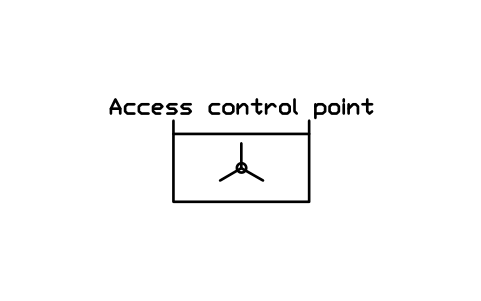
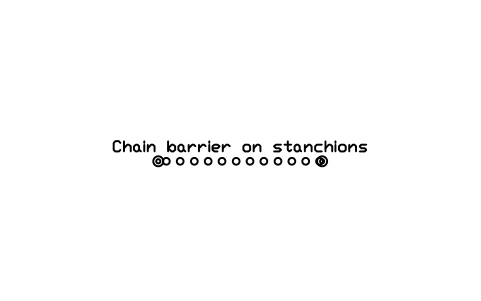
119 radiation protection and nuclear facility layout symbols for AutoCAD at real size in millimetres, in eight groups: radiation marks and signs (the trefoil, sign plates for radiation, high radiation, controlled, supervised, contamination and airborne areas, warning light, door interlock, emergency stop, search and secure button, exposure panel); area classification and access (controlled and supervised area boundaries, zone marks, access point, chain barrier, floor stripe, assembly point, step-off line, survey and smear points); shielding walls and doors (concrete from 300 to 1200, barite concrete, lead lining, lead partition, steel plate, borated polyethylene, lead bricks, water tank, shield blocks, swing and sliding shield doors, labyrinth, lead glass window, penetrations, pass-through hatch, floor plug); hot cells, glove boxes and handling (concrete and steel hot cells, manipulators, transfer port, transport cask, lead castle, glove boxes, bag-out port, radiochemistry hood); monitoring and dosimetry; contamination control and waste; nuclear medicine and radiotherapy; and generic research reactor and irradiation facility footprints. They are plan symbols for laboratories, hospitals, research facilities and irradiation rooms.
Version 1.0 · updated 28 Ekim 2026 · Check out what's changed
Using AutoCAD 2017 or an earlier version? Download the 2010 format
Copyright CADXChange. Use and modify the symbols freely in your own drawings and projects, including commercial ones; credit and a link are needed only when you publish them. Please do not redistribute or resell the library. Each ZIP holds one plain DWG file in AutoCAD 2018 format and a README; no add-in needed. Provided as is, without warranty. Library terms (CXL-1.0)
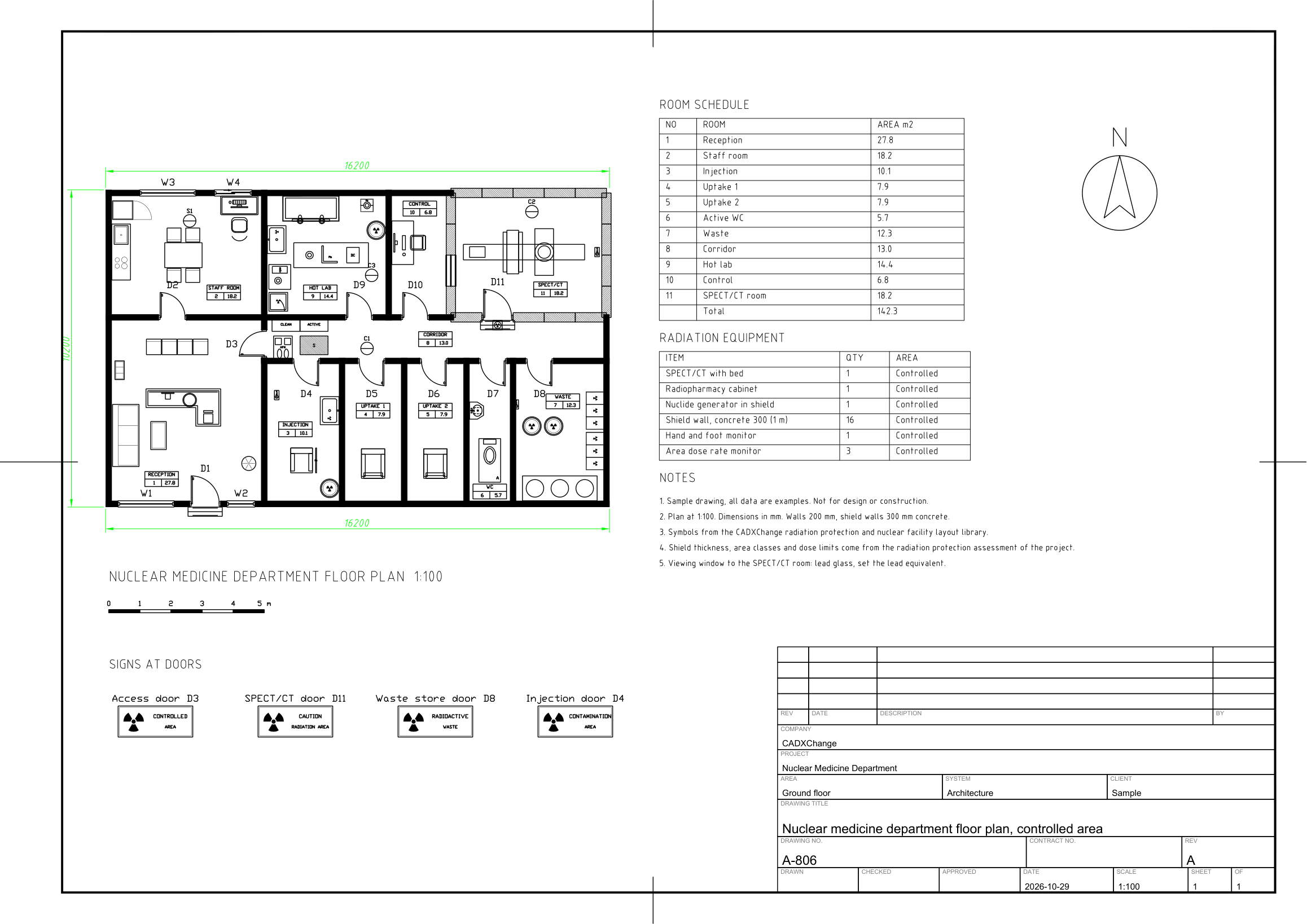
Bu kütüphaneyle hazırlanan örnek çizimler
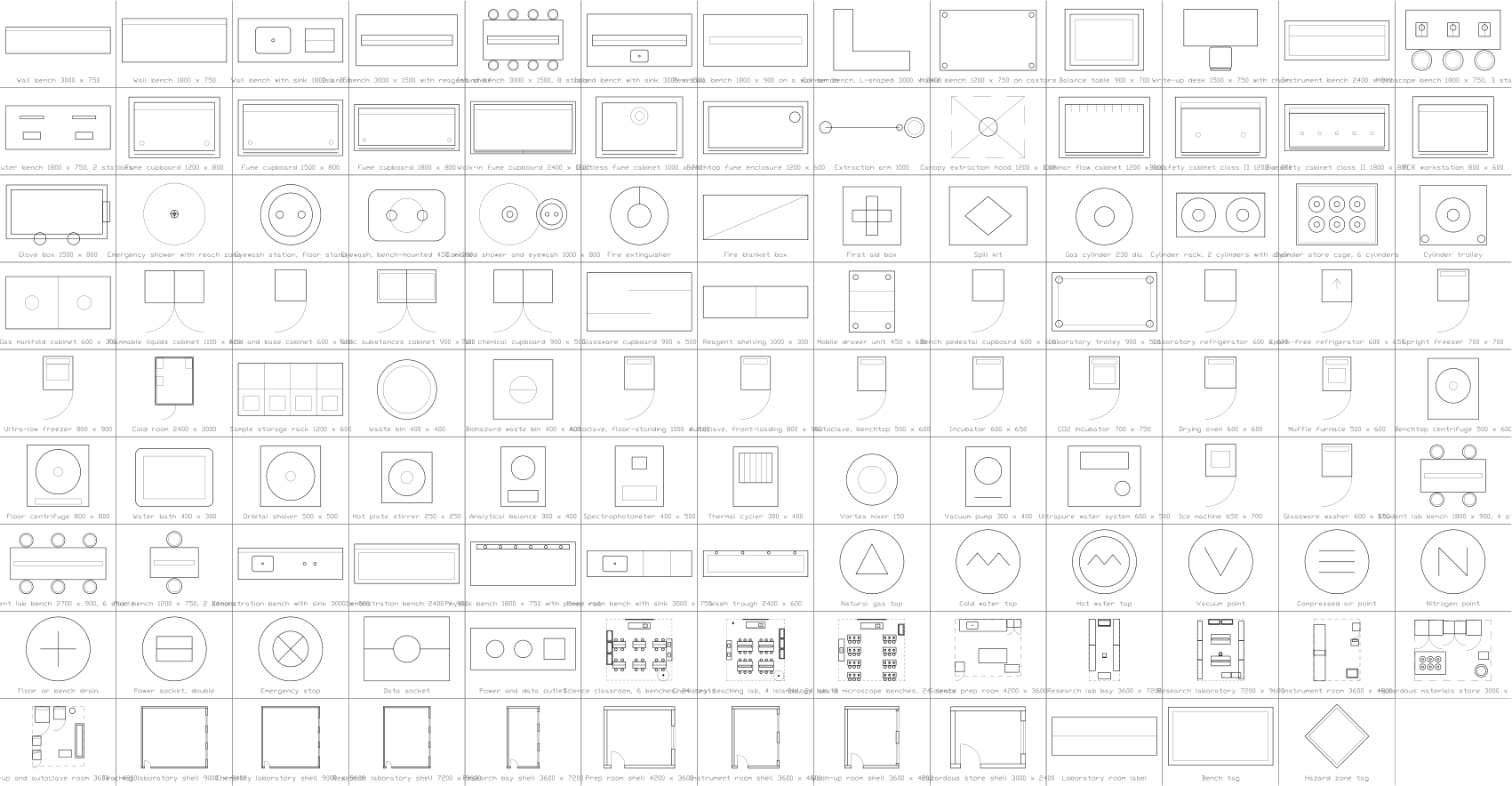
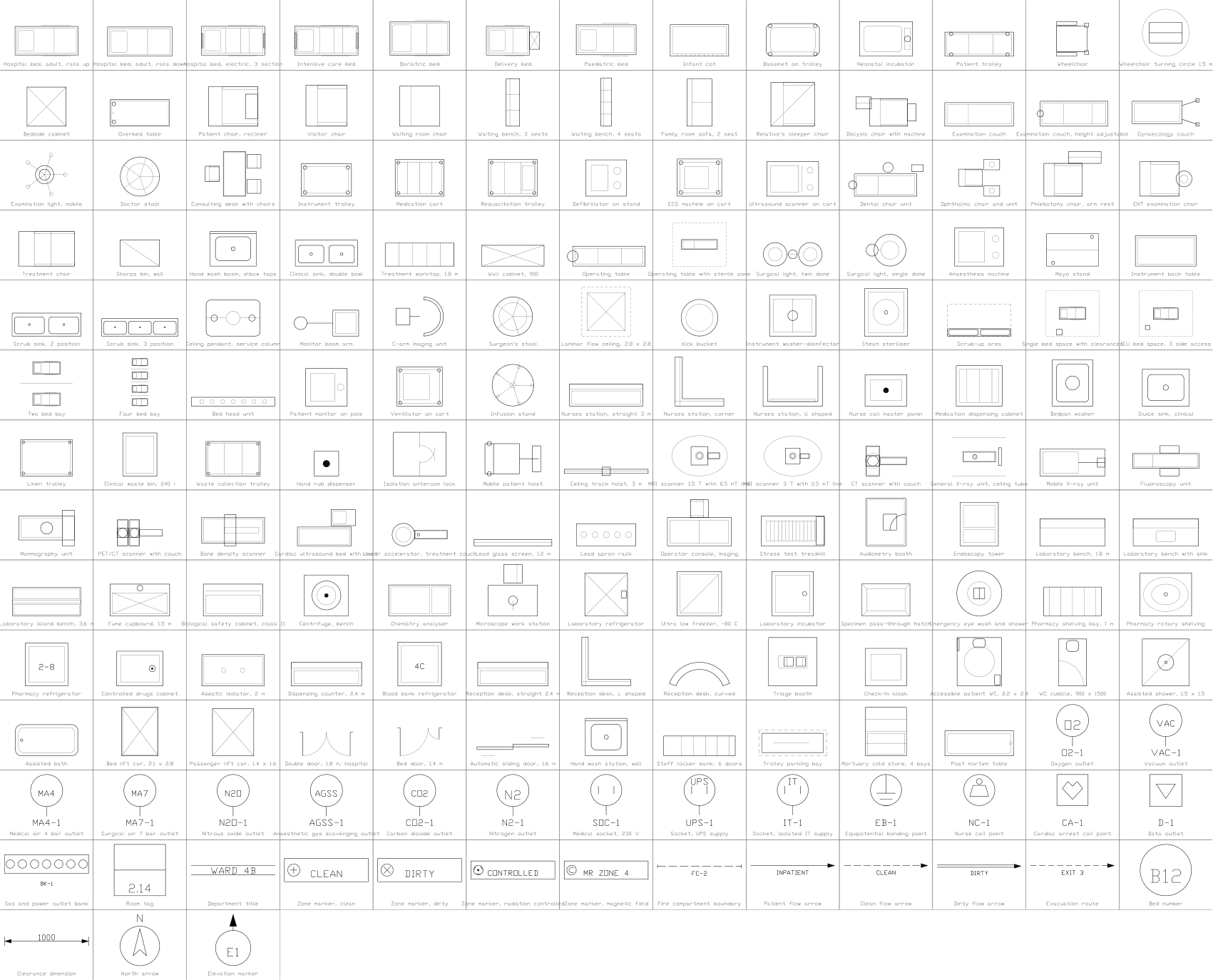
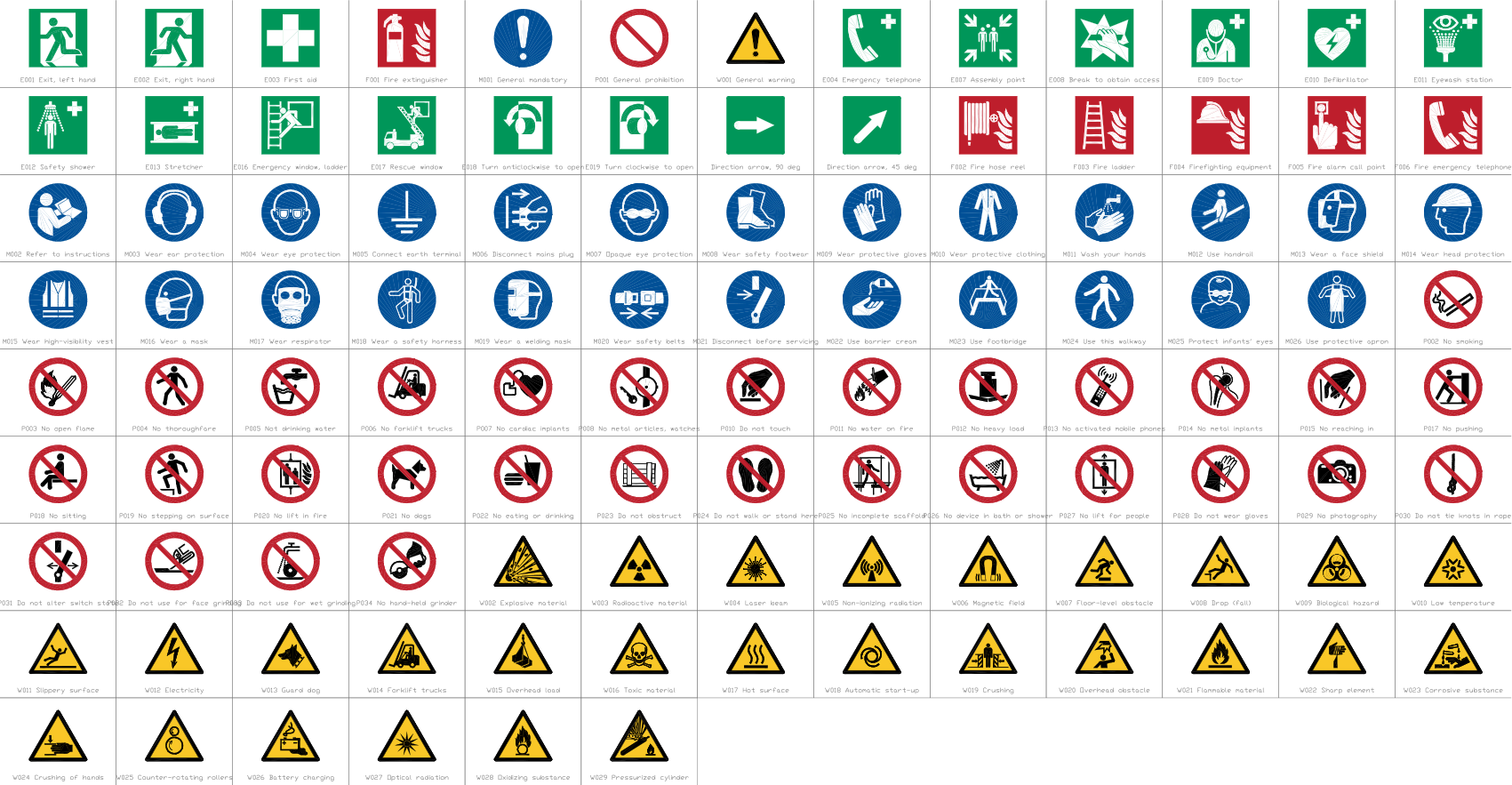
Related symbol libraries
Bu araçlarla iyi çalışır
 Bu sembolleri 30 çizime mi koyacaksınız?Değişen bir sembolü, her dosyayı açmadan, tüm çizimlerde tek seferde değiştirin.BlockCopy aracını gör
 Bu sembolleri çizimlerinizde saymanız mı gerekiyor?Bir çizim setindeki tüm sembolleri ve özniteliklerini Excel'e aktarın, satırları düzenleyin ve geri yazın.BlockSync aracını gör
 Bu sembolü hangi çizimler kullanıyor?Yüzlerce çizimde blokları ve metinleri aynı anda arayın, sonra doğrudan eşleşmeye gidin.DwgSearch aracını gör
All 119 symbols
119 sembolün 119 tanesi
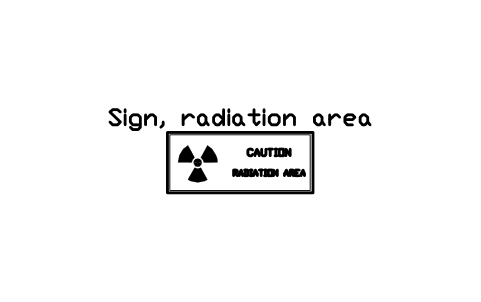
Sign, radiation area
RAD_SIGN_RADIATION_AREAÖznitelikler
DESIGNATIONSIZEAREA_CLASSSIGN_SIZE_MMREMARKSDESC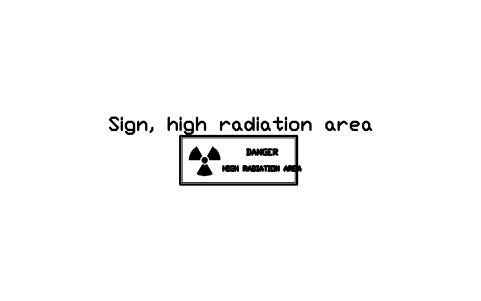
Sign, high radiation area
RAD_SIGN_HIGH_RADIATIONÖznitelikler
DESIGNATIONSIZEAREA_CLASSSIGN_SIZE_MMREMARKSDESC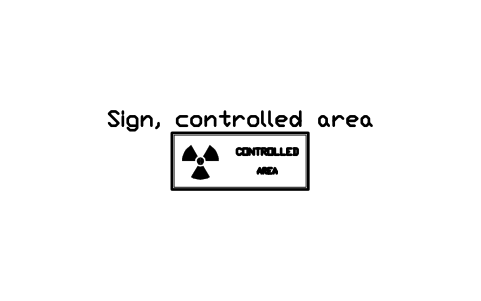
Sign, controlled area
RAD_SIGN_CONTROLLED_AREAÖznitelikler
DESIGNATIONSIZEAREA_CLASSSIGN_SIZE_MMREMARKSDESC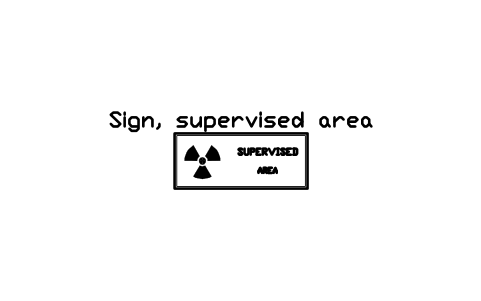
Sign, supervised area
RAD_SIGN_SUPERVISED_AREAÖznitelikler
DESIGNATIONSIZEAREA_CLASSSIGN_SIZE_MMREMARKSDESC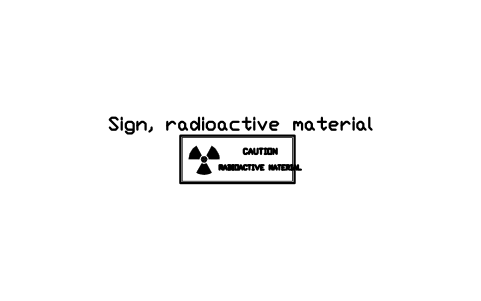
Sign, radioactive material
RAD_SIGN_RADIOACTIVE_MATERIALÖznitelikler
DESIGNATIONSIZEAREA_CLASSSIGN_SIZE_MMREMARKSDESC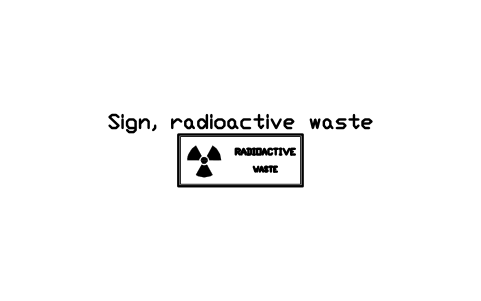
Sign, radioactive waste
RAD_SIGN_RADIOACTIVE_WASTEÖznitelikler
DESIGNATIONSIZEAREA_CLASSSIGN_SIZE_MMREMARKSDESC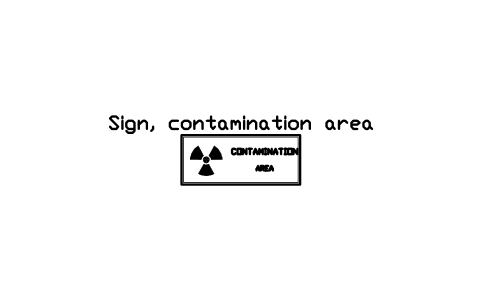
Sign, contamination area
RAD_SIGN_CONTAMINATIONÖznitelikler
DESIGNATIONSIZEAREA_CLASSSIGN_SIZE_MMREMARKSDESC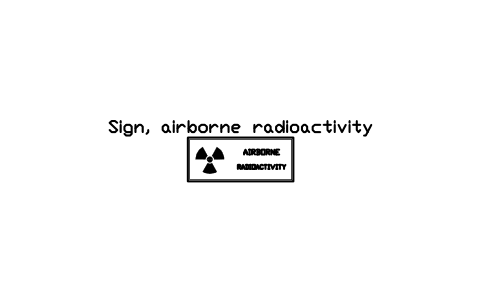
Sign, airborne radioactivity
RAD_SIGN_AIRBORNEÖznitelikler
DESIGNATIONSIZEAREA_CLASSSIGN_SIZE_MMREMARKSDESC
Radiation warning light
RAD_WARNING_LIGHTÖznitelikler
DESIGNATIONSIZELAMPSUPPLYMANUFACTURERMODELQTYREMARKSDESC
Door interlock switch
RAD_DOOR_INTERLOCKÖznitelikler
DESIGNATIONSIZECONTACTSSUPPLYMANUFACTURERMODELQTYREMARKSDESC
Emergency stop, radiation room
RAD_EMERGENCY_STOPÖznitelikler
DESIGNATIONSIZESUPPLYMANUFACTURERMODELQTYREMARKSDESC
Search and secure button
RAD_SEARCH_SECUREÖznitelikler
DESIGNATIONSIZESUPPLYMANUFACTURERMODELQTYREMARKSDESC
Exposure indicator panel
RAD_EXPOSURE_PANELÖznitelikler
DESIGNATIONSIZESUPPLYMANUFACTURERMODELQTYREMARKSDESC
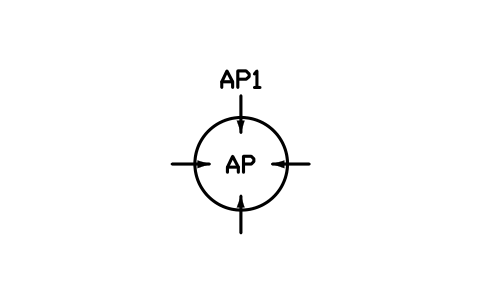
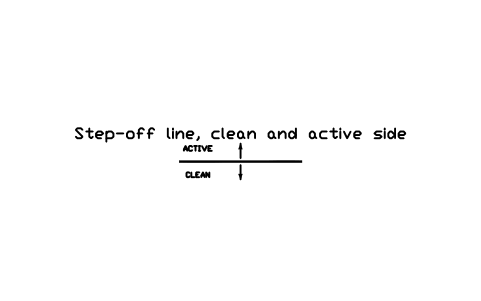
Step-off line, clean and active side
RAD_STEP_OFF_LINEÖznitelikler
DESIGNATIONSIZEAREA_CLASSREMARKSDESC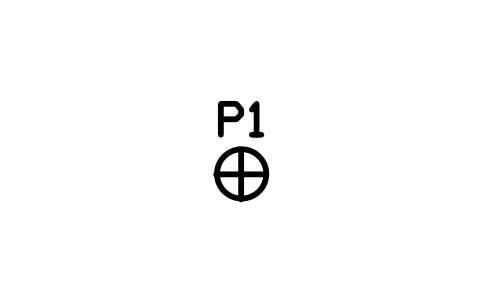
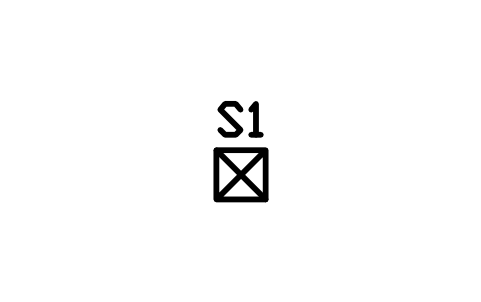
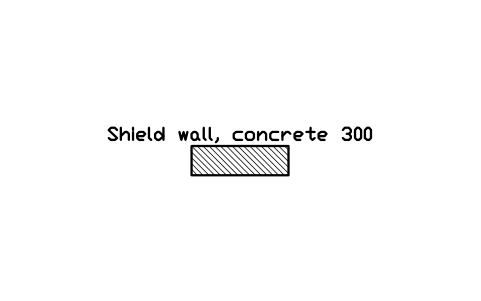
Shield wall, concrete 300
RAD_WALL_CONCRETE_300Öznitelikler
DESIGNATIONSIZESHIELD_MATERIALSHIELD_THICKNESS_MMLEAD_EQUIVALENT_MMDENSITY_KG_M3REMARKSDESC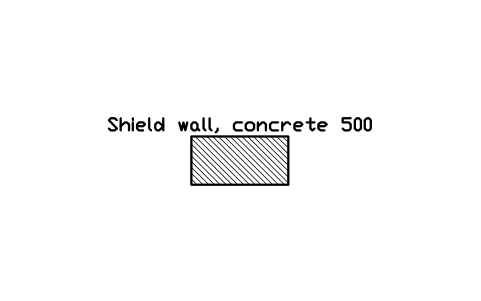
Shield wall, concrete 500
RAD_WALL_CONCRETE_500Öznitelikler
DESIGNATIONSIZESHIELD_MATERIALSHIELD_THICKNESS_MMLEAD_EQUIVALENT_MMDENSITY_KG_M3REMARKSDESC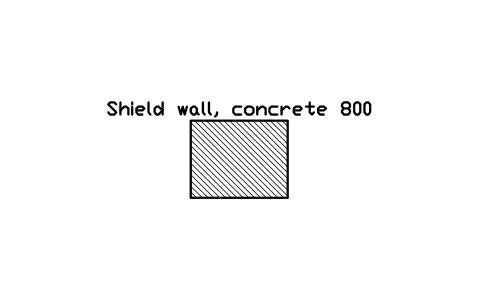
Shield wall, concrete 800
RAD_WALL_CONCRETE_800Öznitelikler
DESIGNATIONSIZESHIELD_MATERIALSHIELD_THICKNESS_MMLEAD_EQUIVALENT_MMDENSITY_KG_M3REMARKSDESC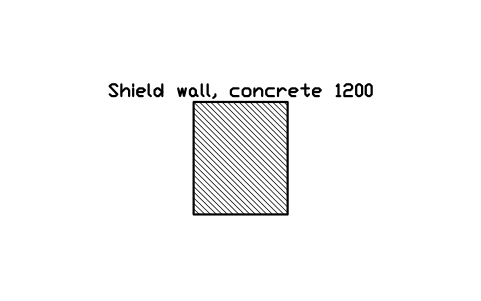
Shield wall, concrete 1200
RAD_WALL_CONCRETE_1200Öznitelikler
DESIGNATIONSIZESHIELD_MATERIALSHIELD_THICKNESS_MMLEAD_EQUIVALENT_MMDENSITY_KG_M3REMARKSDESC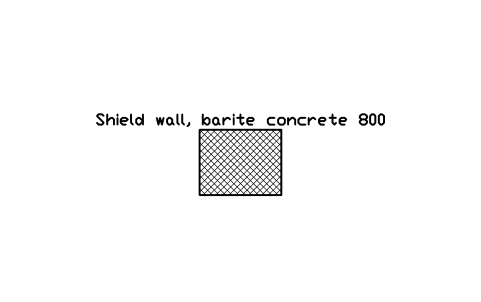
Shield wall, barite concrete 800
RAD_WALL_BARITE_800Öznitelikler
DESIGNATIONSIZESHIELD_MATERIALSHIELD_THICKNESS_MMLEAD_EQUIVALENT_MMDENSITY_KG_M3REMARKSDESC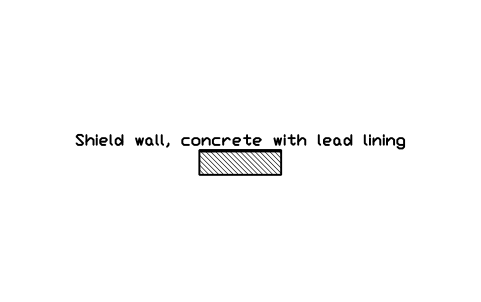
Shield wall, concrete with lead lining
RAD_WALL_CONCRETE_LEADÖznitelikler
DESIGNATIONSIZESHIELD_MATERIALSHIELD_THICKNESS_MMLEAD_EQUIVALENT_MMDENSITY_KG_M3REMARKSDESC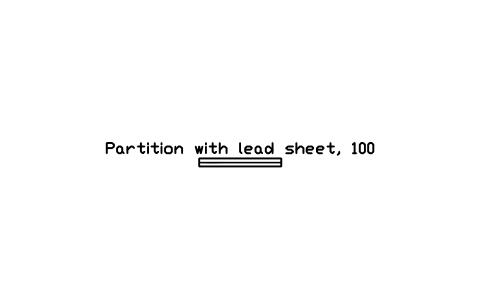
Partition with lead sheet, 100
RAD_WALL_LEAD_PARTITIONÖznitelikler
DESIGNATIONSIZESHIELD_MATERIALSHIELD_THICKNESS_MMLEAD_EQUIVALENT_MMDENSITY_KG_M3REMARKSDESC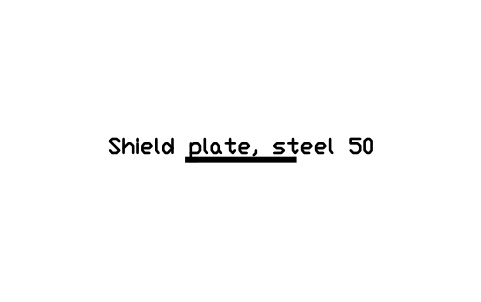
Shield plate, steel 50
RAD_WALL_STEEL_PLATEÖznitelikler
DESIGNATIONSIZESHIELD_MATERIALSHIELD_THICKNESS_MMLEAD_EQUIVALENT_MMDENSITY_KG_M3REMARKSDESC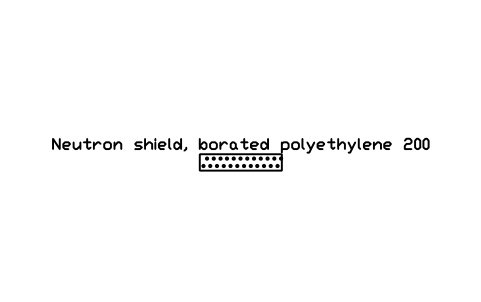
Neutron shield, borated polyethylene 200
RAD_WALL_POLYETHYLENEÖznitelikler
DESIGNATIONSIZESHIELD_MATERIALSHIELD_THICKNESS_MMLEAD_EQUIVALENT_MMDENSITY_KG_M3REMARKSDESC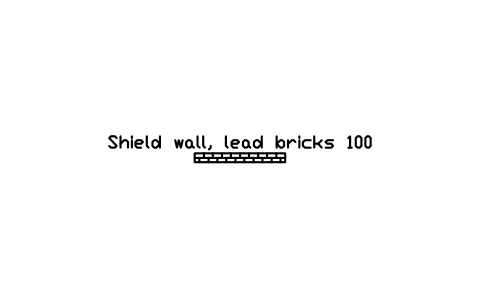
Shield wall, lead bricks 100
RAD_WALL_LEAD_BRICKÖznitelikler
DESIGNATIONSIZESHIELD_MATERIALSHIELD_THICKNESS_MMLEAD_EQUIVALENT_MMDENSITY_KG_M3REMARKSDESC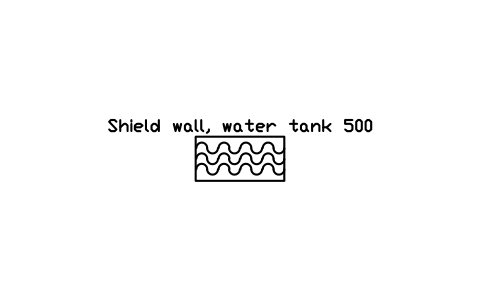
Shield wall, water tank 500
RAD_WALL_WATER_TANKÖznitelikler
DESIGNATIONSIZESHIELD_MATERIALSHIELD_THICKNESS_MMLEAD_EQUIVALENT_MMDENSITY_KG_M3REMARKSDESC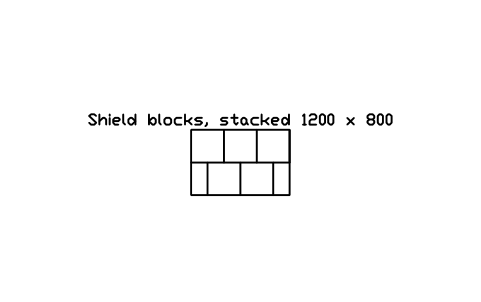
Shield blocks, stacked 1200 x 800
RAD_SHIELD_BLOCKSÖznitelikler
DESIGNATIONSIZESHIELD_MATERIALBLOCK_MMDENSITY_KG_M3REMARKSDESC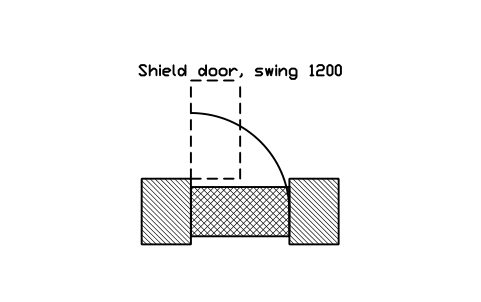
Shield door, swing 1200
RAD_DOOR_SHIELD_SWINGÖznitelikler
DESIGNATIONSIZESHIELD_MATERIALSHIELD_THICKNESS_MMLEAF_WEIGHT_KGREMARKSDESC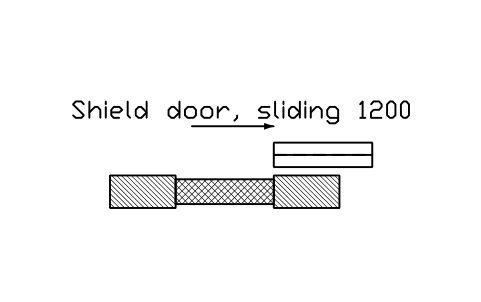
Shield door, sliding 1200
RAD_DOOR_SHIELD_SLIDINGÖznitelikler
DESIGNATIONSIZESHIELD_MATERIALSHIELD_THICKNESS_MMLEAF_WEIGHT_KGREMARKSDESC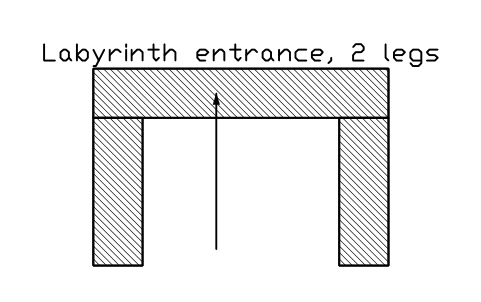
Labyrinth entrance, 2 legs
RAD_LABYRINTHÖznitelikler
DESIGNATIONSIZESHIELD_THICKNESS_MMDOSE_RATE_USV_HREMARKSDESC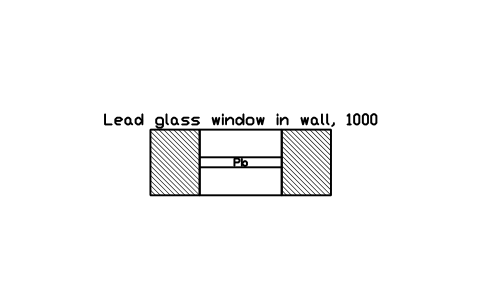
Lead glass window in wall, 1000
RAD_WINDOW_LEAD_GLASSÖznitelikler
DESIGNATIONSIZELEAD_EQUIVALENT_MMGLASS_THICKNESS_MMSIZE_MMREMARKSDESC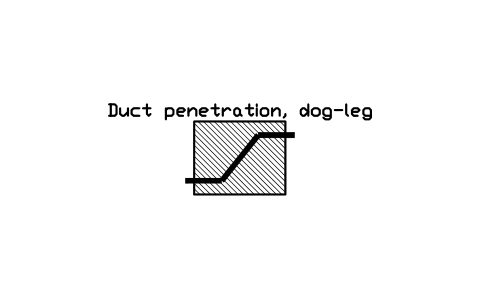
Duct penetration, dog-leg
RAD_PENETRATION_DOGLEGÖznitelikler
DESIGNATIONSIZEDUCT_SIZE_MMSHIELD_THICKNESS_MMREMARKSDESC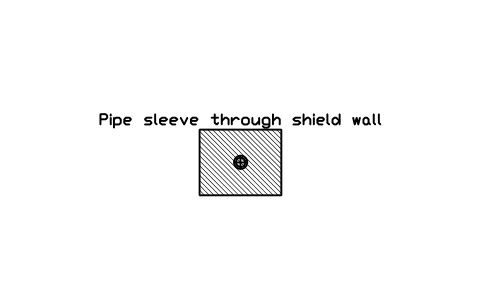
Pipe sleeve through shield wall
RAD_PENETRATION_SLEEVEÖznitelikler
DESIGNATIONSIZESLEEVE_DIAMETER_MMSHIELD_THICKNESS_MMREMARKSDESC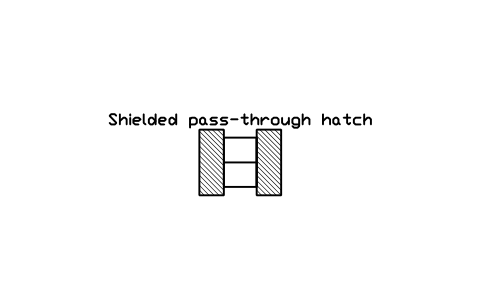
Shielded pass-through hatch
RAD_HATCH_SHIELDEDÖznitelikler
DESIGNATIONSIZELEAD_EQUIVALENT_MMINTERLOCKREMARKSDESC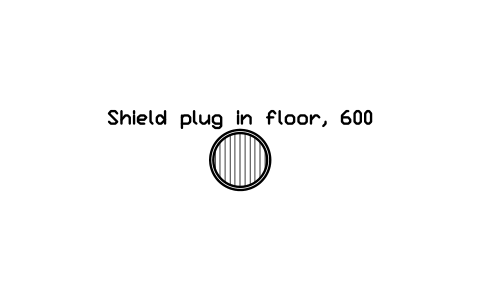
Shield plug in floor, 600
RAD_FLOOR_PLUGÖznitelikler
DESIGNATIONSIZESHIELD_MATERIALPLUG_WEIGHT_KGREMARKSDESC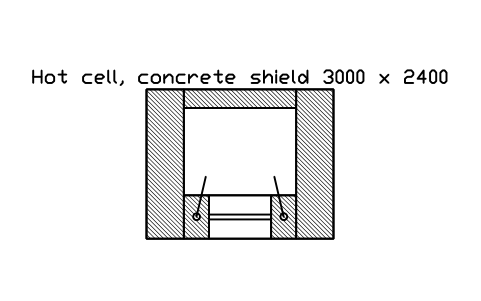
Hot cell, concrete shield 3000 x 2400
RAD_HOT_CELL_CONCRETEÖznitelikler
DESIGNATIONSIZESHIELD_MATERIALSHIELD_THICKNESS_MMLEAD_EQUIVALENT_MMWINDOWMANIPULATORSRADIONUCLIDEACTIVITY_MBQMANUFACTURERMODELQTYREMARKSDESC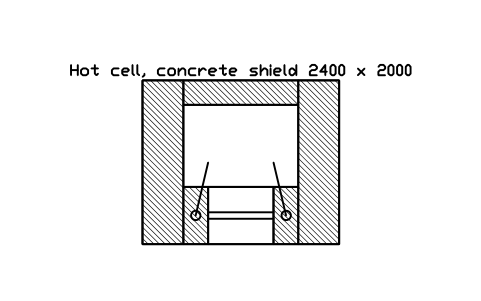
Hot cell, concrete shield 2400 x 2000
RAD_HOT_CELL_SMALLÖznitelikler
DESIGNATIONSIZESHIELD_MATERIALSHIELD_THICKNESS_MMLEAD_EQUIVALENT_MMWINDOWMANIPULATORSRADIONUCLIDEACTIVITY_MBQMANUFACTURERMODELQTYREMARKSDESC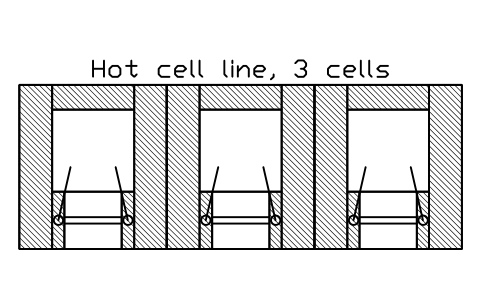
Hot cell line, 3 cells
RAD_HOT_CELL_LINEÖznitelikler
DESIGNATIONSIZESHIELD_MATERIALSHIELD_THICKNESS_MMLEAD_EQUIVALENT_MMWINDOWMANIPULATORSRADIONUCLIDEACTIVITY_MBQMANUFACTURERMODELQTYREMARKSDESC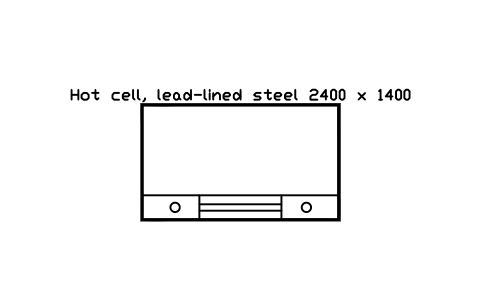
Hot cell, lead-lined steel 2400 x 1400
RAD_HOT_CELL_STEELÖznitelikler
DESIGNATIONSIZEWALL_STEEL_MMLEAD_EQUIVALENT_MMWINDOWRADIONUCLIDEACTIVITY_MBQMANUFACTURERMODELQTYREMARKSDESC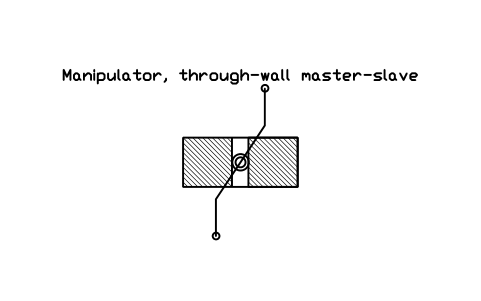
Manipulator, through-wall master-slave
RAD_MANIPULATOR_MSMÖznitelikler
DESIGNATIONSIZEREACH_MMLOAD_KGMANUFACTURERMODELQTYREMARKSDESC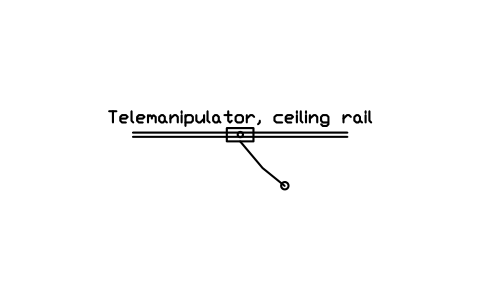
Telemanipulator, ceiling rail
RAD_MANIPULATOR_CEILINGÖznitelikler
DESIGNATIONSIZEREACH_MMLOAD_KGMANUFACTURERMODELQTYREMARKSDESC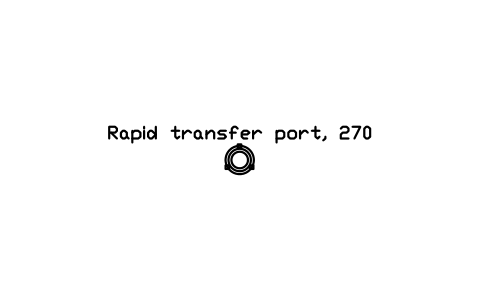
Rapid transfer port, 270
RAD_TRANSFER_PORTÖznitelikler
DESIGNATIONSIZEDIAMETER_MMALPHA_BETAMANUFACTURERMODELQTYREMARKSDESC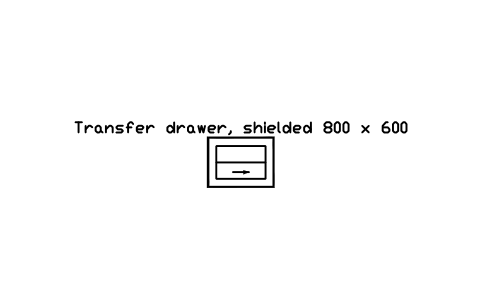
Transfer drawer, shielded 800 x 600
RAD_TRANSFER_DRAWERÖznitelikler
DESIGNATIONSIZELEAD_EQUIVALENT_MMLOAD_KGMANUFACTURERMODELQTYREMARKSDESC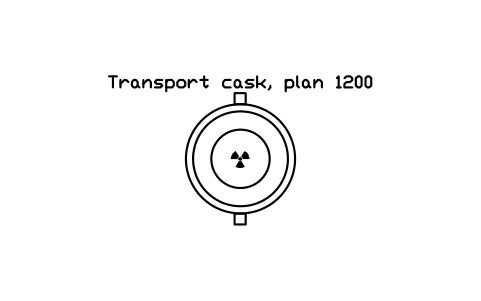
Transport cask, plan 1200
RAD_TRANSPORT_CASKÖznitelikler
DESIGNATIONSIZESHIELD_MATERIALCASK_MASS_KGRADIONUCLIDEACTIVITY_MBQMANUFACTURERMODELQTYREMARKSDESC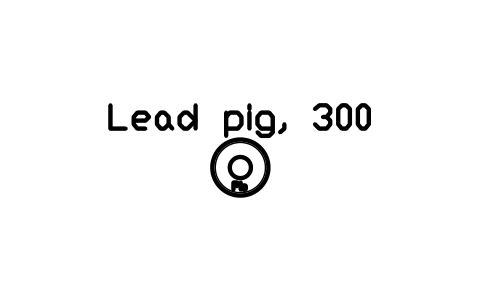
Lead pig, 300
RAD_LEAD_PIGÖznitelikler
DESIGNATIONSIZELEAD_EQUIVALENT_MMRADIONUCLIDEACTIVITY_MBQMANUFACTURERMODELQTYREMARKSDESC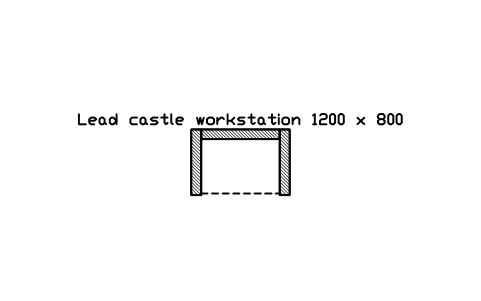
Lead castle workstation 1200 x 800
RAD_LEAD_CASTLEÖznitelikler
DESIGNATIONSIZELEAD_EQUIVALENT_MMOPENINGMANUFACTURERMODELQTYREMARKSDESC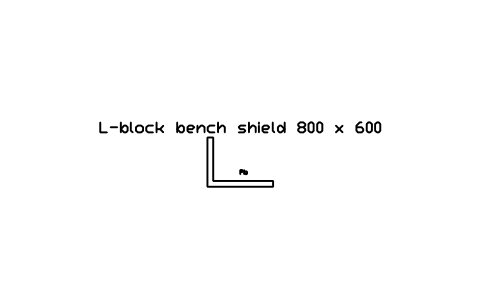
L-block bench shield 800 x 600
RAD_L_BLOCKÖznitelikler
DESIGNATIONSIZELEAD_EQUIVALENT_MMGLASSMANUFACTURERMODELQTYREMARKSDESC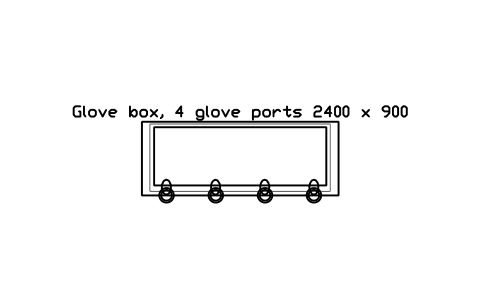
Glove box, 4 glove ports 2400 x 900
RAD_GLOVEBOX_4Öznitelikler
DESIGNATIONSIZEPRESSURE_PAATMOSPHEREGLOVE_PORTSMANUFACTURERMODELQTYREMARKSDESC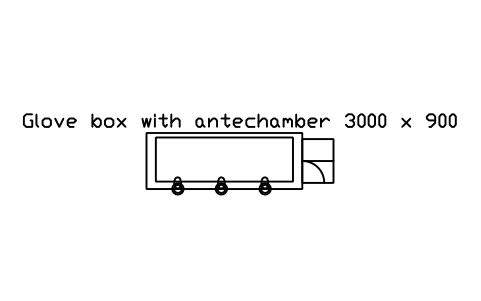
Glove box with antechamber 3000 x 900
RAD_GLOVEBOX_AIRLOCKÖznitelikler
DESIGNATIONSIZEPRESSURE_PAATMOSPHEREANTECHAMBERMANUFACTURERMODELQTYREMARKSDESC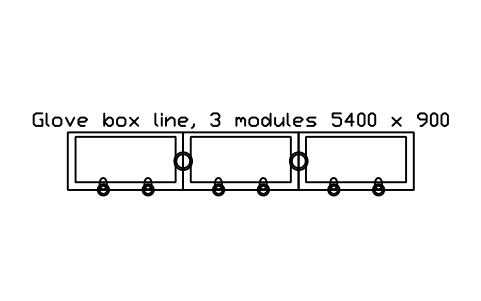
Glove box line, 3 modules 5400 x 900
RAD_GLOVEBOX_LINEÖznitelikler
DESIGNATIONSIZEPRESSURE_PAATMOSPHEREMODULESMANUFACTURERMODELQTYREMARKSDESC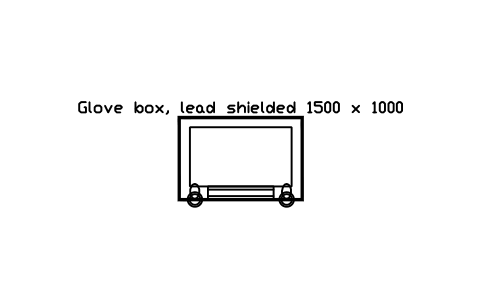
Glove box, lead shielded 1500 x 1000
RAD_GLOVEBOX_SHIELDEDÖznitelikler
DESIGNATIONSIZELEAD_EQUIVALENT_MMPRESSURE_PAATMOSPHEREMANUFACTURERMODELQTYREMARKSDESC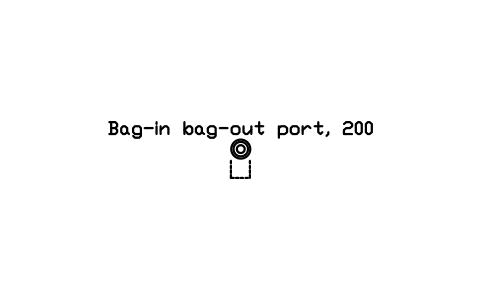
Bag-in bag-out port, 200
RAD_BAG_PORTÖznitelikler
DESIGNATIONSIZEDIAMETER_MMBAG_TYPEMANUFACTURERMODELQTYREMARKSDESC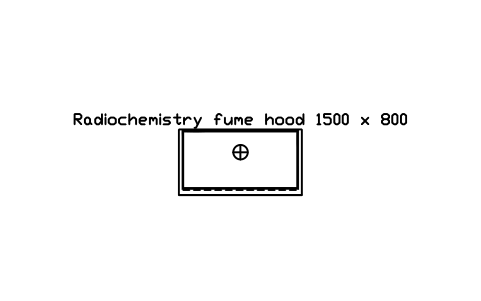
Radiochemistry fume hood 1500 x 800
RAD_FUME_HOOD_PBÖznitelikler
DESIGNATIONSIZELEAD_EQUIVALENT_MMFACE_VELOCITY_MSEXHAUST_M3HFILTERMANUFACTURERMODELQTYREMARKSDESC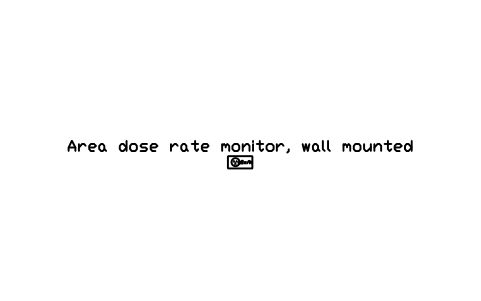
Area dose rate monitor, wall mounted
RAD_MONITOR_AREA_GAMMAÖznitelikler
DESIGNATIONSIZEDETECTORALARM_USV_HSUPPLYMANUFACTURERMODELQTYREMARKSDESC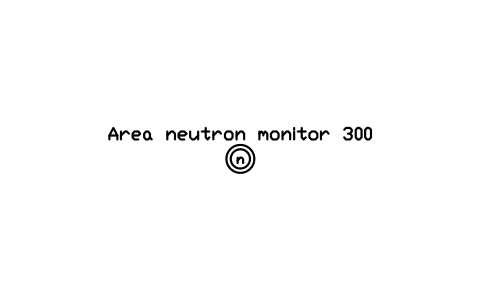
Area neutron monitor 300
RAD_MONITOR_AREA_NEUTRONÖznitelikler
DESIGNATIONSIZEDETECTORALARM_USV_HSUPPLYMANUFACTURERMODELQTYREMARKSDESC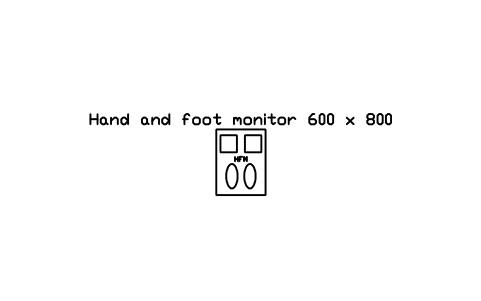
Hand and foot monitor 600 x 800
RAD_MONITOR_HAND_FOOTÖznitelikler
DESIGNATIONSIZEDETECTORSALARM_LEVELSUPPLYMANUFACTURERMODELQTYREMARKSDESC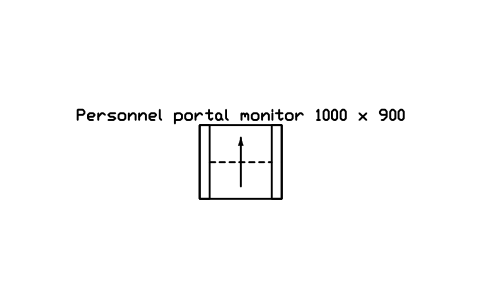
Personnel portal monitor 1000 x 900
RAD_MONITOR_PORTALÖznitelikler
DESIGNATIONSIZEDETECTORSALARM_LEVELSUPPLYMANUFACTURERMODELQTYREMARKSDESC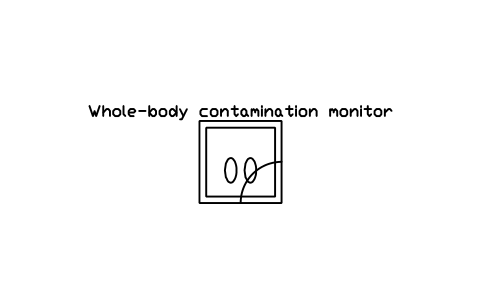
Whole-body contamination monitor
RAD_MONITOR_WHOLE_BODYÖznitelikler
DESIGNATIONSIZEDETECTORSALARM_LEVELSUPPLYMANUFACTURERMODELQTYREMARKSDESC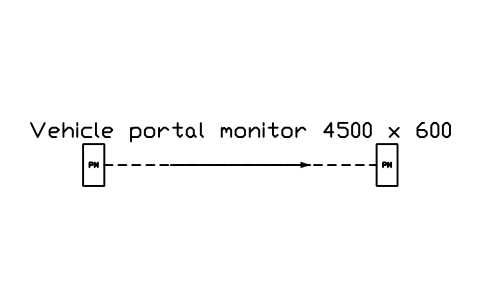
Vehicle portal monitor 4500 x 600
RAD_MONITOR_VEHICLEÖznitelikler
DESIGNATIONSIZEDETECTORSALARM_LEVELSUPPLYMANUFACTURERMODELQTYREMARKSDESC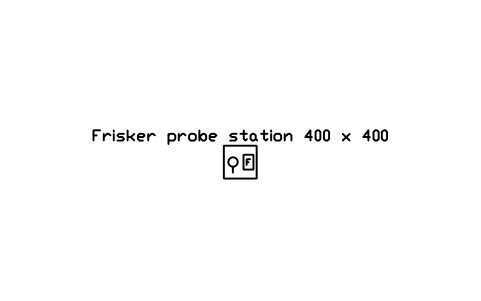
Frisker probe station 400 x 400
RAD_FRISKER_STATIONÖznitelikler
DESIGNATIONSIZEPROBESUPPLYMANUFACTURERMODELQTYREMARKSDESC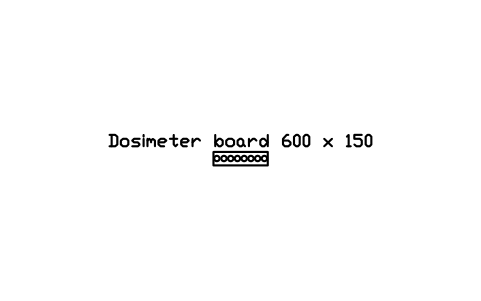
Dosimeter board 600 x 150
RAD_DOSIMETER_BOARDÖznitelikler
DESIGNATIONSIZEPOCKETSMANUFACTURERMODELQTYREMARKSDESC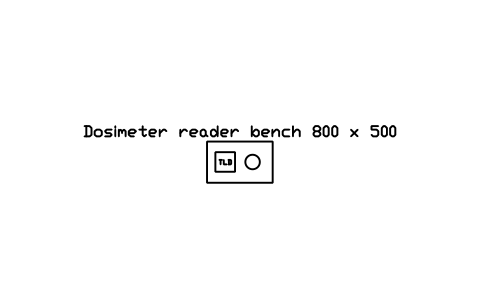
Dosimeter reader bench 800 x 500
RAD_DOSIMETER_READERÖznitelikler
DESIGNATIONSIZEREADERSUPPLYMANUFACTURERMODELQTYREMARKSDESC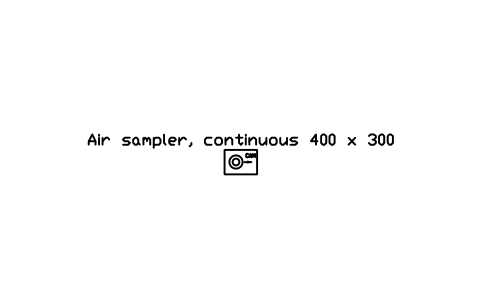
Air sampler, continuous 400 x 300
RAD_AIR_SAMPLERÖznitelikler
DESIGNATIONSIZEFLOW_M3HFILTERALARMMANUFACTURERMODELQTYREMARKSDESC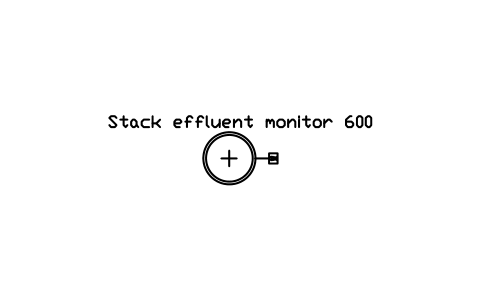
Stack effluent monitor 600
RAD_STACK_MONITORÖznitelikler
DESIGNATIONSIZENUCLIDESFLOW_M3HALARMMANUFACTURERMODELQTYREMARKSDESC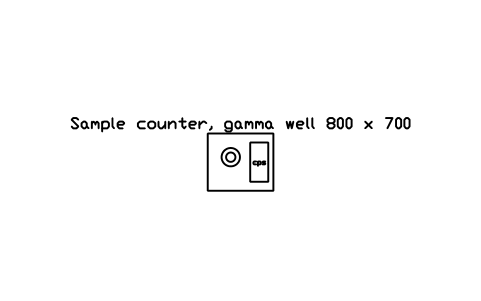
Sample counter, gamma well 800 x 700
RAD_GAMMA_COUNTERÖznitelikler
DESIGNATIONSIZEDETECTORSAMPLESSUPPLYMANUFACTURERMODELQTYREMARKSDESC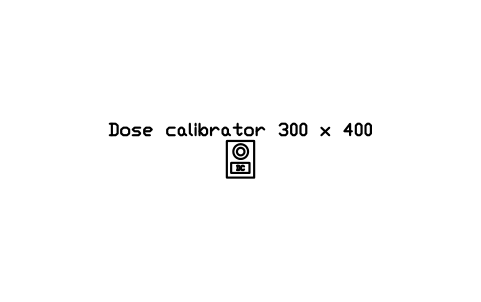
Dose calibrator 300 x 400
RAD_DOSE_CALIBRATORÖznitelikler
DESIGNATIONSIZECHAMBERRADIONUCLIDESUPPLYMANUFACTURERMODELQTYREMARKSDESC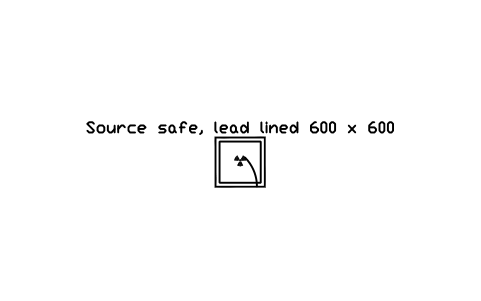
Source safe, lead lined 600 x 600
RAD_SOURCE_SAFEÖznitelikler
DESIGNATIONSIZELEAD_EQUIVALENT_MMRADIONUCLIDEACTIVITY_MBQINVENTORYMANUFACTURERMODELQTYREMARKSDESC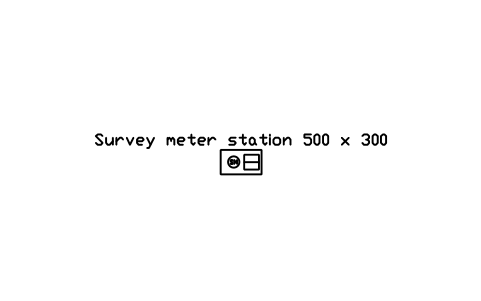
Survey meter station 500 x 300
RAD_SURVEY_STATIONÖznitelikler
DESIGNATIONSIZEINSTRUMENTCALIBRATION_DATEMANUFACTURERMODELQTYREMARKSDESC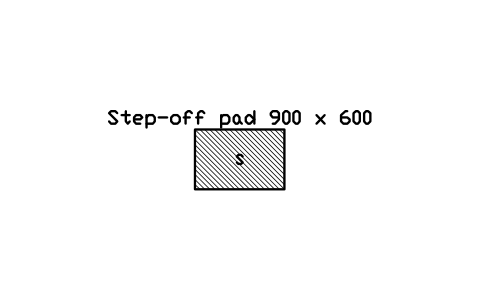
Step-off pad 900 x 600
RAD_STEP_OFF_PADÖznitelikler
DESIGNATIONSIZETYPEMANUFACTURERMODELQTYREMARKSDESC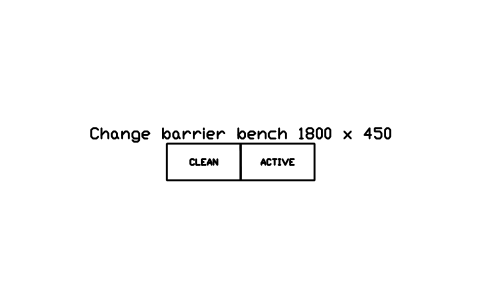
Change barrier bench 1800 x 450
RAD_CHANGE_BARRIERÖznitelikler
DESIGNATIONSIZETYPEMANUFACTURERMODELQTYREMARKSDESC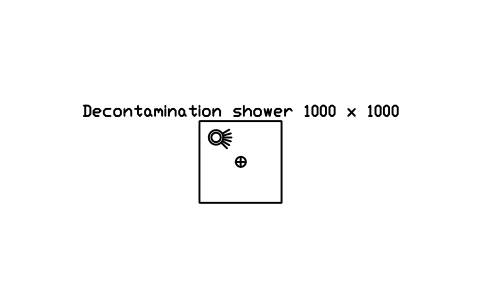
Decontamination shower 1000 x 1000
RAD_DECON_SHOWERÖznitelikler
DESIGNATIONSIZEDRAIN_TOTYPEMANUFACTURERMODELQTYREMARKSDESC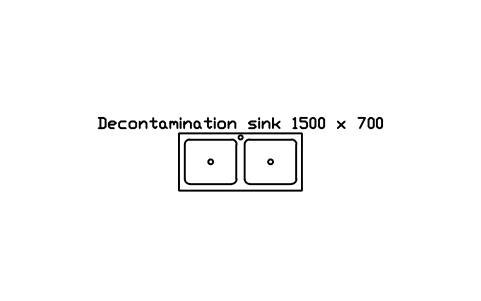
Decontamination sink 1500 x 700
RAD_DECON_SINKÖznitelikler
DESIGNATIONSIZEDRAIN_TOTYPEMANUFACTURERMODELQTYREMARKSDESC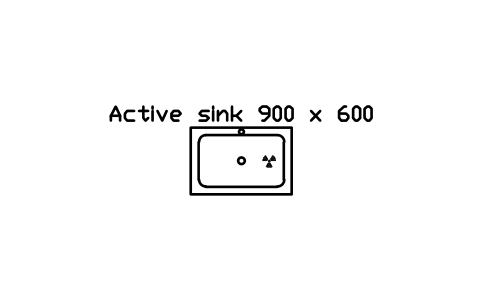
Active sink 900 x 600
RAD_SINK_ACTIVEÖznitelikler
DESIGNATIONSIZEDRAIN_TOTYPEMANUFACTURERMODELQTYREMARKSDESC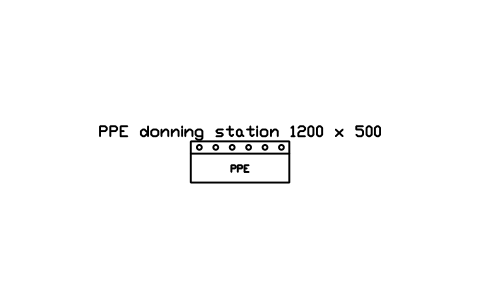
PPE donning station 1200 x 500
RAD_PPE_STATIONÖznitelikler
DESIGNATIONSIZEITEMSMANUFACTURERMODELQTYREMARKSDESC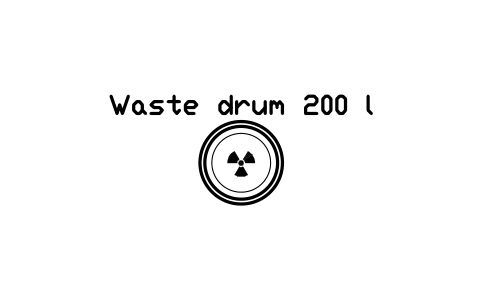
Waste drum 200 l
RAD_WASTE_DRUMÖznitelikler
DESIGNATIONSIZEWASTE_CLASSRADIONUCLIDEDOSE_RATE_SURFACEMANUFACTURERMODELQTYREMARKSDESC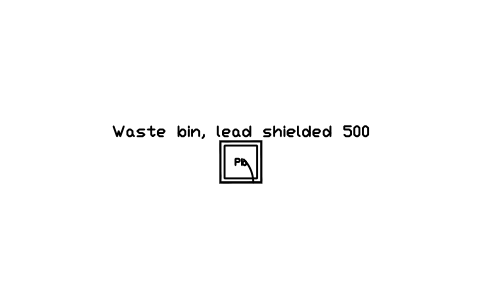
Waste bin, lead shielded 500
RAD_WASTE_BIN_SHIELDEDÖznitelikler
DESIGNATIONSIZELEAD_EQUIVALENT_MMWASTE_CLASSRADIONUCLIDEMANUFACTURERMODELQTYREMARKSDESC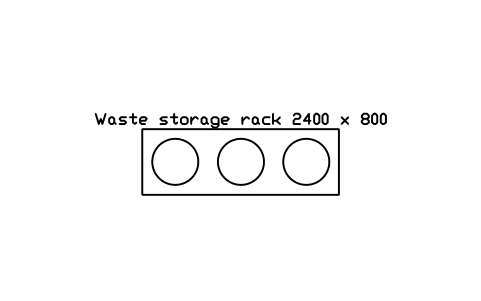
Waste storage rack 2400 x 800
RAD_WASTE_RACKÖznitelikler
DESIGNATIONSIZESHELVESCAPACITYMANUFACTURERMODELQTYREMARKSDESC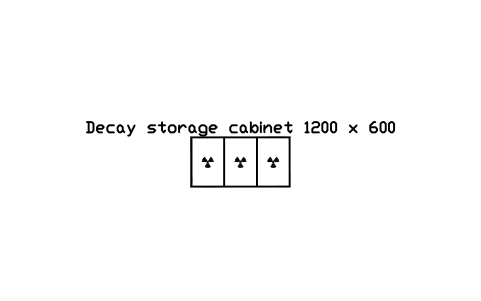
Decay storage cabinet 1200 x 600
RAD_DECAY_STOREÖznitelikler
DESIGNATIONSIZELEAD_EQUIVALENT_MMCOMPARTMENTSMANUFACTURERMODELQTYREMARKSDESC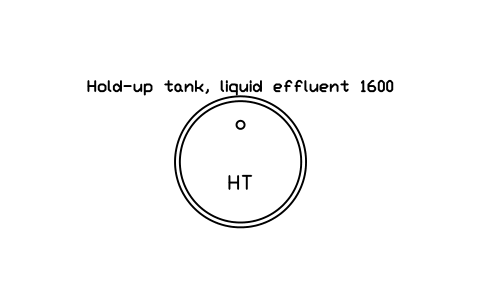
Hold-up tank, liquid effluent 1600
RAD_HOLDUP_TANKÖznitelikler
DESIGNATIONSIZEVOLUME_M3NUMBERMANUFACTURERMODELQTYREMARKSDESC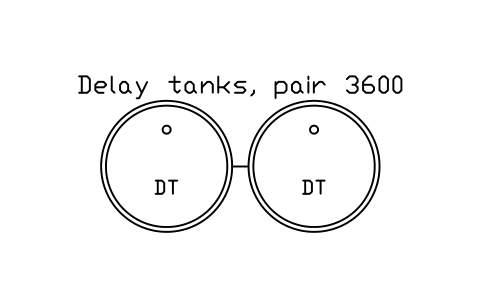
Delay tanks, pair 3600
RAD_DELAY_TANKSÖznitelikler
DESIGNATIONSIZEVOLUME_M3NUMBERMANUFACTURERMODELQTYREMARKSDESC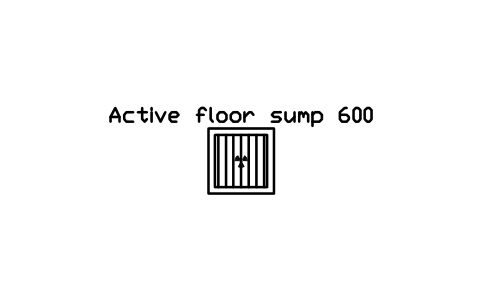
Active floor sump 600
RAD_SUMP_ACTIVEÖznitelikler
DESIGNATIONSIZEPUMPLEVEL_ALARMMANUFACTURERMODELQTYREMARKSDESC
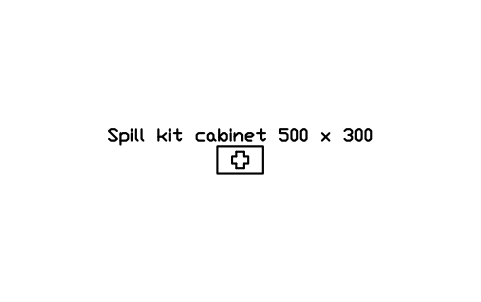
Spill kit cabinet 500 x 300
RAD_SPILL_KITÖznitelikler
DESIGNATIONSIZECONTENTSMANUFACTURERMODELQTYREMARKSDESC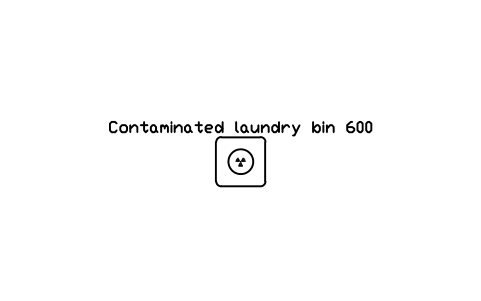
Contaminated laundry bin 600
RAD_LAUNDRY_BINÖznitelikler
DESIGNATIONSIZECAPACITY_LMANUFACTURERMODELQTYREMARKSDESC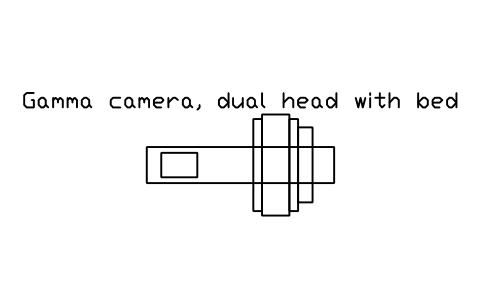
Gamma camera, dual head with bed
RAD_GAMMA_CAMERAÖznitelikler
DESIGNATIONSIZEHEADSCOLLIMATORSTABLE_LOAD_KGMANUFACTURERMODELQTYREMARKSDESC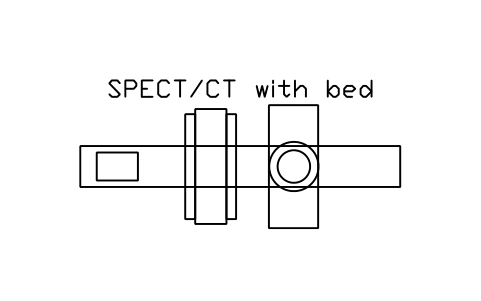
SPECT/CT with bed
RAD_SPECT_CTÖznitelikler
DESIGNATIONSIZEHEADSCT_SLICESTABLE_LOAD_KGMANUFACTURERMODELQTYREMARKSDESC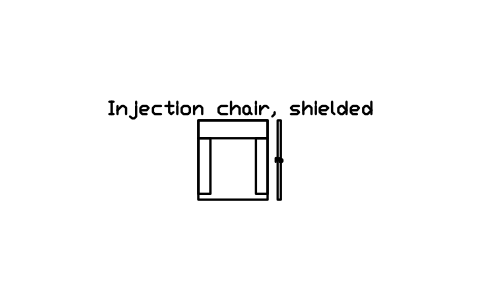
Injection chair, shielded
RAD_INJECTION_CHAIRÖznitelikler
DESIGNATIONSIZELEAD_EQUIVALENT_MMRADIONUCLIDEMANUFACTURERMODELQTYREMARKSDESC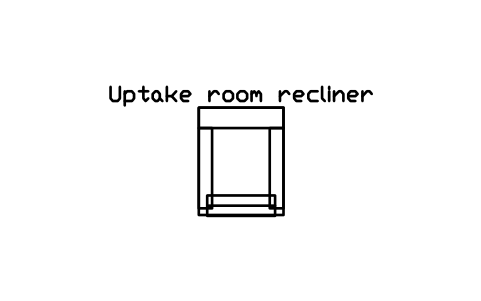
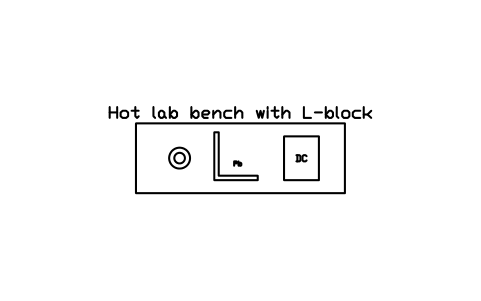
Hot lab bench with L-block
RAD_HOT_LAB_BENCHÖznitelikler
DESIGNATIONSIZEDOSE_CALIBRATORLEAD_EQUIVALENT_MMBENCH_TOPMANUFACTURERMODELQTYREMARKSDESC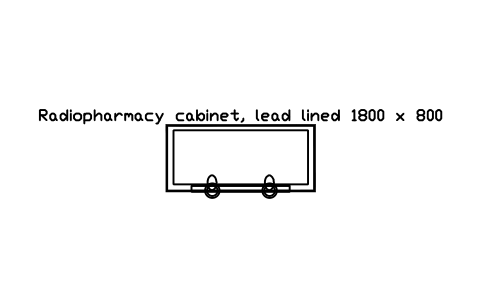
Radiopharmacy cabinet, lead lined 1800 x 800
RAD_RADIOPHARMACY_CABINETÖznitelikler
DESIGNATIONSIZELEAD_EQUIVALENT_MMAIR_CLASSFILTERMANUFACTURERMODELQTYREMARKSDESC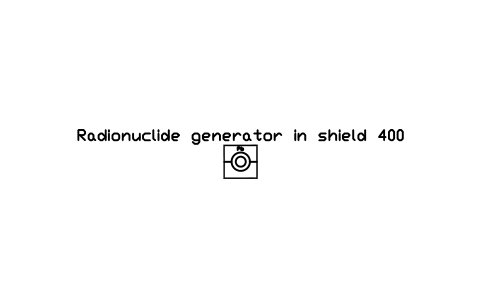
Radionuclide generator in shield 400
RAD_GENERATOR_SHIELDÖznitelikler
DESIGNATIONSIZEPARENTACTIVITY_MBQELUTIONMANUFACTURERMODELQTYREMARKSDESC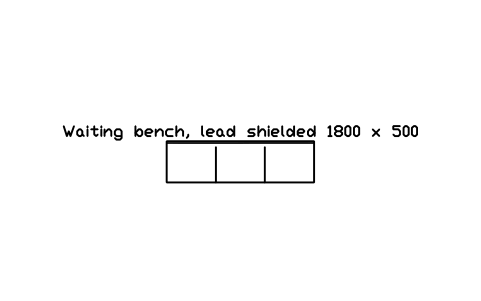
Waiting bench, lead shielded 1800 x 500
RAD_PATIENT_BENCHÖznitelikler
DESIGNATIONSIZELEAD_EQUIVALENT_MMSEATSMANUFACTURERMODELQTYREMARKSDESC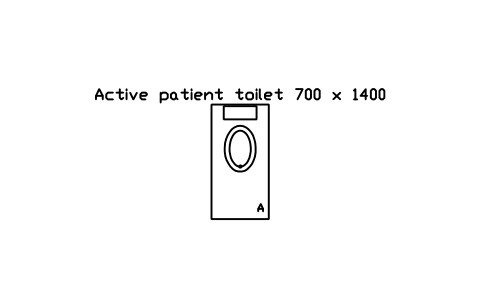
Active patient toilet 700 x 1400
RAD_WC_ACTIVEÖznitelikler
DESIGNATIONSIZEDRAIN_TOFLUSHMANUFACTURERMODELQTYREMARKSDESC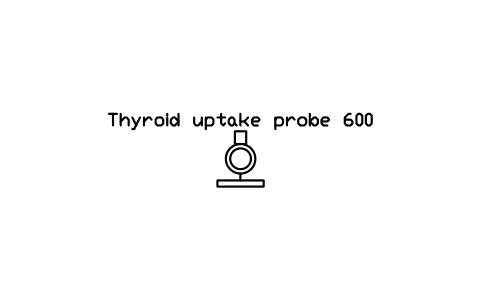
Thyroid uptake probe 600
RAD_THYROID_PROBEÖznitelikler
DESIGNATIONSIZEPROBECOLLIMATORMANUFACTURERMODELQTYREMARKSDESC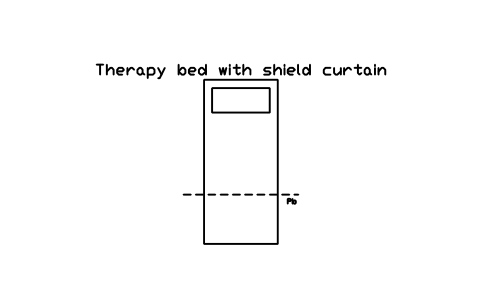
Therapy bed with shield curtain
RAD_THERAPY_BEDÖznitelikler
DESIGNATIONSIZELEAD_EQUIVALENT_MMRADIONUCLIDEMANUFACTURERMODELQTYREMARKSDESC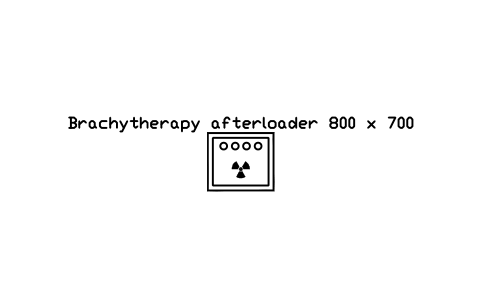
Brachytherapy afterloader 800 x 700
RAD_AFTERLOADERÖznitelikler
DESIGNATIONSIZECHANNELSRADIONUCLIDEACTIVITY_MBQMANUFACTURERMODELQTYREMARKSDESC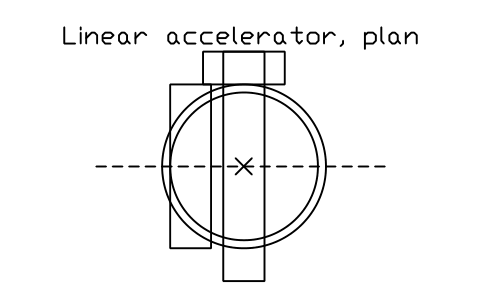
Linear accelerator, plan
RAD_LINACÖznitelikler
DESIGNATIONSIZEENERGY_MVISOCENTRE_HEIGHT_MMWORKLOADMANUFACTURERMODELQTYREMARKSDESC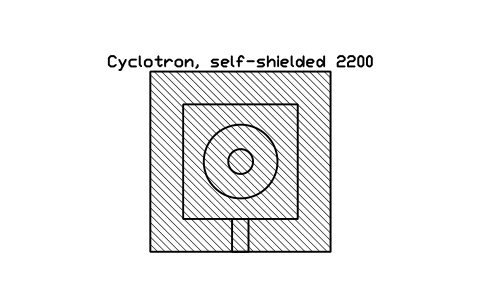
Cyclotron, self-shielded 2200
RAD_CYCLOTRONÖznitelikler
DESIGNATIONSIZEPARTICLE_ENERGY_MEVISOTOPESSHIELD_MATERIALMANUFACTURERMODELQTYREMARKSDESC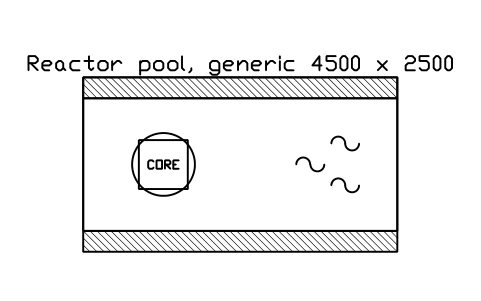
Reactor pool, generic 4500 x 2500
RAD_REACTOR_POOLÖznitelikler
DESIGNATIONSIZEPOWER_KWPOOL_DEPTH_MMSHIELD_THICKNESS_MMMANUFACTURERMODELQTYREMARKSDESC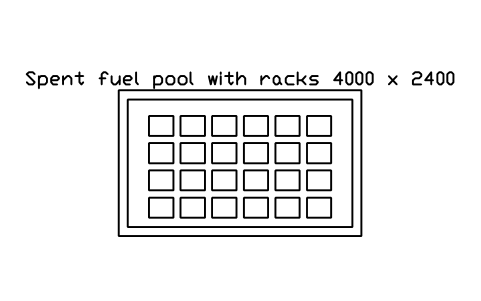
Spent fuel pool with racks 4000 x 2400
RAD_FUEL_POOLÖznitelikler
DESIGNATIONSIZERACK_POSITIONSWATER_DEPTH_MMMANUFACTURERMODELQTYREMARKSDESC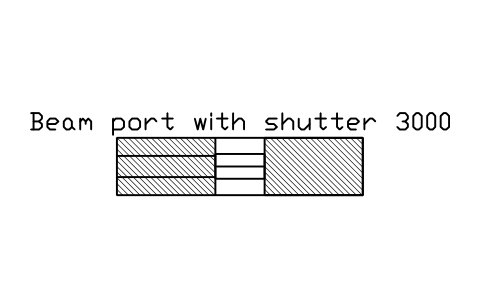
Beam port with shutter 3000
RAD_BEAM_PORTÖznitelikler
DESIGNATIONSIZEPORT_DIAMETER_MMSHUTTERMANUFACTURERMODELQTYREMARKSDESC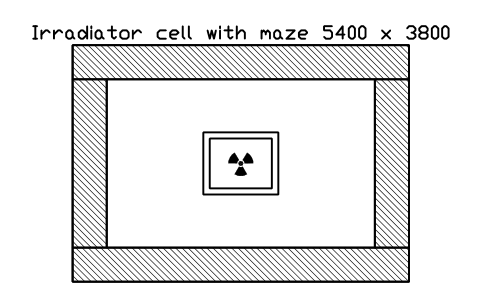
Irradiator cell with maze 5400 x 3800
RAD_IRRADIATOR_CELLÖznitelikler
DESIGNATIONSIZESOURCEACTIVITY_MBQSHIELD_THICKNESS_MMMANUFACTURERMODELQTYREMARKSDESC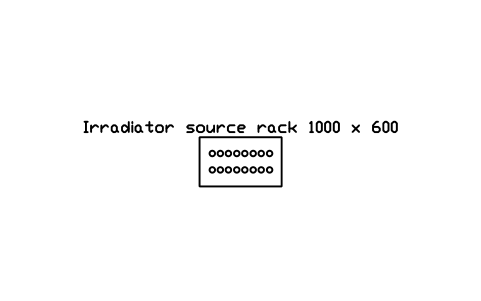
Irradiator source rack 1000 x 600
RAD_SOURCE_RACKÖznitelikler
DESIGNATIONSIZECAPSULESRADIONUCLIDEACTIVITY_MBQMANUFACTURERMODELQTYREMARKSDESC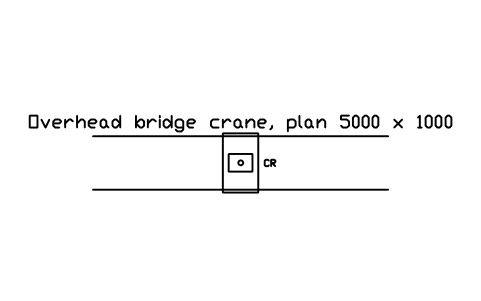
Overhead bridge crane, plan 5000 x 1000
RAD_BRIDGE_CRANEÖznitelikler
DESIGNATIONSIZECAPACITY_TSPAN_MMMANUFACTURERMODELQTYREMARKSDESC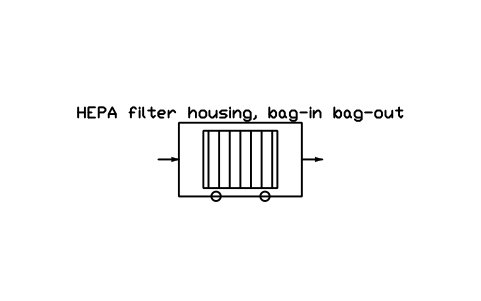
HEPA filter housing, bag-in bag-out
RAD_HEPA_HOUSINGÖznitelikler
DESIGNATIONSIZEFILTER_CLASSFLOW_M3HSTAGESMANUFACTURERMODELQTYREMARKSDESC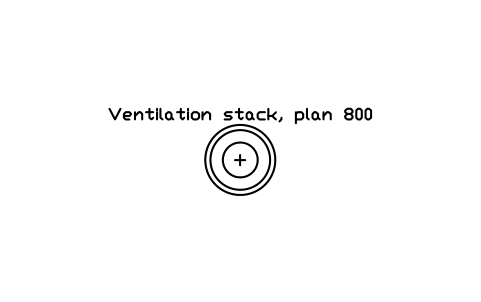
Ventilation stack, plan 800
RAD_STACKÖznitelikler
DESIGNATIONSIZEHEIGHT_MMONITORMANUFACTURERMODELQTYREMARKSDESC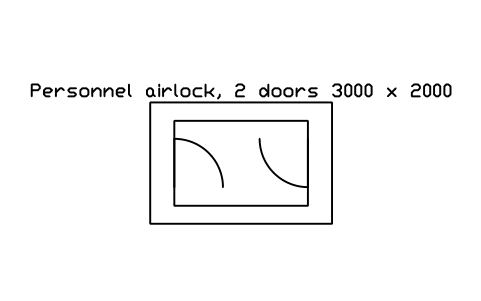
Personnel airlock, 2 doors 3000 x 2000
RAD_PERSONNEL_AIRLOCKÖznitelikler
DESIGNATIONSIZEINTERLOCKPRESSURE_PAMANUFACTURERMODELQTYREMARKSDESC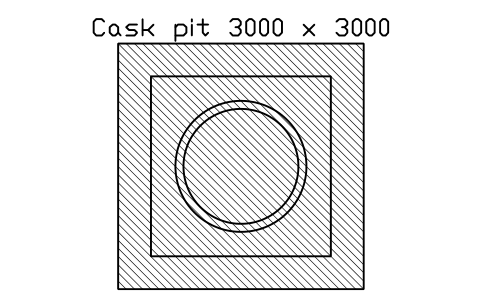
Cask pit 3000 x 3000
RAD_CASK_PITÖznitelikler
DESIGNATIONSIZEPIT_DEPTH_MMSHIELD_THICKNESS_MMMANUFACTURERMODELQTYREMARKSDESC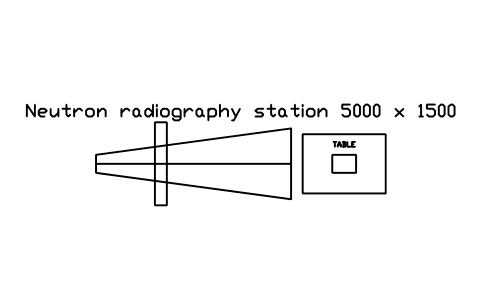
Neutron radiography station 5000 x 1500
RAD_NEUTRON_STATIONÖznitelikler
DESIGNATIONSIZENEUTRON_FLUXCOLLIMATIONMANUFACTURERMODELQTYREMARKSDESC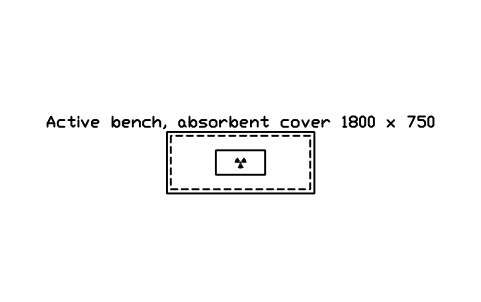
Active bench, absorbent cover 1800 x 750
RAD_ACTIVE_BENCHÖznitelikler
DESIGNATIONSIZESURFACERADIONUCLIDEMANUFACTURERMODELQTYREMARKSDESC
Bir sembol mü eksik? Hangisi olduğunu bize yazın.
Attributes for parts lists
Every block has a visible DESIGNATION. The data for a schedule are invisible attributes: SIZE and REMARKS on all blocks; SHIELD_MATERIAL, SHIELD_THICKNESS_MM, LEAD_EQUIVALENT_MM and DENSITY_KG_M3 on shielding; AREA_CLASS and DOSE_RATE_USV_H on area marks and signs; RADIONUCLIDE and ACTIVITY_MBQ on sources, hot cells and waste; MANUFACTURER, MODEL and QTY on equipment. Markers such as the zone mark, survey point and assembly point show their own label (ZONE, POINT) instead.
Thicknesses, dose rates and nuclides are left for you to fill in, because they come from the radiation protection assessment of your project. Export the blocks of all drawings to Excel with BlockSync to build a shielding and equipment schedule, check it and write the changes back to the drawings.
How to use the library
- Unzip the file and open the DWG. Copy the symbols you need into your plan, or drag the blocks in from DesignCenter (ADCENTER).
- Insert the blocks at scale 1 in model space; they are drawn at real size in millimetres, and the catalog shows them at 1:100. Shielding walls are 1000 long segments on their centre line (insert at the wall end and rotate; stack or array them for longer walls, or draw a polyline and use the segment as a section sample). Equipment has its origin in the centre with the operator side at the bottom (negative Y). Sizes are typical footprints, not a product: change them to the unit you specify.
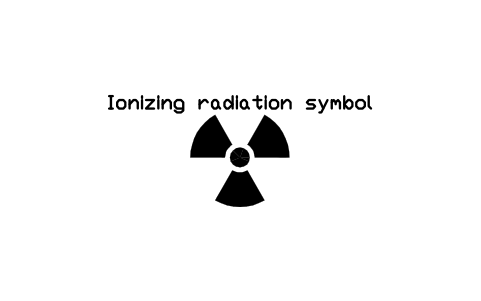
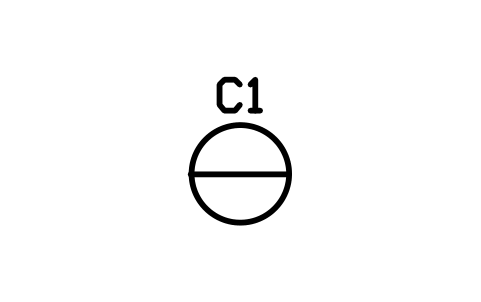
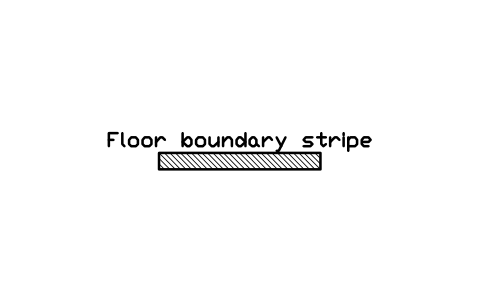
- The trefoil follows the proportions of the basic ionizing radiation symbol: a disc, three blades from 1.5 to 5 times the disc radius, each 60 degrees wide. Sign plates carry the common English wording; copy the plate and change the text for your language or national wording. Area boundaries, step-off lines and floor stripes are samples that you stretch or copy along your plan. Doors show the swing or the sliding pocket as a dashed leaf.
- The research reactor and irradiation items (pool, spent fuel pool, beam port, irradiator cell, source rack, crane, HEPA housing, stack, airlock, cask pit, neutron station) are generic footprints for a layout study. They do not show reactor internals or a specific plant, and they are not a design. Use the electrical, instrumentation and P&ID libraries of this site for the systems drawings.
About standards and requirements
Only the trefoil has a standard behind it: its shape and proportions follow ISO 361, the basic ionizing radiation symbol. For the rest, no standard defines layout symbols for radiation protection, so the library follows common practice in laboratories, nuclear medicine, radiotherapy and research facilities. Area classes, dose limits, shielding thickness and signage are set by national regulation and by the qualified radiation protection expert of your project, and they differ from country to country.
These symbols are our own drawings after common practice, and the library is not certified against any standard or regulation. They show layout and construction, not a shielding calculation or a safety assessment; the shield thicknesses in the block names are placeholders to be replaced by your design values.
What changed in each version
Version 1.0 · 28 Ekim 2026
New symbols (119)
Ionizing radiation symbol · Sign, radiation area · Sign, high radiation area · Sign, controlled area · Sign, supervised area · Sign, radioactive material · Sign, radioactive waste · Sign, contamination area · Sign, airborne radioactivity · Radiation warning light · Door interlock switch · Emergency stop, radiation room · Search and secure button · Exposure indicator panel · Controlled area boundary · Supervised area boundary · Area zone mark · Access control point · Chain barrier on stanchions · Floor boundary stripe · Emergency assembly point · Step-off line, clean and active side · Dose rate survey point · Smear sample location · Shield wall, concrete 300 · Shield wall, concrete 500 · Shield wall, concrete 800 · Shield wall, concrete 1200 · Shield wall, barite concrete 800 · Shield wall, concrete with lead lining · Partition with lead sheet, 100 · Shield plate, steel 50 · Neutron shield, borated polyethylene 200 · Shield wall, lead bricks 100 · Shield wall, water tank 500 · Shield blocks, stacked 1200 x 800 · Shield door, swing 1200 · Shield door, sliding 1200 · Labyrinth entrance, 2 legs · Lead glass window in wall, 1000 · 79 more
Frequently asked questions
- Is this a nuclear power plant library?
- No. It covers radiation protection and layout for laboratories, nuclear medicine, radiotherapy, irradiation rooms and research facilities. There is no public standard for nuclear power plant drawing symbols, and the library does not invent one: for plant systems drawings use the P&ID, instrumentation and electrical libraries and the legend of the plant.
- Do the warning signs follow a standard?
- The trefoil follows the proportions of ISO 361. The wording and layout of the sign plates are common practice and differ between countries. If you need the standardized safety sign of ISO 7010, it is in the safety signs library of this site.
- Can I use the symbols in commercial projects?
- Yes. They are free to use and modify in your own projects, including commercial ones. They are provided as is, without warranty. Please do not redistribute or resell the library; see the library terms.
- How do I set the shield thickness?
- Choose the wall block closest to your design and fill in the invisible attributes: material, thickness, lead equivalent and density from the radiation protection assessment. The drawn thickness is in the block name; stretch the block or draw your own if you need another value.
- Can I change a symbol or add attributes?
- Yes. Open the DWG, edit a block with BEDIT to change it or add attributes, and save. To update drawings that already contain the block, run ATTSYNC or replace the block. Make a backup first: attribute values can be lost if ATTSYNC is used carelessly.
- Are the floor, wallpaper and material patterns hatches?
- No, they are blocks made of thin lines. Insert one, scale it to the area you want to show and copy it to cover more (ARRAY), or use it as a legend sample next to your finish schedule. For large areas the hatch patterns of your CAD program are the better choice.
- Should I download this library or one of the smaller topic libraries (furniture, doors and windows, bathroom and kitchen, stairs, walls and roofs)?
- This one has everything in a single file. If you need only one topic, the topic library holds the same blocks in a smaller file, and the furniture library adds front elevations of the furniture.
- Where do I find a ready-made set of these symbols for AutoCAD?
- AutoCAD itself ships only a small set of sample blocks, so a full symbol set has to come from a library. Download the ZIP on this page and open the DWG: every symbol is a block. Insert one with INSERT (Blocks palette, Libraries tab, then pick the DWG) or drag it from DesignCenter (ADCENTER). You can also download a single symbol on its own.
Count the symbols and build a parts list
Because ratings and part numbers are attributes, the symbols of a whole project can be counted and listed without opening the drawings. Export the blocks to Excel, total them with a pivot table and write corrections back in one run, with preview and backup.
See how to count blocks with BlockSync